Excel can handle more than just numbers and charts. The popular spreadsheet application also supports the inclusion of many types of graphics, including pop-up pictures. In this guide, Mr. Excel shows how to add a pop-up picture to any cell in a worksheet.
Need a Pop-Up Picture in Excel?
**
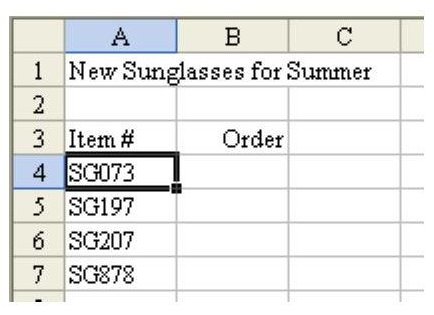
Problem: As shown in Fig. 1181, you have a product catalog in Excel. Your sales reps will show the list of items to the buyer in a retail store. It is a pain to go back and forth between Excel and the product catalog. Can you have pictures appear on demand in Excel?
Click any image in this article for a larger view.
Use the Comment Option to Add a Picture
Strategy: Add a pop-up picture to the cell. By hovering the mouse over an item #, the picture will appear. Follow these steps.
- Select cell A4. From the menu, select Insert – Comment. If you’re working in Excel 2007 or later versions, go to the Review tab and click on New Comment. The default comment will have your name as the default text, as shown in Fig. 1182.
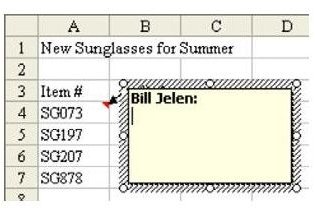
- Backspace to clear out the text in the comment.
- Using the mouse, click on the diagonal-lines border in order to change the border to a series of dots, as shown in Fig. 1183.
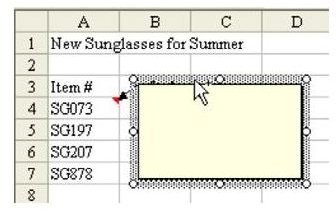
- Right-click the dotted border and select Format Comment, as shown in Fig. 1184.
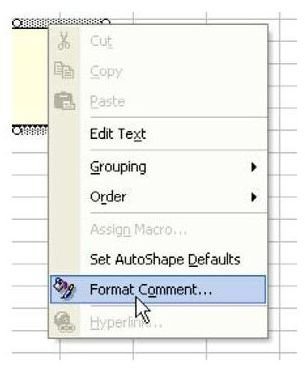
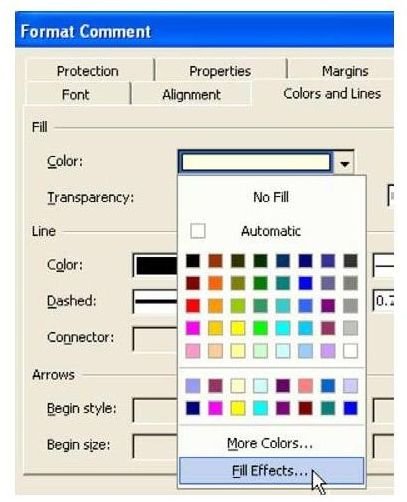
- There are eight tabs in the Format Comment dialog. Go to the Colors and Lines tab. In the Fill Color dropdown, choose Fill Effects…, as shown in Fig. 1185.
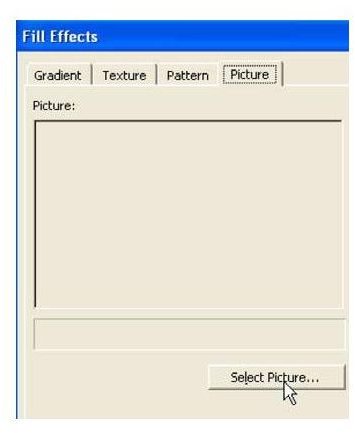
- There are four tabs in the Fill Effects dialog. Choose the Picture tab and then choose the Select Picture… button, as shown in Fig. 1186.
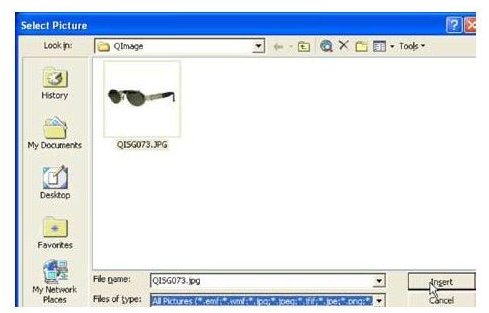
- Browse to the location where you have product pictures stored. Select a digital image of the item. Choose Insert, as shown in Fig. 1187.
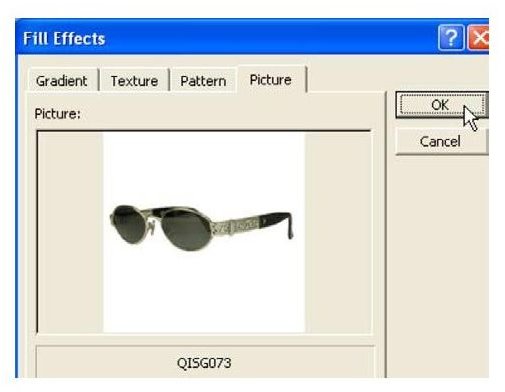
- On the Fill Effects tab, select OK, as shown in Fig. 1188. As you return to the Format Comment dialog, a squished version of the image will appear in the Color dropdown. Don’t worry – the actual comment will look better.
-
Choose OK to close the Format Comment tab.
Advertisement -
Use the lower right handle to resize the comment, as shown in Fig. 1189.
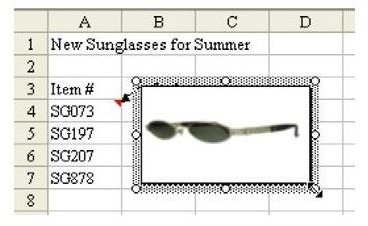
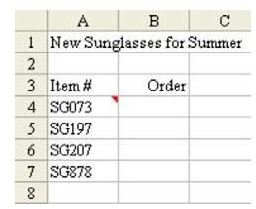
A red triangle appears in cell A4, as shown in Fig. 1190.
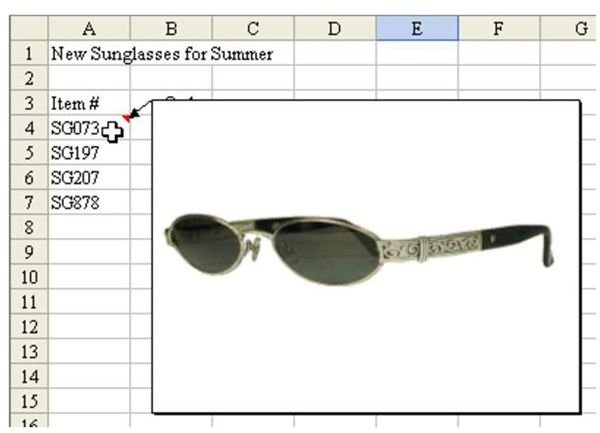
As promised, a picture of the product appears when you hover the mouse icon over the cell, as shown in Fig. 1191.
- Repeat these steps for each item in the catalog.
Summary: Everyone thinks of Excel as being strictly for numbers. Adding pop-up pictures is a great trick to make your spreadsheets more of a sales tool.
Commands Discussed: Insert Comment; Format Comment
More Excel Tips
If you’re interested in additional Microsoft Excel tutorials and user guides, be sure to check out the hundreds of other resources at Bright Hub. In particular, you may want to browse through the following collections.
-
Excel Formatting Tips from Mr. Excel – This collection of 72 formatting tips gives advice on how to better organize, analyze, and present your data.
Advertisement -
91 Tips for Calculating with Microsoft Excel – Learn calculation shortcuts, how to create custom formulas, and more in this grouping of tips.


