Microsoft Office Outlook PST files are fickle. They can corrupt quite easily and you can lose valuable data including e-mails, tasks, contacts, appointments and other content. Stellar Phoenix PST Repair tool can come to the rescue. You don’t know how valuable it is until you actually need it.
Overview
Microsoft Office Outlook when not using an Exchange Server account utilizes a proprietary storage format. The Personal Storage (PST) file is a single file repository for e-mail, address book (contacts), appointments (calendar), tasks, journal, notes, and more. Though the more recent Unicode versions are more dependable, PST files often experience corruption and apparent data loss. Sometimes scanpst.exe, the PST consistency checker and repair utility, does not recovery lost data. There are several third party applications that try to fill this need. This is a review of one of those products from Stellar Phoenix called, appropriately, the Outlook PST Repair tool .
Installation and Setup (5 out of 5)
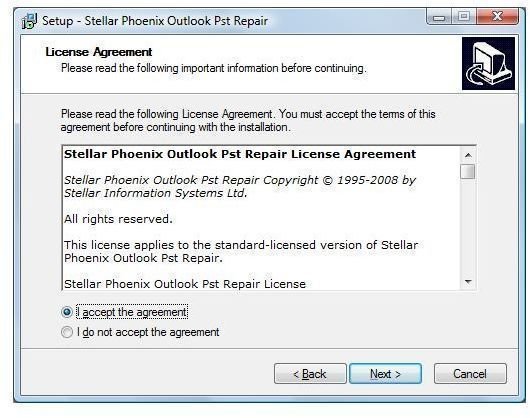
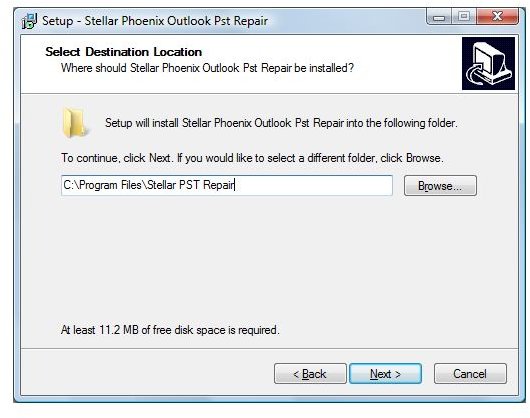
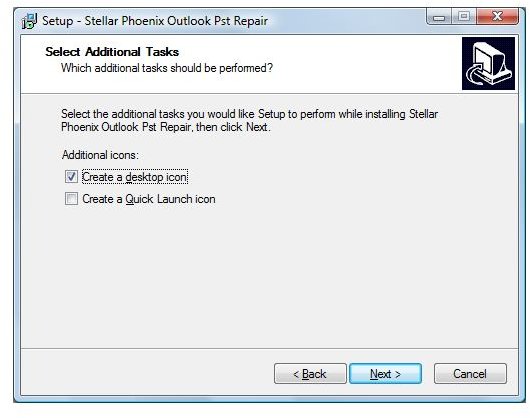
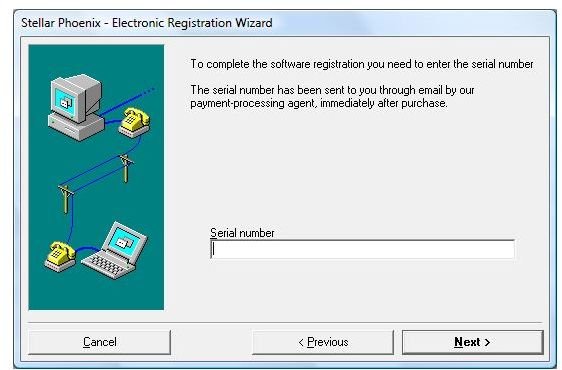
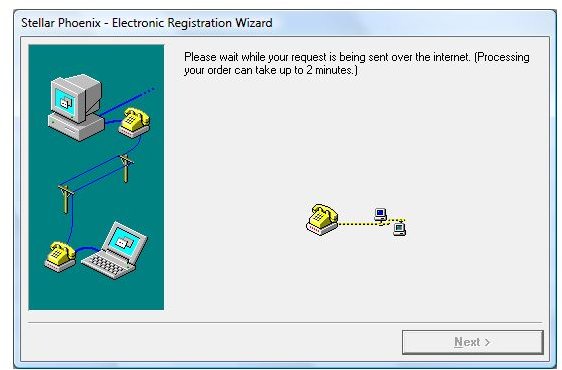
The actual installation of the Outlook PST Repair application is very simple and standard. The EULA (See Figure 1) indicates that the application can be installed on a single computer and is not transferable, but can be used by multiple users of that computer (just not concurrently). The installer lets the user determine installation location (See Figure 2) and whether to create icons for the desktop and quick launch (See Figure 3). Stellar Phoenix provides a demo version available on their website that allows the user to experience the interface, but does not provide full recovery of data, stopping at 5 items. You need to activate the full application to see the complete results of recovery operations. There is an activation menu which needs to contact the activation servers (See Figure 5) at Stellar Phoenix after you enter the serial number (See Figure 4) provided to you when you purchased a license. The documentation does not explicitly list Vista as a viable operating system at the time of this review; however, a quick e-mail to Stellar Phoenix confirmed that Vista is also supported for installation. Unfortunately, the application is only available in English. Outlook PST Repair is also easily uninstalled if necessary.
User Interface (4 out of 5)
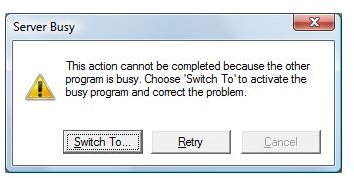
In our tests, if Outlook is running when the Outlook PST Repair tool is started, it abruptly closes Outlook and presents the error message shown in Figure 6. Clicking Retry starts the application as expected. In addition, when we opened Outlook while Outlook PST Repair was running, it was unable to find any profiles. Outlook PST Repair creates a unique profile to access each PST file. If you look in the Mail applet in Control Panel and select the Show Profiles button you will see Stellar Profile 0. If more than one PST file has been scanned, a new Stellar Profile is added, incrementing the number each time. After the application was closed, my profiles could then be selected for use in Outlook.
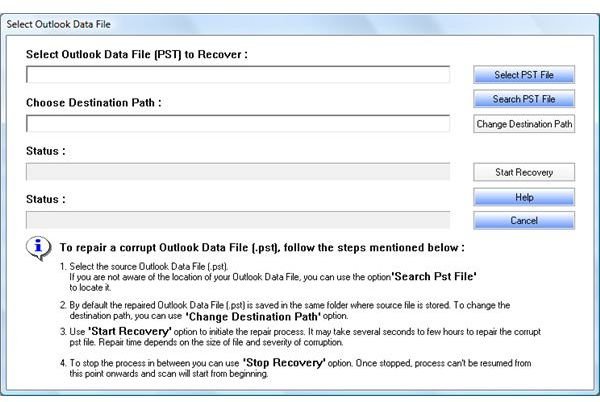
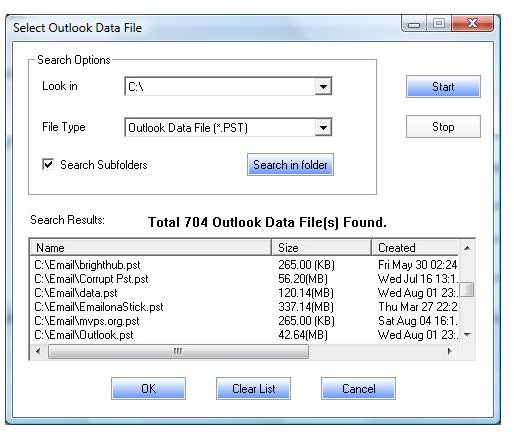
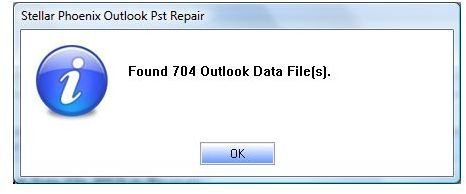
When Outlook PST Repair first opens, there is a window entitled Select Outlook Data File with two buttons on the right hand side. The first is labeled Select PST File and the second Search PST File (See Figure 7). The first button makes sense, allowing the user to navigate using the standard explorer window to a specific PST file to select for repair. The second button does not allow you to search within a PST file, but rather search FOR a PST file. At first glance, I thought maybe I would be able to peek inside the PST file I had selected for repair. It might be better labeled as ‘Find PST’. The Search PST file option lists the available drives to search, but the user can select the Search in Folder button to identify a specific folder to look into. A checkbox confirms that subfolders should also be included in the search. When search has completed, the discovered PST files are listed in the interface (See Figure 8). I do a lot of work and testing in Outlook and my search returned 704 PST files (See Figure 9). That was great, but actually perusing them in the interface was very painful. The window was not expandable and double-clicking the columns did not sort the list. It would be beneficial for the window to expand because the located PST files are shown with their entire path, which by default in Outlook, is several folders deep in the users folder hierarchy. There was also no mechanism for saving the search or exporting the list of files to a csv, txt, or xml file.
Performance (4 out of 5)
The minor interface deficiencies I have described become less significant when the application performs the duties for which it is intended. The vendor provided a sample corrupt PST file for testing, but we also ran several other PST files through the application to test performance and deleted item recovery.
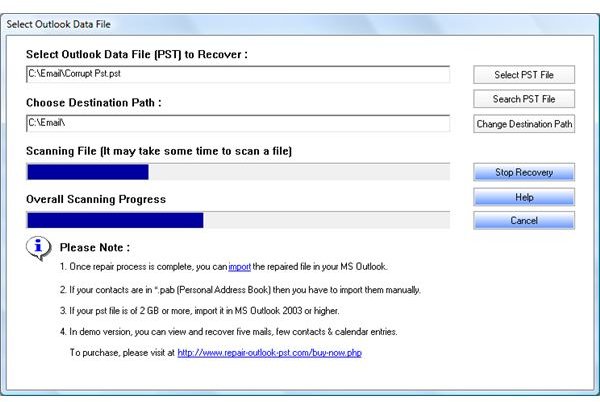
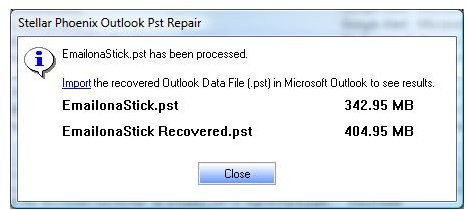
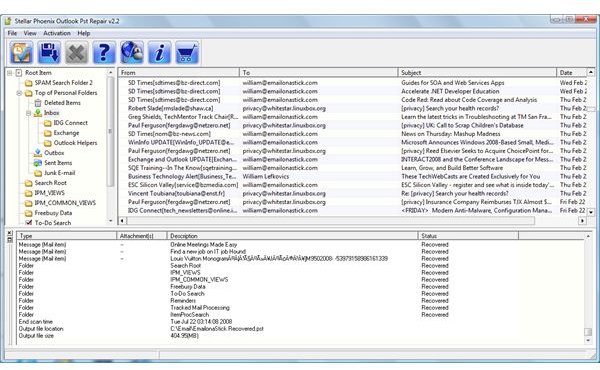
There are many variables associated with performance for a recovery application like this - hard drive specifications, level of defragmentation, computer resources (RAM, CPU), and level and type of corruption if present in the PST file being scanned. Also, of course, there is no guarantee that Outlook PST Repair will restore every corrupt or deleted item within a PST file. Figure 10 shows the PST scan in progress. Once the scan is complete (See Figure 11), the interface displays the detailed results (See figure 12).
In our tests, Outlook PST Repair recovered lost data very well. In our deleted items test where the deleted items folder has been emptied, it was important that content was not thoroughly overwritten to be recovered. It was especially important that the PST file not be compacted after which item recovery is not possible. In normal operations, however, items deleted and emptied from the deleted items folder are returned to the deleted items folder with the Outlook PST Repair tool. Recovery is an all or nothing process as there is no option to select individual items to be recovered.
In cases where corruption has occurred, the repair application is often able to reassemble items from the internal checks in the PST file. We tested a 400MB PST file which took 8 hours for Outlook PST Repair to process, recovering over 10,000 items. It found a lot of deleted items and restored them to the deleted items folder as well as a handful of items that we were unaware were ‘corrupt’ or missing. The application creates a new PST file appending Recovered to the file name before the extension. The new file can then be opened in Outlook and relevant data copied to an existing data store.
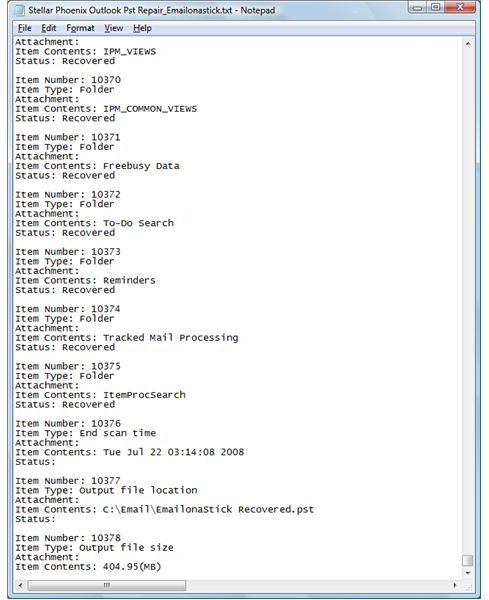
Finally, the data recovery information cannot be viewed again within the PST file once Outlook PST Repair is closed. That is, you cannot reopen the file in Outlook PST Repair and see the items that were recovered. If you want a history of a PST scan, you need to save the log file associated with the PST file before closing the application. There is a button and menu command of File | Save Log to accomplish this. The log is saved as a txt file and enumerates each recovered item (See Figure 13). This file can be converted to a csv or xml file for better parsing, but would require a third party application.
Help and Support (4 out of 5)
Stellar Phoenix does provide solid documentation for their product line, and the Outlook PST Repair tool is no exception. There is a comprehensive compiled HTML (.chm) help file installed with the product. This is accessed through the application interface as expected.
Even though the Outlook PST Repair tool supports Outlook 2007, some of the online documentation has not been amended to include this update. For example, a line from a knowledge base article reads “Since only Outlook 2003 supports PST file sizes greater than 2 GB…” Outlook 2007 has been out for quite some time now. The small knowledge base addresses some common concerns and assigns a unique ID (and URL) to each item.
For a complete list of features and requirements, see:
https://www.repair-outlook-pst.com/pst-recovery.php
For knowledge base articles, see:
https://www.repair-outlook-pst.com/article.php
Summary
The Stellar Phoenix Outlook PST Repair tool is a data recovery product for PST files. It works well to restore corrupt data as well as accidentally deleted items. The minor deficiencies in the user interface are not bad enough to deter someone from using this application as it is intended. It was very successful recovering content as advertised. I recommend anyone to try Stellar Phoenix Outlook PST Repair tool when scanpst.exe just isn’t working.
Screenshots