How to Set Up Remote Desktop with Windows Mobile 6.1

Written by:  • Edited by: Simon Hill
Updated Jun 14, 2010
• Related Guides: Windows Mobile | Windows Mobile 6.1 | Remote Desktop

Most Windows Mobile 6.1 devices come with RDP (Remote Desktop Protocol) as an optional component – one that allows the user of the device to interact with a remote PC running Windows XP (or Vista), whether it’s situated in the home or office.

Setup on your PC First

It's a topic that is surrounded by mystery, due to a combination of secrecy and apathy - yet Remote Desktop Mobile on Windows Mobile 6.1 is surprisingly easy to set up, with great results.

Remote working via your Windows Mobile 6.1 device is likely to be something that happens rarely – such as when you need to urgently retrieve a file, for instance. Whatever the reason Remote Desktop needs to be enabled on your Windows desktop PC before you can continue.

To do this on your desktop, right-click My Computer, choose Properties and go to the Remote tab. Here, tick “Allow users to connect remotely...” and click OK.

Configure on your Windows Mobile Device

Launch Remote Desktop Mobile
click to enlarge
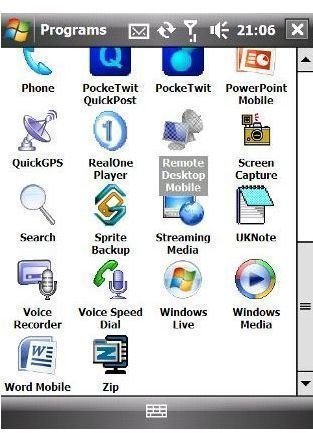
The most secure approach when using Remote Desktop Mobile is to connect your Windows Mobile device to your PC over your local network, or directly via Activesync. At the very least, these two methods ensure that the Remote Desktop Protocol is active on your PC. To do this (using Windows Mobile 6.1), go to Programs, then Remote Desktop Mobile.

From here, enter the name of your computer in the first field, and the username and password below that.
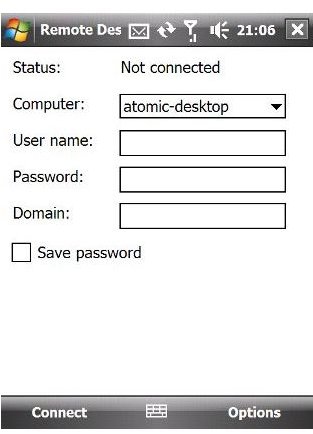
Enter PC Name and Credentials
click to enlarge
Finally if your computer is in a domain, enter its name in the last field. Your Windows Mobile 6.1 device is now ready to connect to your PC!

The Display tab in the Options screen allows you to select the number of colours displayed (the more you choose, the greater your network bandwidth usage and memory usage on your phone) as well as choosing display resolution. On the Resources tab, choose how you would like your desktop PC to appear when saving, and whether or not it should be muted.

Connect - and Use Your PC Remotely!
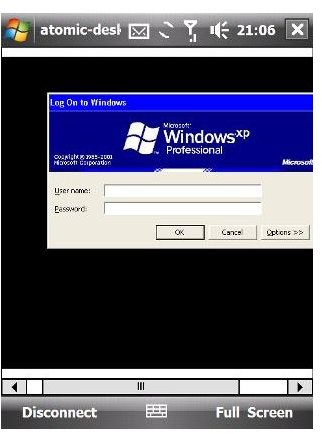
Login Remotely
click to enlarge
Once your choices are settled, click on Connect. You’ll be greeted with a standard Windows Login box on the display of your Windows Mobile device – it’s a simple task to log on here with your username and password, and display your PC desktop.

Using Remote Desktop Mobile is far preferable in performance terms to using a web-based service such as Logmein.com. There’s no page refresh lag (with Logmein.com relying on the HTTP protocol) which removes one possible cause for frustration straight away while the system is designed for use with touch screen devices (again something that Logmein on Windows Mobile struggles with).

Typical uses for Remote Desktop Mobile include urgent file retrieval/sending, server maintenance/checking or even accessing applications directly. Gaming is not advised – you don’t want to be blaming almost instant defeat on your phone or handheld, after all!

Things to check

Ensure also before using Remote Desktop Mobile outside of a wireless, USB or Bluetooth connection with your desktop PC (i.e. over the
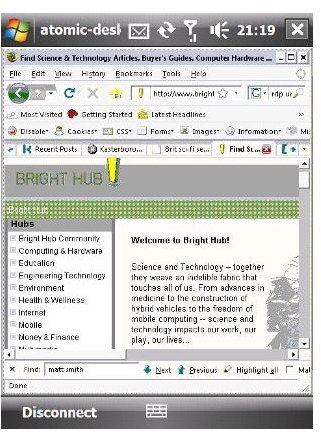
Your PC Desktop
click to enlarge
Internet) that your security policy is sound, your mobile data plan is accommodating and your mobile network provider allows RDP.

With all of this in mind, you should now be ready for trouble-free remote control of your trusty desktop PC, all thanks to your reliable Windows Mobile device.


Comments

Showing all 24 comments
 
Kris Dec 1, 2011 10:36 PM
RE: How to Set Up Remote Desktop with Windows Mobile 6.1
Ignore previous, I was being a plank!<br><br>Set up password on user and all is OK ;-) <br><br>(should read Michaels post, from a year ago, better)
Kris Dec 1, 2011 9:55 PM
RE: How to Set Up Remote Desktop with Windows Mobile 6.1
Hi,<br>Having problems with remote desktop. I get all the way to the login screen, I have no password that I know of (if "there must be" where do I find it) and I am an administrator, confirmed by the PC. No domain has been set up.<br><br>The message I receive is "Unable to log you on because of an account restriction"<br><br>Heeeeeeeelp! please :-(
Patrick Murphy Dec 24, 2010 12:45 PM
Firewall issues
I have
windows firewall disabled, and Norton firewall disabled since I only want to use the modem firewall which is enabled.
Patrick Murphy Dec 24, 2010 12:44 PM
What about a DSL modem?
I have a DSL modem. How does security settings on that need to be dealt with? DHCP server is on, DNS is set to Dynamic.
Patrick Murphy Dec 24, 2010 12:36 PM
What exactly goes in Computer or domain.
I see different suggestions for what goes in the Computer field. The computer name mine is Pat2, The ip address via Start>Run>CMD>configip, which could be 192.168.x.x for my computer, or the default gateway which is 192.168.y.z, or the modem? ip address which can be found with http://www.whatismyip.com/, mine is 184.96.83.115.

then what goes in Domain? I don't think I have a Domain name, are one of these other thing supposed to go in there? My wireless network is called XXXnet, is that it?

Pat
Patrick Murphy Dec 24, 2010 12:22 PM
NO luck still fishing
I am having no luck what so ever. It is still very unclear what to enter where. I have been trying all kinds of things. This article and the additional comments are still not working. I have vista and a samsung I760 with remote desktop. The notebook is a Sony with a tab called Remote via Start>Settings>Control Panel>System>Remote Settings. It isn't called REmote Desktop, but rather Remote Assistance. Is this significant?
Dominic Aug 9, 2010 9:36 AM
RDP with Hamachi
Here's what I have when using RDP:

1) windows mobile 6.1 (samsung i780)
2) hamachi2 on Phone
3) hamachi2 on Windows XP (prof or home-hack)
4) run RDP on i780

This setup allows me to quickly connect to my PC without worrying about the router's port forward settings.
Michael Mar 18, 2010 3:33 PM
Windows Mobile Remote Desktop 6
I have been killing quite a bit of time trying to access my computer from my cellphone, and I have finally done it.
<br>
I am currently running Windows XP Home Edition. Unfortunately you cannot connect TO XP Home remotely (the professional versions are a different story). Only from it. I did find a trick found here.
<br>
You basically have to trick XP Home that it is XP Professional, and then add the terminal services associated with remote desktop.
<br>
Another step that needs to be completed is to enable your router, if you are using, to allow outside access to your computer via what is called port forwarding. The windows default port is 3389. Two pages that I found are:
<br>
this one and this one.
<br>
The second one lets you choose the router you own, and then if you scroll down to the remote desktop link, it will give you step by step instructions.
<br>
Lastly, you want to enter the following information when you are already to try to login through your phone:
<br>
Computer: YourComputerNameInWindows
User Name: YourUserNameInWindows
Password: YouMustHaveAPasswordUnderYour UserName
Domain: Your External IP Address
<br>
Your external IP address can be found by going to
whatismyip.com
<br>
Example: My computer's name is vectorboson in Windows XP. My username is Higgs. My Password is password, and my external IP from whatismyip.com is 99.00.000.001
<br>
I would then have:
Computer: vectorboson
User name: Higgs
Password: password
Domain: 99.00.000.001
<br>
Lastly, your external IP is more likely than not a dynamic IP, and so it will change from time to time which means your login info will change.
Miguel Candia Mar 18, 2010 3:17 PM
Can't do it over internet
I just can't make my blackjack II do the connection over internet. If i am using my phone as 3Gmodem, wich means it is connected to internet i can access any TS server over internet. But if i don't use it as modem, wich means it is not full connected to internet. It doesnt make the connection and a message appear.
1.Specified computer name or ip does not exist
2.A network error occurred while establishing the connection
Any configuration tips???
Sumon Mar 11, 2010 11:54 AM
Remote Desktop by the Internet
Hi I can cannoct my PC by the ActiveSynconice by USB cable , , , i want to connect by Internet to my PC , , how i do it please , ,inform me , , is evergreatfull to you, , .. plz reply me , ,,
Joe Feb 5, 2010 11:02 PM
Windows Mobile Remote Desktop Connection
Hi I Have Windows Mobile Remote Desktop Connection and when i have it plugged in by usb i can get a connection but how do i set it up for over internet connection to get access to my computer cause i can't get it to connect when i use my cell phone's internet connection plz help thank you
francomur99 Jan 25, 2010 7:55 AM
Little bit tricky
Check Pocketnow.com there is a video tutorial regarding Remote Descktop with windows mobile.
Anyway... I don't like open netgear settings and make the changes to get the connection....maybe one day. Too lazy
tferguson@aold.com Jan 22, 2010 10:15 AM
TO: Christian
One of the differences between XP Pro and XP Home is that Home does not include built-in remote desktop. Same for Vista,
sarang Jan 4, 2010 7:21 PM
wm6.1 & XP Pro without router
Hi... i m trying to connect my wm6.1 to win xp pro machine with remote desktop without router. both my laptop with xp pro and htc tytn II is wifi enabled. i want this connection over wifi avoid cost of wireless router... is there a way to do this ... if possible any reference to website or anything which would help me in setting this.......
2. can i create domain in xp pro....

thanx in advance
genoki Dec 16, 2009 2:19 AM
i get error
After entering computer name, user name and pw I get the following. I am connected by Activesync. I am using my desktop's name and activesync is working.

Cannot connet: Likely reasons are:
1.Specified computer name or ip does not exist
2.A network error occurred while establishing the connection

Imam Mubarrak Dec 15, 2009 5:44 AM
It work on Cable and Wifi
Thanks it works on Cable and Wifi Bravo
Gerry Mueller Dec 3, 2009 7:16 PM
Where in the world is remote desktop
I just got SonyEricsson Xperia X1a ( Rogers in Canada), and planned to use remote desktop over VPN to my business and home lan. I also don't have remote desktop mobile in the programs screen. Has anyone found out where they can get it from??

IT Maniac Jul 24, 2009 11:29 AM
Remote Desktop
There's a lot more to setting up RDP on your PC than just enabling it, you have to setup DDNS, allow it to passthrough your router... too lenghty to explain here....do a google search for setting up RDP.
Peter Barnett Jul 19, 2009 5:10 PM
Mobile Remote Desktop
Hi. Just got a phone with 6.1 professional, but no sign of Remote Desktop Mobile in the programs. I've been searching all over the MS website as well and can't find any reference to it. I didn't know it existed till I just read your site. I was looking for a 3rd party version. Any ideas where it is? Thanks
Roberto Gacitua Jul 13, 2009 2:33 PM
Remote Desktop Mobile Client
I have a BlackJack II phone whit WM 6.1 Standard, but i haven't the RDM client, where i can find it?

Thanks a lot
jc alv Jul 8, 2009 12:09 AM
confused
where do i get the username and password
Christian Cawley Jun 10, 2009 3:33 AM
RE: How to Set Up Remote Desktop with Windows Mobile 6.1
Hi Dain

As far as I'm aware it will work on XP Pro machines without any problem. XP Home may well be a different kettle of fish.
However there are a couple of other elements that affect the success of this process., such as firewalls and your router config.
Wayne Doucet Jun 10, 2009 2:31 AM
Remote Desktop
Why am I finding that I have to be tethered in order for this to work?
Dain Lybarger Jun 7, 2009 1:31 AM
Remote Desktop to Windows XP Home
Does this work on PCs with XP Home Edition, or only on those with XP Pro?
 
blog comments powered by Disqus
Email to a friend