Tips & Tricks for the HTC Desire
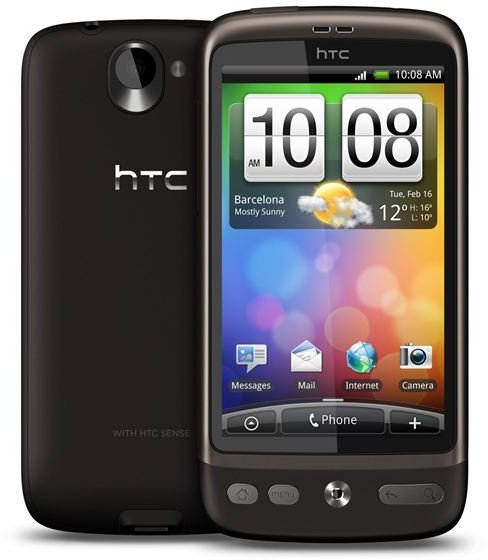
As the Android platform becomes more popular no manufacturer has taken more advantage than HTC. With a range of high-end, mid-priced and now even budget Android smartphones HTC has been shifting a lot of phones. In the UK their biggest success to date is undoubtedly the HTC Desire. Demand has been so great that it has been selling out at many stores.
In this article we offer up a guide for HTC Desire owners. You’ll find tips and tricks and advice on how to get the most from this powerful smartphone.
Basic Tips for your HTC Desire
We’ll kick off with some basic tips which may not be obvious to new owners of an HTC Desire. The power button is top left of the phone and a short press will spur the screen into life. You’ll then have to swipe down in order to unlock the touchscreen. Alternatively you can press the Menu button to unlock the screen.
You can also turn the screen off again by doing another short press on your power button. This will lock the phone too so it’s something you want to do before putting it in your pocket or bag.
Since the phone features a touchscreen keyboard you should take the time to calibrate it and set up the text options you want. You can do this by hitting Menu – Settings – Language & Keyboard – Touch Input – Text Input and then scroll down to Calibration tool. You can also change a host of other features in here such as spell checking and text prediction.
You can press and hold the Home button to bring up a menu featuring the last 6 applications you were using for quick access.
Customization
The first thing you’ll probably want to do on your new HTC Desire is make it yours by customizing it. You’ll want to choose wallpaper, select your own ringtone and maybe get a case or some other accessories. It is worth getting a case to protect your phone from knocks and you might want a desktop charger or an extended battery too. You’ll find some great prospects in our round up of the best HTC Desire cases.
Setting Wallpaper on the HTC Desire
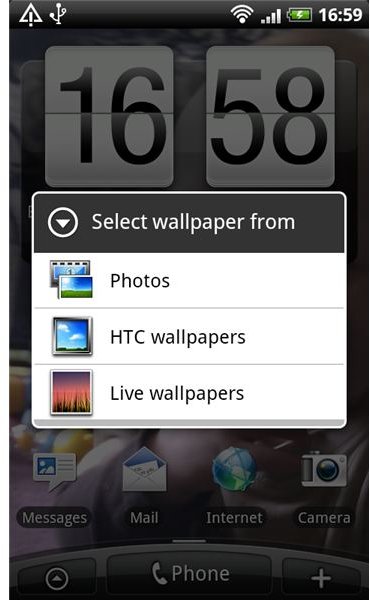
To change the wallpaper on your home screens simply press the Menu button and select Wallpaper and then select a source. You can also browse to a photo in your camera and press the Menu button and then choose Set As to set that photo as your wallpaper or even as a contact picture. If you want to select an image from a website just hold your finger down on it and download then choose to view the image and hit the Menu button and then choose Set As to set that photo as your wallpaper.
Setting Ringtones on the HTC Desire
To change your ringtone press the Menu button and select Sound & Display and then Phone ringtone. You’ll get a list of ringtones to choose from. If you want to use your own MP3 files then you’ll have to copy them over from your computer on to the SD card. This is easy simply plug your phone into your PC using the USB cable and choose the Disk drive (Mount as disk drive) option on the HTC Desire screen. Now on your computer browse to the folders on your SD card under media/audio/ringtones. If the folder doesn’t exist simply create it and copy paste your MP3 from your computer into this folder. Now you can go back to Sound & Display – Phone ringtone and select the one you added. You can also do this for notifications and alarms by placing MP3s in media/audio/alarms or media/audio/notifications. You can also change various other options about how your phone alerts you to incoming calls and other notifications in Sound & Display.
Internet

Browsing the Internet on the HTC Desire can be a great experience. Here are a couple of tips to get you started. You can either double tap or pinch the screen to zoom in, repeating the action will zoom you out again. To set the default zoom level hit the Menu button and go to More – Settings – Default Zoom. At the top of the settings menu you’ll also find the option to change your default home page.
You can also long press (hold your finger down) on the screen to bring up the word selection tool. Highlight the text you want by dragging the green pointers and then hit the pages icon to copy the text, hit the green arrow to share it or hit the magnifying glass to look it up in the dictionary.
If you want to search you don’t need to browse to a search engine. All you need to do is hit the magnifying glass button at the bottom right of your phone. This will bring up a search window and you can type your search term.
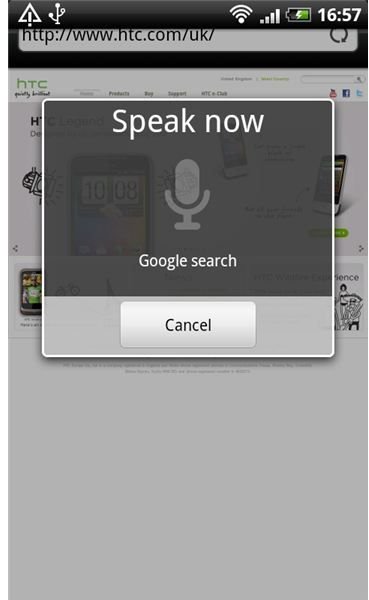
My top tip for making searching easy and quick is to use Voice Search. It should come pre-installed but if not you’ll find it in the Android Market. Once installed every time you launch a search you’ll see a small microphone icon at the top right of the search window. Click the microphone and when the window pops up asking you to “Speak now” simply say what you are looking for. It works best with minimal background noise and clear enunciation so you can’t use it everywhere but it is an incredibly useful tool. You can also use it to phone people by saying “Phone person” but obviously substitute the person for the name of the contact you want to call. It even works for directions and will link directly into Google Maps to give you a route.
Wi-Fi
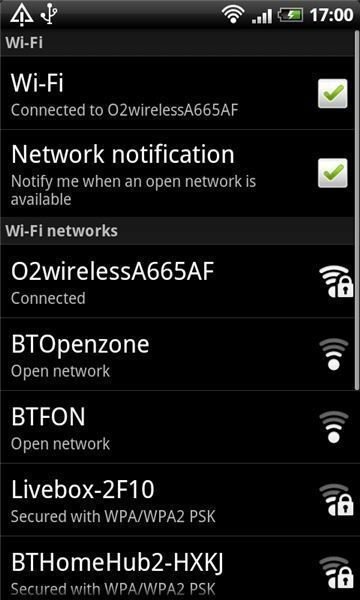
To avoid excessive data charges you should use Wi-Fi wherever possible. If you have a home Wi-Fi network you can link up your phone by hitting the Menu button and choosing Settings – Wireless & networks – Wi-Fi settings and select your Wi-Fi. If it requires a password the WEP key can usually be found on the bottom of your router. You can also configure the phone to pick up open Wi-Fi connections wherever possible. It is good to leave Wi-Fi on by default as your phone will switch to this whenever it can and avoid using your network connection unless there is no other option. You can also turn off and configure your network connection in the Wireless & networks menu.
HTC Desire Battery Life
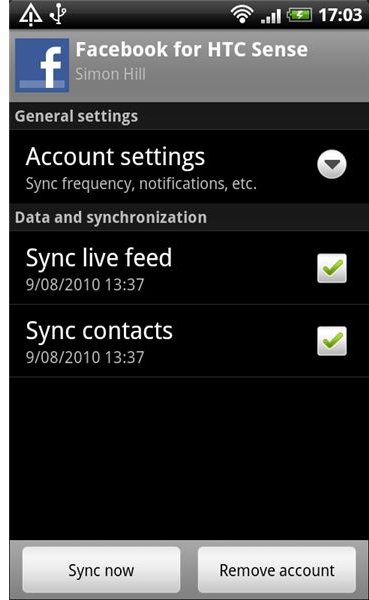
To save on battery life you should set up the phone to use Wi-Fi as we just described and avoid using the network when it isn’t required. You should also change the update frequency of applications like Facebook or Twitter and email. Instead of every five minutes reduce the frequency or set it to manual. This just means you’ll hit to update whenever you load the app. If you want to know as soon as an email or Facebook post goes up then you’ll want to keep an automatic sync running but bear in mind this will affect your battery life.
You can also make savings on battery life by using a dark wallpaper, avoiding using an animated theme and setting your screen brightness to be automatic or by leaving it on a low setting.
Other than that it’s common sense. The more you use the phone, the more apps you have running and the more you do battery intensive things like playing games with sound the faster the battery will run down. You can always turn off vibration and sound for games to make the battery last a little longer.
There seems to be a major disagreement about whether Task Killers or Task Managers actually help to preserve battery life. The official word seems to be that you shouldn’t use them because they may be destabilizing your phone but there are plenty of people who swear they extend battery life. I’d suggest reading up a bit before you make a decision on this.
Security on your HTC Desire
Another issue when you buy an expensive smartphone is security. First of all you can find security options via the Menu button – Settings – Security. Here you can choose an Unlock pattern which will help prevent other people from being able to unlock your phone.
You can also install a whole range of useful apps to help with security. Check out my article on the Best Android Security Applications for more on this.
Hopefully these tips are enough to get you started with your new HTC Desire. Let me know if you have any questions or if you have a tip of your own post a comment and let us know.
References
- Author’s own experience.
- Screenshots taken by author on an HTC Desire.