Scan2PDF Mobile allows Google Android users to take pictures of various documents and then convert those pictures into PDF files. Those files can then be emailed to contacts and saved to the user’s Android smartphone. Keep reading to learn more about Scan2PDF Mobile.
Overall (4 out of 5)
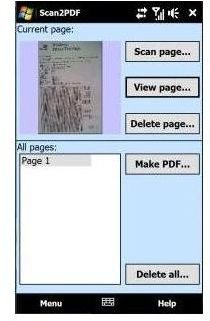
Scan2PDF Mobile is simple to use, just hover your phone over the document you want to “scan” and then click on the “Scan page” button located on your mobile phone’s display. That action then takes a picture of the document which can then be viewed to make sure it’s fully readable. The “Make PDF” button can be used to turn the “scanned” document into a PDF file.
Options
I really liked the option to scan multiple pages for a single document before I created the PDF. This was a great option for ensuring I didn’t have to send 10 separate PDF files at one time, but instead I could create a 10 page document.
The program also offers “Delete page” and “Delete all” options which can be used to rescan a page if that page didn’t turn out correct or for deleting all of the scanned pages of your document before you turn them into a PDF file. These are more “housekeeping” type functions but the “delete page” option was a life saver when I scanned 10 pages and the 9th page didn’t turn out correct; I simply deleted the page, rescanned it and then moved on.
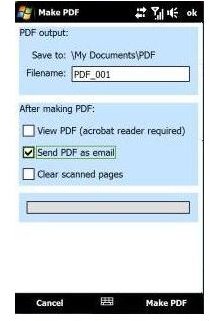
After the pages have been scanned, I found the remaining options to be rather straightforward. For example, I could easily choose to “Clear scanned pages,” “Send PDF as email” and “View PDF.” This means I could create a PDF, email it, remove the original files to stop device clutter, and even view the file that I was sending, all at the same time using easy to access checkbox options.
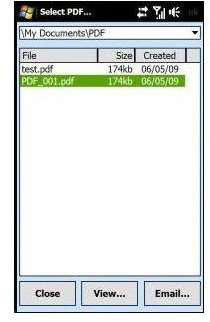
Finally, when a PDF is created, the program includes a list of all the PDF files that were created. By clicking on a PDF file, I was brought to a screen that allowed me to manage that file. Again, these options were straightforward; “View,” “Send,” “Clear” and “Cancel” were the options available and they were easily accessible through large icons that were definitely finger friendly. When I chose email, I could find a contact from my address book or enter in an email address on the device and the PDF was then auto attached and sent.
Worth a Try?
Scan2PDF Mobile is an excellent option if you simply need to create a quick PDF of your written or typed documents and you don’t have access to a traditional scanner. The documents are fairly easy to read. However, the quality simply can’t match what you’d find on a PC peripheral. Essentially, it’s a great option when in the field but it won’t replace your computer’s scanner.
Throw in a Bluetooth printer or a Bluetooth synced fax machine and you can truly have a mobile office with this application.
It’s simple to use, works as advertised and it can easily be downloaded from the Android Market. Give it a try today if you need a simple solution when you’re away from your computer and you won’t be disappointed.
References
- Screenshots provided by writer.
- Android Market, https://market.android.com/details?id=com.burrotech.scan2pdf2


