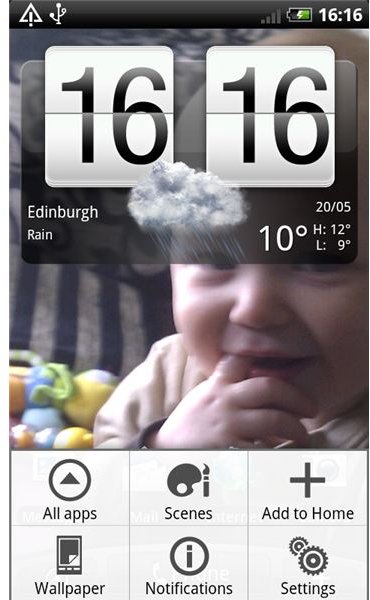
There are loads of great widgets for Google Android, but we’ve never offered a quick guide for how to actually add your installed widgets to your home screen. Here’s a step-by-step instructional guide.
Long Method
Before you get started make sure you have space for a new widget on your home screen, if you have many widgets already filling your screen you will need to remove one of those widgets before proceeding. Since many Android phones come with multiple home screens you can always move things around or select a screen to dedicate to widgets.
Start by clicking on the Home key on your device so you can go to the home screen of your Android phone.
Next you’ll need to click on the Menu button and you can then select the Add button on the screen. If you have an HTC Desire then it will say Add to Home, here’s a screenshot.
After clicking on the Add button you’ll then see the Widgets option among other icons. Click on Widgets in order to access all of the widgets currently found on your device.
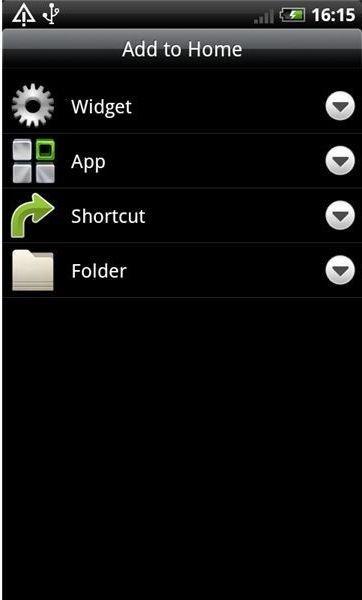
Once in the widget screen simply navigate to the widget that you want to place on your homescreen. Typically you will find several already available widgets, plus any you have installed yourself. You can scroll through your widgets if there are numerous options to choose from.
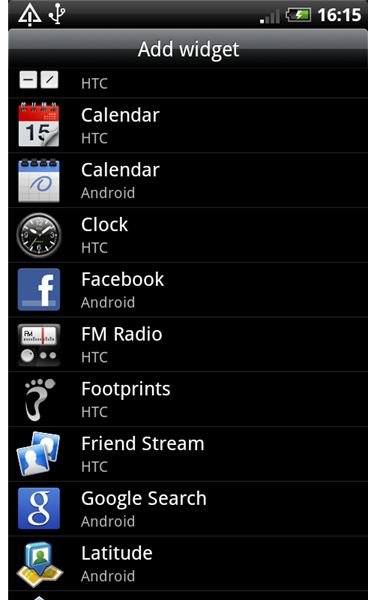
Simply clicking on the widget you want to use will then add that widget to your home screen. Click on your home screen button and if the widget appears you’re all set for use.
Short Method
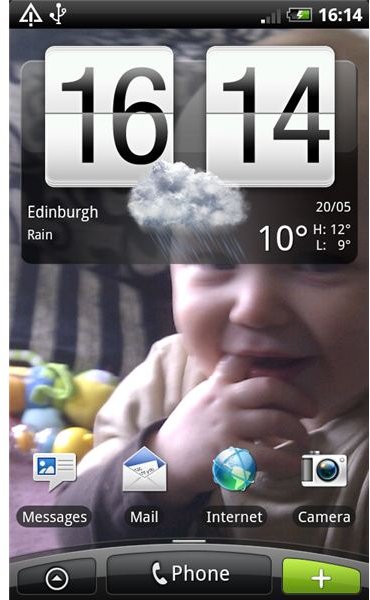
Long press on any empty space on your homescreen (a long press will last a couple of seconds). You’ll then notice the Widgets option just as you would with the longer method. Click on the widget menu then click on the widget you want to install, this will place your widget on your Android home screen.
On HTC phones you can also use the + button at the bottom right to add widgets. You can see it highlighted in this screenshot. The rest of the process is exactly the same.
Working with Widgets
If you want to move a widget then simply hold your finger on it. It will detach with a vibration feedback and you can then move it around to the position you want. If you want to delete it then select it in the same way until it detaches and then drag it to the trash can at the bottom of the screen.
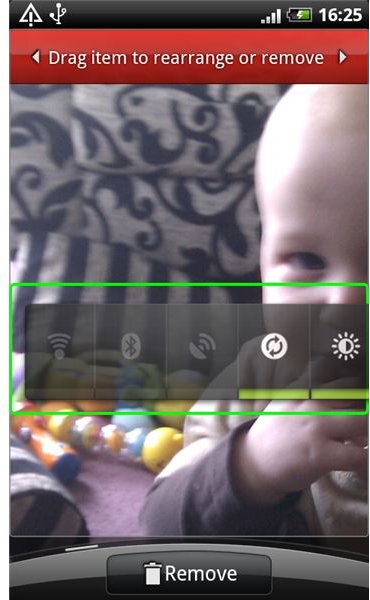
The widget in that screenshot is the Power Control widget that you’ll find on many HTC Android phones and it’s extremely handy for quickly turning data, Wi-Fi or Bluetooth on or off. There are loads of other great Android widgets worth checking out so take advantage and grab the ones that interest you. They are great time savers.
References
- Author’s own experience.
- Screenshots taken by author on an HTC Desire.


