Adding a Progress Dialog to your Android App

Written by:  • Edited by: Simon Hill
Updated May 3, 2011
• Related Guides: Android | Google Android Programming | Google

This tutorial will explain how to add a progress dialog or progress bar to your application using the Google Android programming environment.

In this tutorial, I will show you how to add a progress dialog to your Android application. A dialog is usually a small window or tab that appears before any activity in your application. It is intended to display alerts or information to the user. A progress dialog can be used to either show some processing activity to the user or to show the progress of some custom activity using the progress bar. It can be used in many situations, like to display the size of the files being downloaded and to show the amount of time left to finish a certain activity etc.

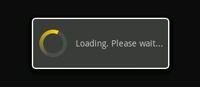
To create a Progress Dialog, we can make use of the ProgressDialog class which is an extension of the AlertDialog class. It can be used to display a standard progress dialog with a spinning wheel and some custom text. You can display your Progress Dialog using a simple show () call on your dialog object.

Here's the syntax to create a standard Progress dialog:

ProgressDialog MyDialog = ProgressDialog.show( MyActivity.this, " " , " Loading. Please wait ... ", true);

It has four parameters:

1. The application context

2. The title of the Dialog

3. The Dialog Text or Message which is displayed in the dialog

4. A boolean value indicating whether the progress is indeterminate

This will just display a spinning wheel animation alongwith the text.

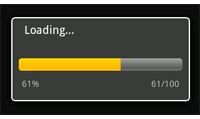
To create a Progress bar, create a new Progress Dialog and initialize it using ProgressDialog( Context ).

ProgressDialog pbarDialog;

pbarDialog = new ProgressDialog( mContext );

After that, just set the Progress Style to STYLE_HORIZONTAL,

pbarDialog.setProgressStyle(ProgressDialog.STYLE_HORIZONTAL);

Also enter the dialog message text to whatever you want and whether it is cancelable or not.

pbarDialog.setMessage("Loading...");

pbarDialog.setCancelable(false);

Now, if you want to increment or edit the progress displayed on the progress bar from your application, just call incrementProgressBy(int) or setProgress(int) on pbarDialog with an appropriate int value.

Here is how the progress bar or progress dialogs will actually look like in your application.
progress dialog
click to enlarge
progress bar
click to enlarge


Comments

Showing all 3 comments
 
Asma-ull-hosna Aug 27, 2010 10:00 AM
About Progress Bar to measure real time
Hi,
How can I create progress bar to measure real time for different streaming/playing/pause/finish of video clips?
Martin May 14, 2010 10:27 AM
Progress dialog disappears when you change orientation
I was trying to add a progress bar dialog to my app but I found the reference to it disappeared when I rotated the screen because the activity was destroyed and created again. I eventually figured out a solution and wrote an article on how I did it.

http://www.eigo.co.uk/Threads-and-Progress-Dialogs-in-Android-Screen-Orientation-Rotations.aspx

How to manage a thread and show the percentage complete in the progress dialog's progress bar, this solution allows you to keep the thread and progress dialog going even though screen rotations destroy the activity.

http://www.eigo.co.uk/Threads-and-Progress-Dialogs-in-Android-Screen-Orientation-Rotations.aspx
Addy Feb 15, 2010 6:13 AM
bitmap object return null
this is Addy..

I found problem in my database..

when i store the byte array in blob data type in database table that time the size of the byte arry was 2280..

but when i retrived that blob data type using select query i get the byte array within size 12.
and my bitmap object bm return null

my code is.

// Inserting data in database
byte[] b;
ByteArrayOutputStream baos = new ByteArrayOutputStream();
Bitmap bm = BitmapFactory.decodeResource(getResources(),R.drawable.icon);
bm.compress(Bitmap.CompressFormat.PNG, 100, baos); //bm is the bitmap object
b = baos.toByteArray();
//here b size is 2280
baos.close();
try
{
mDB = this.openOrCreateDatabase(MY_DATABASE_NAME, MODE_PRIVATE, null);
mDB.execSQL("CREATE TABLE IF NOT EXISTS "
+ MY_DATABASE_TABLE
+ " (E_ID VARCHAR,E_NAME VARCHAR,E_NO VARCHAR,E_PIC BLOB);");
mDB.execSQL("INSERT INTO "
+ MY_DATABASE_TABLE
+ " (E_ID,E_NAME,E_NO,E_PIC)"
+ " VALUES ('"+id+"','"+name+"','"+no+"','"+b+"');");

}
catch(Exception e)
{
Log.e("Error", "Error", e);
}

finally
{
if(mDB != null)
mDB.close();

}

// Retriving data from database
byte[] b1;
Bitmap bm;
mDB = this.openOrCreateDatabase(MY_DATABASE_NAME, MODE_PRIVATE, null);
try {
mDB.execSQL("CREATE TABLE IF NOT EXISTS "
+ MY_DATABASE_TABLE
+ " (E_ID VARCHAR,E_NAME VARCHAR,E_NO VARCHAR,E_PIC BLOB);");

Cursor c = mDB.rawQuery("SELECT * FROM " + MY_DATABASE_TABLE + " WHERE E_NAME='"+temp+"';", null);
c.moveToFirst();
if (c != null) {
do {
b1=c.getBlob(c.getColumnIndex(column4)); //here b1 size is 12 bm=BitmapFactory.decodeByteArray(b1, 0, b1.length); }while(c.moveToNext());
}
 
blog comments powered by Disqus
Email to a friend