Say goodbye to the cumbersome process of copying and pasting contacts from sms and emails by downloading the Copy2Contact application .
There is no denying that the BlackBerry is a great communication and business tool, however, it’s not without its faults. Take for instance the lack of support for adding contact info from messages. Quite frankly, it also gets irritating to access the calendar option time and time again for creating appointments through emails. This is where the Copy2Contact application comes in handy as the application lets you save any kind of contact information on your BlackBerry address book.
The app also helps in creating new events on your Blackberry calendar from messages like “staff meeting at 12:30 tomorrow for 1/2 hour”. The application also updates existing contacts if a match is found and more importantly works its magic without the need for a wireless or other connection.
Basic Usage (4 out of 5)
As soon as the application was saved into my Downloads folder I was greeted with a nice little information based graphic which illustrates how the app actually works. I personally found this a nice touch, as for once I didn’t have to figure out everything on my own.
Once I familiarized myself with the “Getting Started” guide, I decided to test this baby out. I opened my most recent email through the “Messages” option and highlighted the senders name.
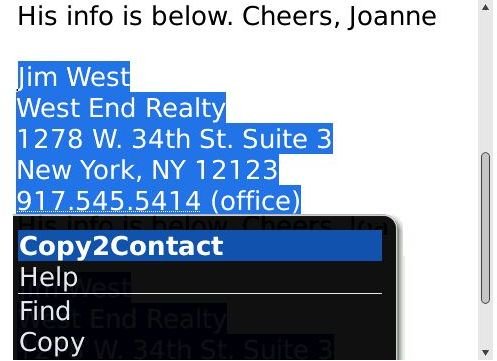
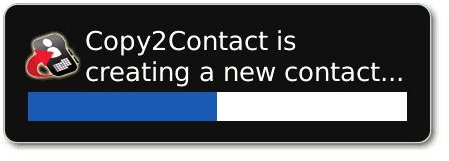
The first option on my device was Copy2Contact and as soon as I clicked on it, the application kicked in and flashed a message on my screen that said “Copy2Contact creating a new contact”.
Before the contact got created, the app flashed a warning message that read, “no email address was found in the captured text. Would you like Copy2Contact to use the sender’s email address”.

I then proceeded to click yes and then I got another message, which read, “Ready, Review and save the new contact.” I once again clicked OK and was directed to the Address Book automatically where the senders email and name was saved. In just a few seconds, I was able to save an important email contact on my Address Book and I must say I was highly impressed with how fast the application worked.
Verdict (4 out of 5)
The Copy2Contact is worth its $9.95 (Yearly Subscription) price tag. Its clear that the developers have given a lot of thought to the application and have ensured that their users enjoy an intuitive interface.
Personally, I really liked the application because not only does it do the job it promises without any glitches, it was also a pleasure to use. This one is for the keeps folks and hence I recommend the application.


