Cropping your favorite images right on your BlackBerry is now possible courtesy of the CropIt application. This photo-editing tool ensures that you don’t waste a frame by removing all unwanted objects.
CropIt v1.2 by ALL KAPPS Software is a nifty little application that lets you edit your images right from your BlackBerry Smartphone. Using this application means BlackBerry users can crop their favorite images and upload them directly to social networking websites like Facebook or Flickr, or even to your blog while your on the move. The application also lets you remove unwanted objects from a frame and crop your pictures to the perfect size of your choosing.
Features:
- Any saved picture on your phone can be cropped.
- Cropped Images can be saved as JPG or PNG.
- Images can be saved on the device or memory card.
- Undo Crop option.
- Preview the crop area.
Overall Usage (2 out of 5)
As soon as you open the CropIt application, you get three tabs i.e. “Open An Image”, “Setting” and “About”.
I first decided to select the “Settings” tab and came across options that included; “Open From”, “Storage Location”, “ Folders” and “Filetype”.
In the first two options I selected “Media Card” and selected png as the “Filetype”.
Then I clicked on the “Open An Image” tab and to select an image I just had to navigate through the device “BlackBerry”, then “Pictures” and then I finally selected an image from the list.
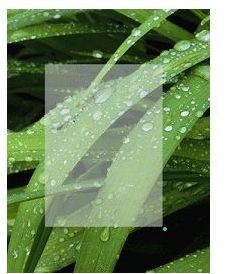
I then saw a blue dot, which acts like an anchor point. I selected one anchor point and was asked to select the second anchor point. The second anchor point has to be below and to the right of the first anchor point. Selecting the two anchor points is not a very easy job to do as at times I forgot the exact location of my first anchor point! However I finally managed to crop my image after a few misses.
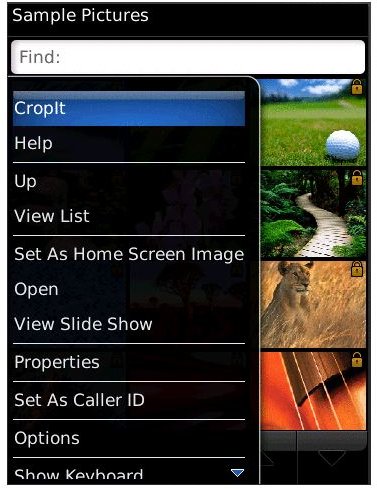
The lack of click and drag type of cropping really disappointed me, especially on my Bold which offers that functionality. I also wish that the application supported thumbnail image preview as who remembers all their images by names? Another disappointment was the cropped image itself. All cropped images get saved in a lower resolution and hence appear blurry.
Verdict (2 out of 5)
The idea behind CropIt is fantastic, however I wish the developer had given more thought behind the programs execution. Personally I wouldn’t use the application as the interface needs a lot of work and the cropped images are not sharp in the slightest sense of the word.


