Blogger Template Designer is the most useful Blogger tool that Google has come up with yet, and it is getting rave reviews from users. Read on to find out what all the buzz is about.
A Bit About Blogger
Blogger from Google is a popular free blogging tool . One previous drawback to Blogger was that it had a limited number of very unprofessional templates. Unless you were proficient in CSS and HTML, it was very difficult to create anything that was acceptable for a professional blog. Users started turning to outside designers’ free templates to make their blogs look more professional, and have more control over their content.
Introduction of Blogger Template Designer
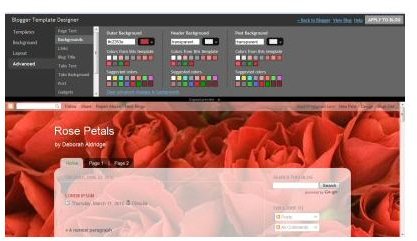
On March 11, 2010 , Blogger introduced the new template designer. At that time it was only available in Blogger in Draft, the beta testing site for all new Blogger tools. In June of 2010, Blogger Template Designer became available to all Blogger users. The template designer gives a user a large number of options and combinations to create a custom template. Those with CSS and HTML knowledge can customize their templates even more with instructions provided right at the Blogger site.
For the purpose of this article, we will assume that the user has signed up for and created a Blogger blog.
Getting Started
On the Blogger dashboard, click the “Design” link. This will take you to the “Add and Arrange Page Elements” page. On the top of the page, click on “Template Designer.”
A split screen will appear with the template designer options on top, and the blog on the bottom. You will be able to see your design changes as you make them. By mousing over the bottom of the design panel, you will see a link to scroll the controls up or down.
Background Tool
There are twelve standard color schemes available that vary from theme to theme. Clicking on the dropdown arrow on the side allows you to create a custom color theme.
Clicking the dropdown arrow on the side of the background Image box allows you to choose from hundreds of background images in 19 categories. Using CSS, it is possible to use a custom background image.
Layout Tool
There are 8 available body layouts with 1, 2, or 3 colums. Footer layouts are also available as 1, 2, or 3 columns. The blog width can be adjusted up to 100 pixels with sidebars adjustable from 100 to 500 pixels. For three-column layouts, each sidebar is separately adjustable.
Advanced Tools and Add CSS
The advanced features allow the user to customize fonts and colors of Page Text, Backgrounds, Links, Blog Title, Tabs Text, Tabs Background, Date Header, Post Title, Post Background, Gadget Title Color, Gadget Text, Gadget Links, Sidebar Background and to add custom CSS.
A link at the top of the Add CSS screen leads to the help section of Blogger, where you can learn things such as how to add a custom background image.
While it takes a little time and effort to come up with a truly original design in the new Blogger Template Designer, it beats the old template selection hands down.


