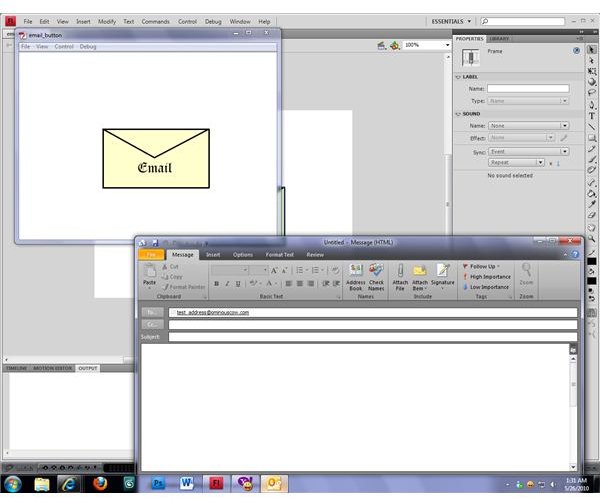
Adding a link to a Flash Button isn’t difficult, though the scripting required to do it has changed a bit in more recent versions of Adobe Flash. Even if you don’t have an email button graphic ready to use it should still take only a few minutes to create the button from scratch and code the link.
Linking Email to Flash Buttons
Buttons can serve a lot of different purposes in Flash movies and games. They can be used to progress through a scene, or they can allow users to interact with the movie or game in a number of other ways. One useful way that Flash buttons can be used is to allow visitors to send an email to the creator or to other addresses of the creator’s choosing. Linking an email address to a Flash button using Flash CS4 isn’t difficult, though the scripting required has changed since earlier versions of Flash. Even with the changes, though, it should only take a few moments to create a working email link from a button.
For your convenience, the Flash file used in the examples can be downloaded here .
Creating Your Button
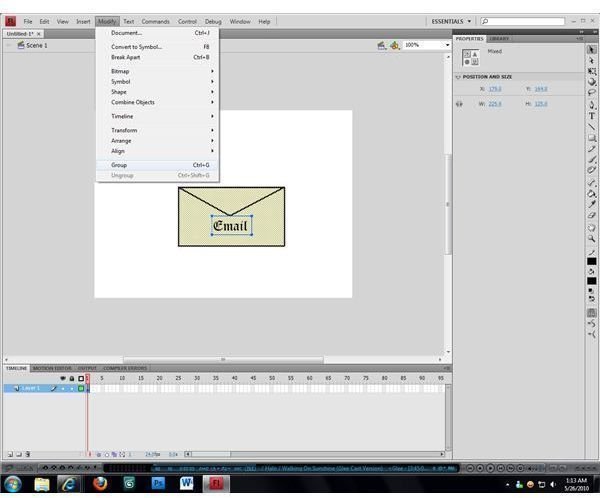
Before you can link email to a button in Flash you will have to have a button to link it to. If you have an image or button that you wish to use already in your Flash library then feel free to use it; if you don’t, making a button from scratch isn’t difficult. The button used in the examples was created from scratch using a rectangle, two lines, and a text box.
Create the graphics for your button. In my example I used a rectangle with a border set to 3 and a pale yellow fill color, then used the line tool to create the “flap” on the envelope. I then used a text box to write the word “Email” and positioned it beneath the flap. Once the graphics for the button had been created, I used the selection tool to select all of the elements I’d created and used the “Group” function in the “Modify” menu (hotkey: Ctrl + G) to group them into a single item.
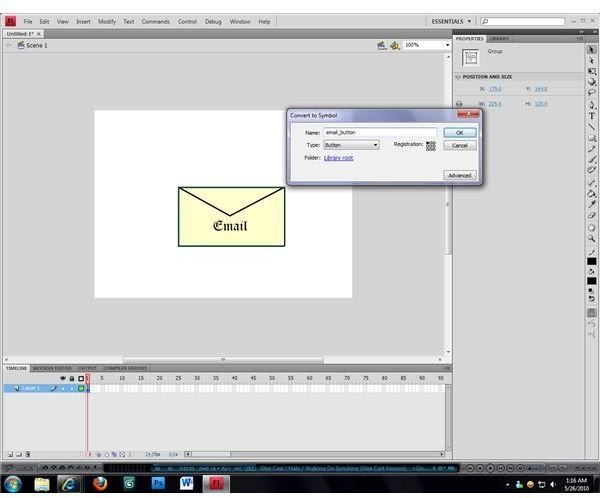
After creating the button graphics and grouping its elements into one item, all that was left to do was convert the graphics into an actual Flash button. Use the “Convert to Symbol…” function from the “Modify” menu (hotkey: F8) to open the “Convert to Symbol” dialog box and give the new symbol a name. Set the symbol type to “Button” in the drop-down menu, then click “OK” to complete the conversion. The button will be placed in your library for use anywhere in your Flash movie or game.
Adding the Email Link
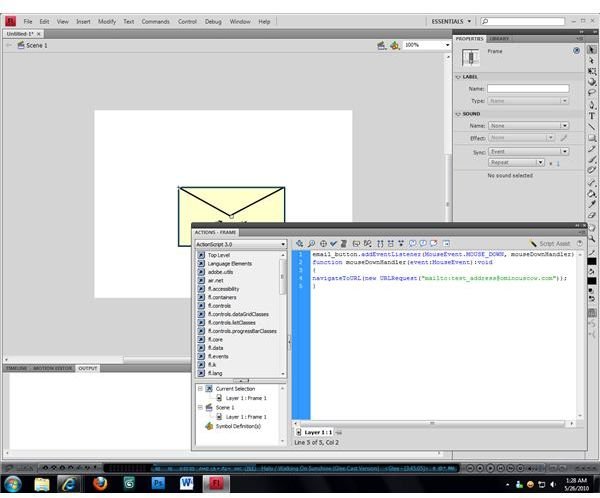
Select your frame in the timeline, then press the F9 button to open the ActionScript window. You’ll see a list of possible commands on the left side and a large white area with a number “1” in it. This large white area is where your ActionScript scripting will go, and the “1” indicates the line number that you are on. If you’ve worked with older versions of Flash but haven’t done any ActionScript 3.0 scripting in Flash CS3, CS4, or CS5, this part may be a little different than you’re used to; the scripting required to add a link has changed a bit. It’s not any more difficult to understand than the old ActionScript commands, though.
Type the following into the scripting window, making sure that you press the “Enter” key after every line:
item_name.addEventListener(MouseEvent.MOUSE_DOWN, mouseDownHandler);
function mouseDownHandler(event:MouseEvent):void
{
**navigateToURL(new URLRequest(**mailto:address@desired_domain.com));
}
Take note of the items in italics; “item_name” should be the name of the button that you created previously, and the email address after the “mailto:” command should be the email address that you want the button to be linked to. Save your Flash file and try running a scene with your button in it; a click on the button will open the email handler of your computer’s preferred browser.


