Looking to add a Follow Me on Facebook web button to your website, blog, or other social networking profile? The process is actually quite easy. For the most part, the Follow Me on Facebook web buttons that you see on profiles are simply graphic images, linked to a specific Facebook page.
Using Facebook to Create Linked Buttons
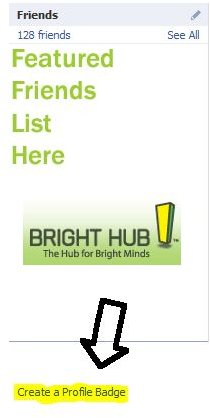
You can actually create your own follow me on Facebook web button, directly from your Facebook account. Facebook calls these buttons “badges.” To get started, navigate to the actual profile view page. This is not the page that you get when you login to Facebook. Rather, it is the page where you can see your profile picture, name, wall, etc… From there, you should see a Create a Profile Badge link, located on the left side column, directly below your boxes. See the screenshot for specific location.
Upon clicking the Create a Profile Badge link, you will be brought to a screen allowing you to choose which type of site you are adding the follow me on Facebook web button link to. For example, there are three options: add to Blogger , add to TypePad, or add to other website. Most likely, you will need to choose the option add to other website. From there, Facebook will give you a simple html code that you can paste into your website. Integrate this code into your website , blog, Twitter , or MySpace profile, and you will now have a link to your Facebook profile.
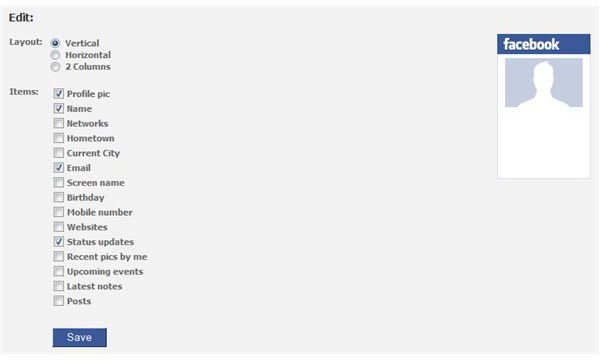
You can also click the Edit this badge link to adjust how the badge will look, and add different elements to your follow me on Facebook web button.

Adding Different Styled Facebook Follower Buttons
Now, you may find that the badge method used above does not give you as many options to choose from as you’d like. If you are looking for an easy way to add a follow me on Facebook web button, head on over to the site sociableblog.com. From this site, you will notice several different Facebook buttons to choose from. Simply login to your Facebook profile, view your profile, and copy the extension to your profile URL. For example, your Facebook profile may be located at https://www.facebook.com/blablablabla . From there, you need to copy everything after the slash, which is blablablabla. Take that and paste it into the GO text box on the Sociableblog Facebook page.
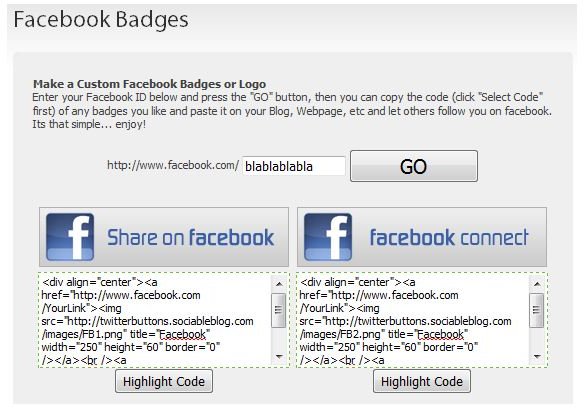
From there, Sociableblog will give you a new html code that you can paste into your existing website. Your new Facebook button should show up, and link to your Facebook page.
Custom Facebook Follower Buttons
Aside from the two above examples, you may want some follow me on Facebook web buttons with a bit more style. If you would like to design your own Facebook button, the process is as simple as creating the image, then linking it to your Facebook profile. To link any image to a specific URL, you can use the following code:

That’s all there is to it. You should now be able to create a Facebook button within Facebook, by using a website, or by creating your own custom design.


