Configuring ActiveX Controls and Plug-in Settings Properly in Internet Explorer 7 to Reduce Risks of Security Threats
In a previous article, we looked at the .NET Framework settings of the custom security settings in Internet Explorer 7. In this article I want to review ActiveX controls and plug-ins. Let’s begin by reviewing what an ActiveX controls are and why Microsoft would want to provide users with a greater level of control over how Internet Explorer handles them.
Fundamentally, an ActiveX control is a small compiled (not plain-text markup like a web page) application that can be downloaded to your computer from a web page to typically do a very specific task. In the days before Microsoft implemented security zones in both Internet Explorer and Windows, ActiveX controls could be run with full access to the computer including the file system. Virus writers leveraged this situation to exploit the computer by using ActiveX controls to do everything from deleting files to sending unintended emails to everyone in a user’s address book. For an example of how this was done, see this 1999 article by CNN.
While major improvements in both Windows and Internet Explorer have greatly mitigated the threat ActiveX controls were used to exploit, the basic operation of the controls remains the same. ActiveX controls still are used widely and do offer a great deal of programming power for developers. Because of this, Microsoft continues to support ActiveX controls and has built security measures into Internet Explorer to help ensure they’re used safely and effectively.
It is possible to tweak Internet Explorer’s handling of ActiveX controls and it is to that topic that we now turn. Many of the options in the ActiveX controls and plug-ins section are variations on a theme but each is important.
If you have recently upgraded Internet Explorer, be sure you know how to configure security settings properly to fix security problems with Internet Explorer 8.
Allow Previously Unused ActiveX Controls Run without a Prompt
The default value for this setting is Disable and for most users, this setting is adequate. Microsoft calls this setting, “ActiveX Opt-In.” Essentially, it forces IE to prompt the user before running an ActiveX control that does not satisfy one of the following conditions:
-
Controls that are commonly used and that were designed with security scrutiny will not be disabled. These controls will appear on a pre-approved list.
-
Controls which were used in IE before upgrading to IE7 or IE8.
-
Controls which the user downloads through IE7 or IE8 will be automatically enabled during the download and install process. [Source: MSDN]
With this setting set to Disabled, all ActiveX controls that do not meet one of the above conditions will be disabled until the user explicitly grants the control permission to run.
Allow Scriptlets
The default setting for this is Disabled. Unless you’re having problems with specific web pages, this setting should be fine for most users. This setting refers to a technology support for which was phased out in Internet Explorer 5. However some older sites and some developers (not necessarily older developers) still use scriptlets and so Internet Explorer 7 needs to be able to handle them.
Scriptlets technically aren’t ActiveX controls and so would, I guess, fall under the “plug-ins” section of the heading (though they technically aren’t those either). A scriptlet uses a programming language as opposed to markup to make the web page more interactive (e.g. provide a drop-down box or calendar control on a web page).
Automatic Prompting for ActiveX Controls
The default setting is Disable. While it may seem counter-intuitive, this setting actually causes a type of prompt. Beginning In Internet Explorer for Windows XP SP2, Microsoft introduced the “Information Bar” which is a little yellow strip that appears just under the top frame of the content window.
This bar may appear during a file download or when a site is attempting to install an ActiveX control. When this bar is activated, the file or control will automatically be prevented from downloading and the bar will let you know that.
You can then choose an action by clicking on the bar. If you Enable this setting, you won’t see the yellow bar when an ActiveX control needs to be installed. Instead you’ll be prompted to either download the file or install the control. So enabling this setting actually saves a couple of steps when you want to download files or install ActiveX controls. Because of my usage patterns, typically I change this setting to Enabled. Since I’ll be prompted, I still have the choice to refuse the file or the installation.
Binary and Script Behaviors
This setting is Enabled by default. This setting controls whether a web page can use specific built-in functionality in Internet Explorer called “behaviors.” Behaviors effectively replaced scriptlets in Internet Explorer 5.5 [Source: TechNet]. This setting is mostly used for zones other than the Internet Zone.
Display Video and Animation on a webpage that Does not Use External Media Player
This setting should be left at it’s default, Disable. This setting has to do with how Internet Explorer treats embeded media that is not tagged to play in an external player like the Flash Player or Windows Media Player. Some users report problems playing Flash movies (like YouTube videos) when this is set to Disable. However, the issue seems to have more to do with the way the web page that hosts the movie is tagged rather than the Flash player or the movie itself. In general, this setting will most likely affect older web sites and shouldn’t impact most current scenarios. However, if you’re having problems playing media embeded in a web page, you might try setting this to Enabled temporarily to see if that solves the problem.
Download signed ActiveX controls / Download unsigned ActiveX controls
These two settings default to Prompt and Disable respectively. We looked briefly at the role code signing plays in my previous article.
These settings specify whether code being downloaded that does not have a certificate signed by a Trusted Certificate Authority such as Verisign, should be allowed to run. In this case, the settings refer specifically to ActiveX controls. Since ActiveX controls are binary files, it is a good idea to be careful when downloading unsigned ActiveX controls. Even so, typically I change the setting for downloading unsigned ActiveX controls to Prompt.
I’ve found that many valid developers choose not to sign their code. Disabling this setting has caused some valid sites to simply not work properly.
Initialize and Script ActiveX Controls not Marked as Safe for Scripting / Script ActiveX Controls Marked Safe for Scripting
These setting default to Disable and Enable respectively and most users should go with the defaults. Web pages containing script like javascript can interact with and use interfaces in ActiveX controls. Some controls are considered safe and others unsafe. A developer can make the control safe by modifying the way the control is built during development. Using these default settings, if Internet Explorer determines a control has been programmed as a safe control, it will be allowed to interact with script. Otherwise it will be prevented. In some instances I change the first setting to Prompt if I’m having trouble with a control on a page.
Run ActiveX Controls and Plug-ins
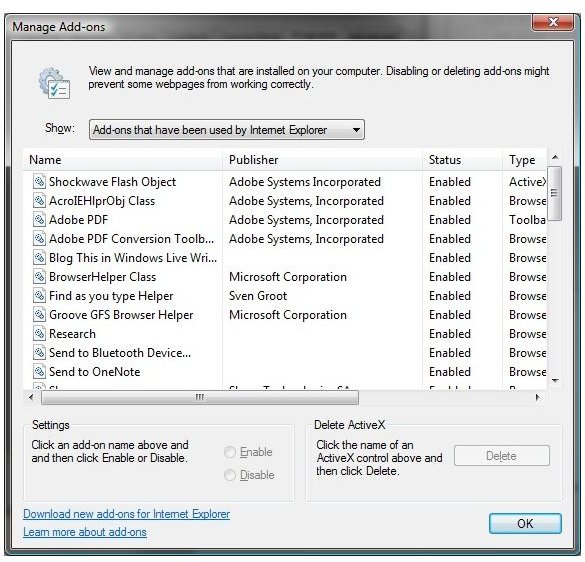
This defaults to Enable which is best for most users. Changing this setting to Disable will not disable running all ActiveX controls. Controls which have been previously approved (use the “Manage add-ons” interface on the “Programs” tab to manage these controls–see Image1) will still run. All other controls will not.
That brings us to the end of our tutorial.
Resources
- https://en.wikipedia.org/wiki/ActiveX
- https://msdn.microsoft.com/en-us/library/aa752035(VS.85).aspx
- https://msdn.microsoft.com/en-us/library/bb250471(VS.85).aspx
- https://www.microsoft.com/technet/prodtechnol/ie/ieak/techinfo/deploy/60/en/secopt.mspx?mfr=true