By forwarding incoming Gmail messages to another email client, you can have access to all of your new Gmail email messages in any email client at any time.
Set Up Forwarding for Your Gmail Account
If you have a Gmail account but also have one or more other email clients, you can set up your Gmail account to automatically forward any incoming mail (except Spam) to another email client . With Gmail filters you can even choose to forward only certain messages from certain contacts.
How to Forward All Gmail Messages
You might want to forward all of your Gmail emails to another inbox. Here’s how you can forward them all.
-
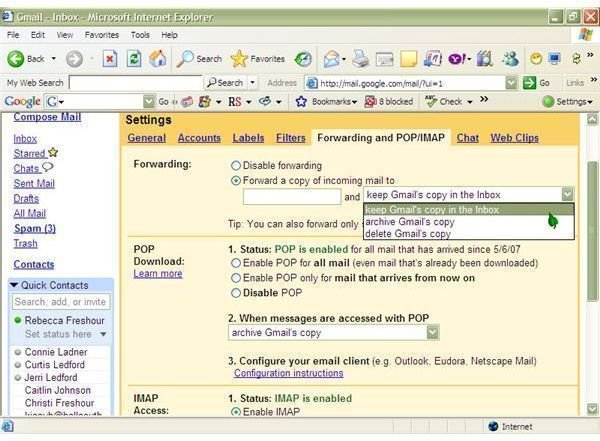
From any Gmail page, click on the Settings link, located in the top right corner of the page.
-
Click the Forwarding and POP/IMAP tab (fifth from the left).
Advertisement -
Select the radio button next to Forward a copy of incoming mail to
-
Enter the desired email address for the mail to be forwarded to.
Advertisement
-
Choose the action to take after the email has been forwarded.
-
At the bottom of the page**,** select Save Changes.
Advertisement
Forwarding Certain Emails
If you just want emails forwarded from certain senders or subjects, here’s how to do so in seven simple steps.
- From any open Gmail page, select the Settings link.
-
Click the Forwarding and POP/IMAP tab.
Advertisement -
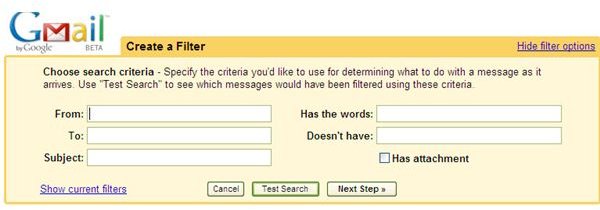
Select the creating a filter link next to Tip: at the bottom of the page.
-
Choose the criteria to be used to sort and forward messages (ex: if you want all messages from John Doe forwarded, enter John Doe in the From: field.
Advertisement -
Select Next Step.
-
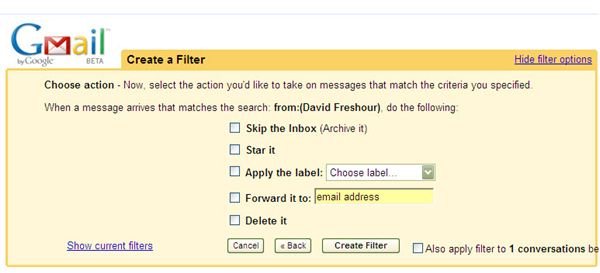
Check the box next to Forward it to: and enter the desired forwarding email address.
Advertisement
- Select Create Filter.
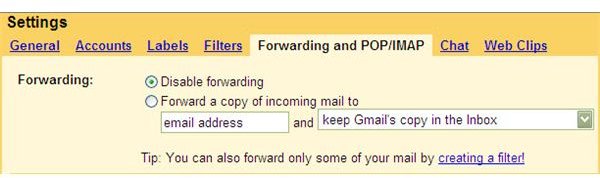
If you decide at any time in the future that you no longer want or need to forward your Gmail messages, return to the Settings link and the Forwarding and POP/IMAP tab and select the radio button next to Disable Forwarding. To delete or change a filter, return to the Settings link and the Filters tab. Choose the filter to delete and select remove.
Images