The typical method for creating a new Google Docs document is opening docs.google.com, choosing New from the toolbar and then choosing a blank document. Have you ever wished you could do it in fewer steps and faster? Let’s look at alternate methods for doing it.
Method 1: Add Google Docs Shortcuts In Google Bookmarks Toolbar
This method requires you to have Google Bookmarks toolbar installed on your Internet browser. You can get full benefit from this method if you have a browser running on your computer at all the time. While having your browser opened on the screen, simply drag and drop these shortcuts in your browser bookmarks toolbar.
New Document (Click to create a new Google Docs document)
New Spreadsheet (Click to create a new Google Docs spreadsheet)
New Presentation (Click to create a new Google Docs presentation)
Note: You need to be already signed in to your Google Docs account before creating a new Google Docs file.
After moving the shortcuts on the toolbar, you can create new documents, presentations and spreadsheets with a single click on the shortcuts. If you want the new document opened in a new window, press and hold the Ctrl key while clicking these links. Alternatively, you can load new documents in the sidebar. This way you can easily copy contents from a website to your document while surfing the web, in the same window.
Method 2: Place Google Docs Shortcuts On Your Desktop And Windows Start Menu
You can also create new Google Docs documents from your Windows desktop just the same way you would launch any application. To create shortcuts on your desktop, follow the following easy steps:
1. Download all the Google Docs icons to be used with the shortcuts on your desktop. Sure, you can use any icon from your system you want but to make Google Docs icons identifiable, therefore, it is recommended that the applications’ own icons are used.
You can download all the icons from the bottom of this page. Simply right-click on each icon and choose the option for saving the image on your computer.
2. Bring your Windows desktop at front, if it is not (press Win Key + M). Now right-click on your desktop then select New -> Shortcut. In the new window that opens, type in the following URL:
https://docs.google.com/?action=newdoc .
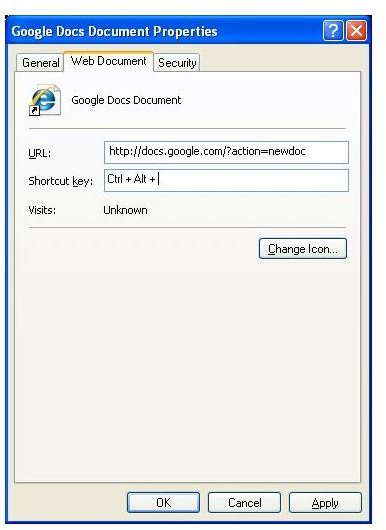
Click Next, type in the shortcut name “Create New Document”, press Next again to finish. You will see a shortcut with name “Create New Document” on your desktop. Right-click on that shortcut again, select Properties. Click on the Change icon button then browse and select the icon you downloaded earlier. Your shortcut is ready; double-click on it to create a new Google Docs Document.
Alternatively, you can assign keyboard shortcuts for quickly creating a new Document inside Google Docs. To do this, go the shortcut’s properties again and type in your shortcut key (like Ctrl + Alt + Q) in the Shortcut Key field.
Similarly, you can create desktop shortcuts for Google Docs Spreadsheet and Google Docs Presentations by just repeating the above steps. Only use the different URLs for Google Docs Presentation and Spreadsheet. Their URLs are as follows:
Spreadsheet: https://spreadsheets.google.com/ccc?new
Presentation: https://docs.google.com/?action=new _presentation
For accessing these shortcuts from the Windows Start menu, simply drag each shortcut to the menu one-by-one and if you want their access from the Quick Access toolbar also, drag and drop them to the toolbar the same way.
Google Docs Icons




