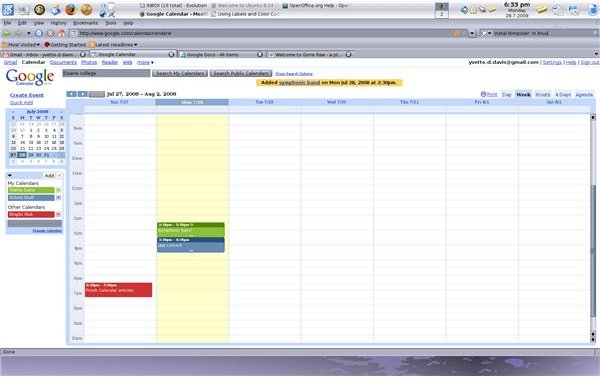
When you have several calendars, it’s easy to lose track of what appointments are on which calendars. That’s were labels and color coding come in. Using these two features will help you keep everything straight, no matter which calendar view you prefer
Using Labels and Color Coding
If you use other Google applications, you’re probably already familiar with the usefulness of the color coding and label system that’s standard throughout all Google Aps. But, how can put these features to work for you in Google Calendar?
Color Coding makes it easy to tell what appointments or events belong to which calendar. This means that you never have to wonder if “Dr. Appointment 4pm Monday” means you, your spouse, or one of the kids. You can create a different calendar for each different member of your family and then assign each calendar a color. Ta-da! You’ll know at a glance what appointment belongs to which person. You can even use color coding to assign tasks to members of your team, or chores to your family, just record the task or chore on the calendar belonging to the responsible person.
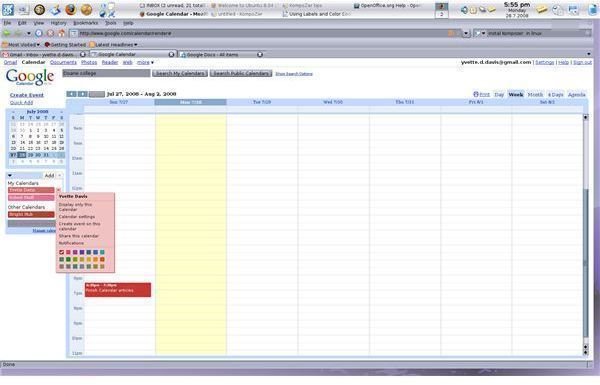
When you look at the calendar menu bar to the left of the screen, you’ll notice there is a color swatch under the name of each calendar. That color swatch tells you the color assigned to the calendar.
Change/Assign a color to a calendar
1. Log into Google Calendar
2. In the calendar menu bar, find the name of the calender to which you want to assign a color. Click on the arrow to the right of the calendar name.
3. In the drop down menu, select the color you want to use to code the calendar. Google gives you 21 colors to choose from. The color around the calendar name will change to the selected color
When you create an appointment on any calendar, Google will automatically code the appointment in the corresponding color. This makes it easy to tell at a glance what or who the appointment is for. You won’t ever get your appointments and who they blong to mixed up. Staying organized is as easy as spotting a color.
Images