How to Setup and Send Reminders in Google Calendar
Introduction
A calendar is a wonderful thing. Except, of course, when you forget about an event that you penciled in quickly. Using Google Calendar’s reminder feature, you can notice of an upcoming event or appointment in your email or on your mobile phone.
Entering an Appointment or Event
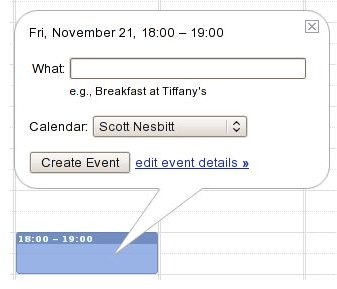
All you need to do to enter an appointment or an event is click anywhere in Google Calendar. Of course, you shouldn’t click indiscriminately. Click on the date and time at which the appointment or event begins – for example, November 18 at 6:00 p.m.
A bubble pops up. In the What field, type a short description of the appointment or event. Then, click the Create Event button. The appointment or event appears in your calendar. Like I said, it’s easy.
Setting Up Reminders in Google Calendar
An event in Google Calendar just sits there. You need to log into Google Calendar to see it. A reminder eliminates that need. To set one up, click the event to which you want to add a reminder. In the bubble that pops up, click edit event details.
On the event details page, locate the section called Add a Reminder . Click the arrow beside the label to get a full list of the available options for sending the reminder, email or pop-up are a few of the options. You can set up Google Calendar to send reminders in the following ways:
- Email, which sends a message to the email account that’s associated with your Google Calendar
- SMS, which sends a text message to your mobile phone
- Popup, which displays a message like the one below. You need to be logged into Google Calendar to use this type of reminder
Choosing How Long Prior to the Event You Want Notified
Choose the type of reminder that you want to send from the list. Then, in the field beside the list enter the number of minutes, hours, days, or weeks before the event that you want to be sent the reminder. I find that the days and weeks option is a bit much – I generally set up my reminders to be sent a few hours or 30 to 45 minutes before an event or appointment.
Setting Up Reminders in Google Calendar that Go to Your Mobile Phone
If you didn’t see an SMS option for setting up reminders in Google calendar, it may be that Google doesn’t know your cell phone number. Before Google Calendar can send you a text message, you need to tell it where to send that message. To do that, click Settings in the upper-right corner of Google Calendar. In the Calendar Settings window, click Mobile Setup. Choose your country from the Country list. Then, type your mobile number in the Phone number field. Don’t forget to include the area code and the country code. After that, choose your cell phone service provider from the Carrier list. Depending on where you are and which companies that Google deals with, your carrier might not be in the list.
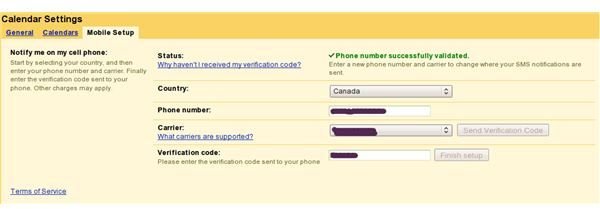
Finally, click the Send Verification Code button. This sends a message with a six-digit code to your mobile phone. Once you receive that message, enter the code into the Verification code field and click the Finish setup button. Google Calendar can now send text messages to your mobile phone. Now you can begin setting up SMS reminders in Google calendar.
Nobody wants to miss out on an important event. Setting up reminders in Google calendar is easy to do! Best of all, you can receive them regardless of whether you’re sitting at your computer or if you’re on your mobile phone.