Use Goole Docs to Track Your Checkbook
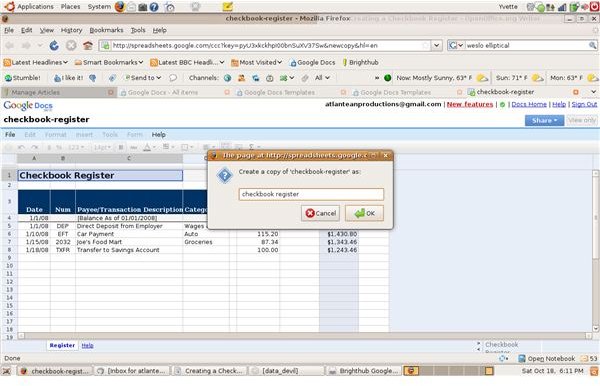
Many people keep their checkbook ledger using financial management software. While these programs help you track income, expenses, investments, loans and lines of credit, for basic checkbook management, they are cumbersome and inconvenient. Paper registers can be difficult to write in, and easy to lose.
Google Docs offers a convenient solution. Create a checkbook register with Google Spreadsheets. It’s secure, you can’t lose it, and best of all you can access from your home computer, laptop or mobile device.
How to Create your Checkbook Register
If you already have a Google Docs account, setting up a checkbook register is simple. If you don’t have a Google Docs account read Google Docs: Creating an Account, by Jerri Ledford.
-
Log into your Google Docs account.
-
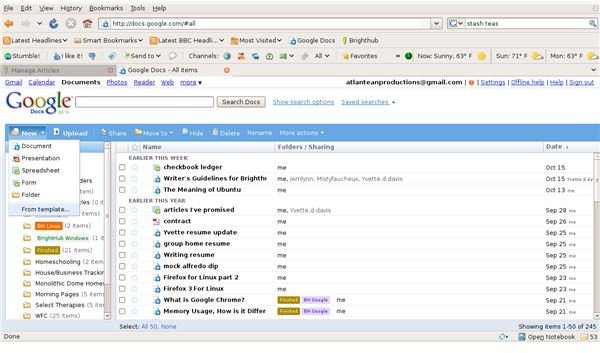
On the toolbar, click New > **From template…
**
-
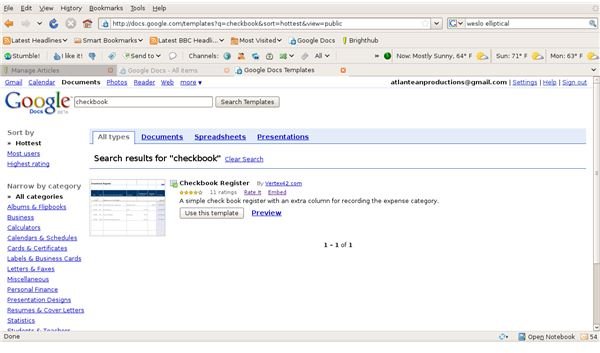
You will be taken to a page that lists all the available templates for Google Docs. There are two ways to open the checkbook ledger template. The quickest way is to type checkbook into the search bar at the top of the page. Click Search Templates.
-
Select **Use this template
**
-
A spreadsheet named checkbook-register will open. This is the template. You can not edit this.
-
Select File > Create a copy, or press Ctrl+Shift+S on your keyboard to create a working copy of the template.
-
Name the spreadsheet and click OK.
-
Now you have a working checkbook register. To clear the default information left-click at cell A4, hold down the mouse button and drag to cell H8. Release the mouse button and press Delete on your keyboard.
You can now use the checkbook register like you do your paper register or the one in your financial software.
Other Financial Templates
If you’d like to explore other templates to help you manage your finances, you’ll find those by selecting New >From template…
On the left side of the screen, you’ll see the heading Narrow by Category. Select Personal Finance to list all the financial templates.