How to Turn Your XP Laptop into a Mobile Wi-Fi Hotspot

Written by:  • Edited by: Rebecca Scudder
Updated Nov 20, 2011
• Related Guides: Wireless Network | Windows XP

Need to share your wireless or Ethernet connection with your colleagues? If they have Wi-Fi, it’s not difficult to set up a simple wireless network in Windows XP. Step-by-step we will show you how.

From time to time it’s useful to be able to share an Internet connection on a temporary basis. If your laptop has Windows XP and Wi-Fi, it’s not difficult to share a wireless connection or an Ethernet connection. By wireless we mean a built-internal WLAN or external modem connection to your data network provider.

Note that these are steps involved for Windows XP. Please go to this article if you’re using Windows Vista.

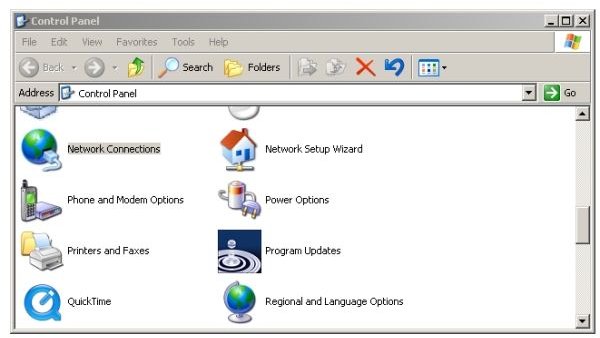
To start setting up your mobile hotspot, click on Start and go to the Control Panel. Double-click “Network Connections.”

(untitled)

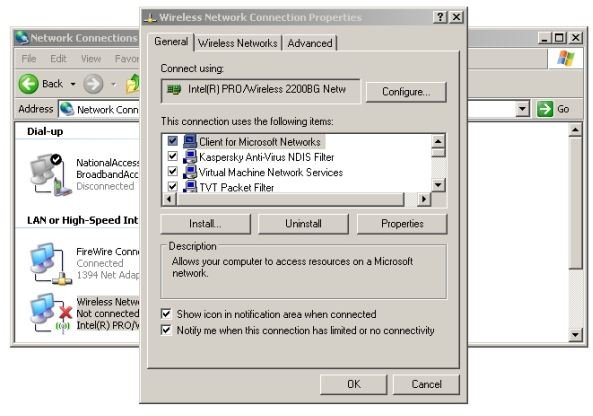
Right-click your wireless connection and chose Properties.
(untitled)

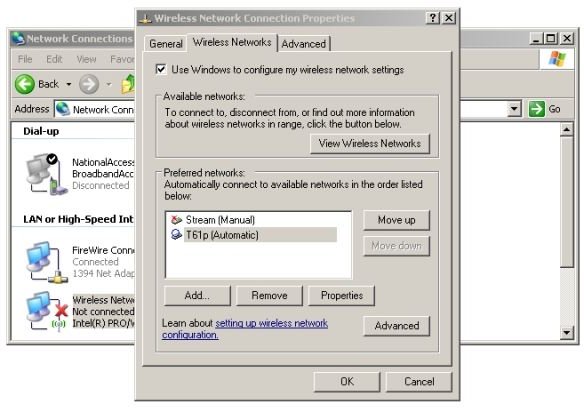
In the Wireless Network Connections Properties dialog, click the box that says, “Use Windows to configure my wireless network settings.”
(untitled)

At the bottom of the dialog window, click the “Add” button to start creating your mobile hotspot.
(untitled)

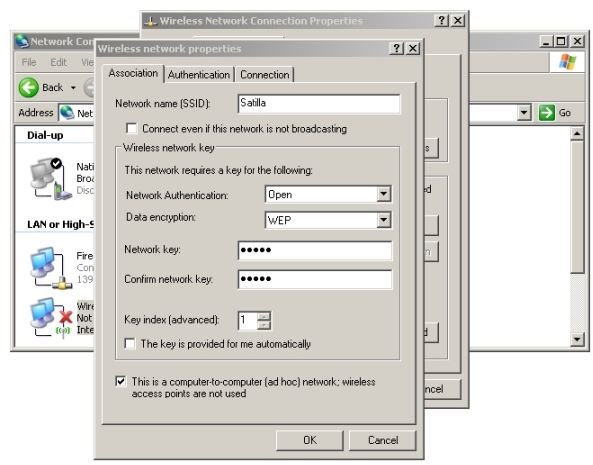
Enter a name for your network, select “Open” under Network Authentication. Then, under Data Encryption, select “WEP.” Then enter desired password under “Network key” and confirm it in the next field. If you are unable to enter a password, un-check “The key is provided for me automatically” and the password key fields should open. Then check “This is a computer-to-computer (ad-hoc) network; wireless access points are not used.” Then click OK to create your hotspot.

WEP stands for “Wired Equivalent Privacy.” It is not strong encryption, and it is easily defeated. Why do we suggest it? Because it works with a wide variety of devices - older laptops and handhelds - and because it can use a five-character password. The password may be referred to as “40-bit ASCII” on some devices. (Palm OS devices will want to want to know that.) Note also that ad-hoc networks are intended to be networks of convenience, or temporary. If you have a more permanent need to share an Internet connection, it would be better to purchase a Wi-Fi router.

Your new network will now appear under “Preferred Networks.”
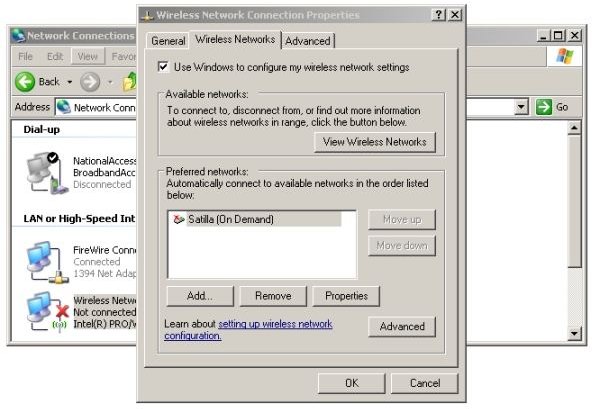
(untitled)

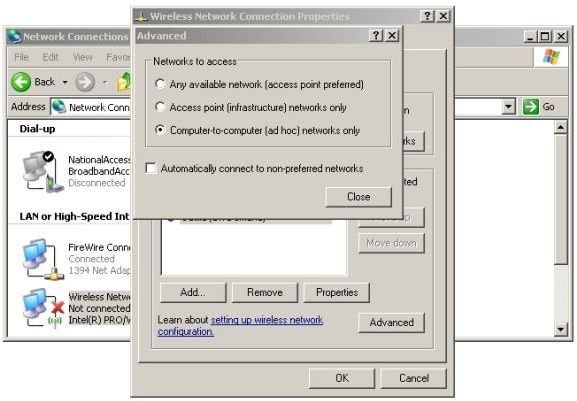
Click the “Advanced” button to bring up the Advanced properties dialog. Then click “Computer-to-computer (ad-hoc) networks only."
(untitled)

Click “Close” to close the Advanced properties dialog, and then OK to close the Network Connections Property Dialog.

At this point, Windows XP is ready to start the network and make connections available to other devices. However, since we want to share the Internet connection from our wireless modem or our Ethernet connection, we need to now tell Windows which connection to share.

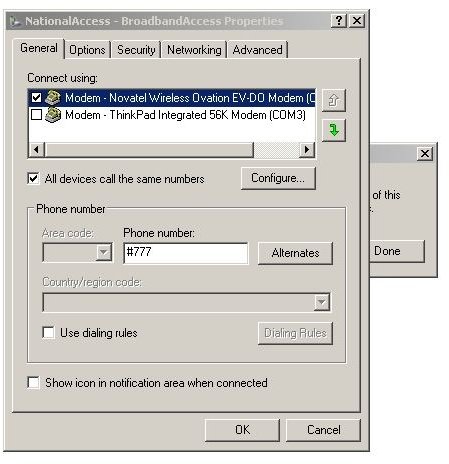
If setting up a wireless to Wi-Fi connection, start by opening Networks Connections if it is not still open on your desktop. Then right-click the wireless connection that you wish to share. On the notebook we’re using for screen shots, it’s labeled National Access/Broadband Access.

This will bring up the Properties dialog for the wireless modem.
(untitled)

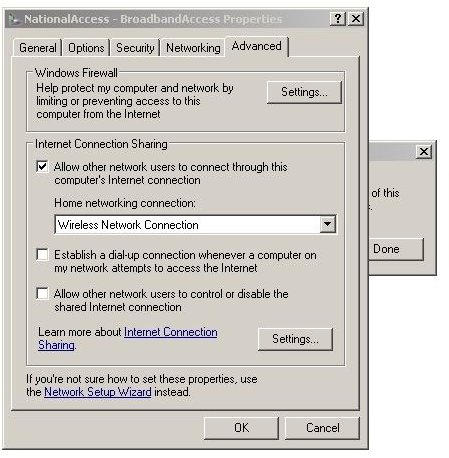
Click the “Advanced” tab and check “Allow other network users to connect through the computer’s Internet connection.“
(untitled)

Setting up your mobile hotspot is now complete.

The steps to share the wired connection instead of the wireless connection are exactly the same. Right-click your Ethernet connection in Network Connections, select Properties, click the Advanced tab, and check “Allow other network users to connect through the computer’s Internet connection. “ Note that Windows will only allow one connection shared at a time. When you enable Internet connection sharing on one, Windows disables sharing on the other.

Let’s try out the hotspot.

If connecting wirelessly, start up your wireless connection if not connected now. (Windows may have asked you to re-start the connection during the above steps. That’s fine.) If sharing your Ethernet connection, please hook up if disconnected.

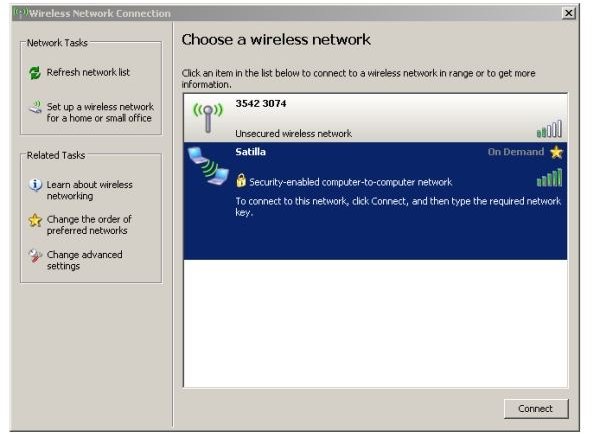
In either case, click Start, then Connect To, and then “Wireless Network Connection.” If this is the first run, it may spend some time looking for the network. It will be saving settings for the network that it finds, so subsequent starts will be much faster. Then it will display this dialog.
(untitled)

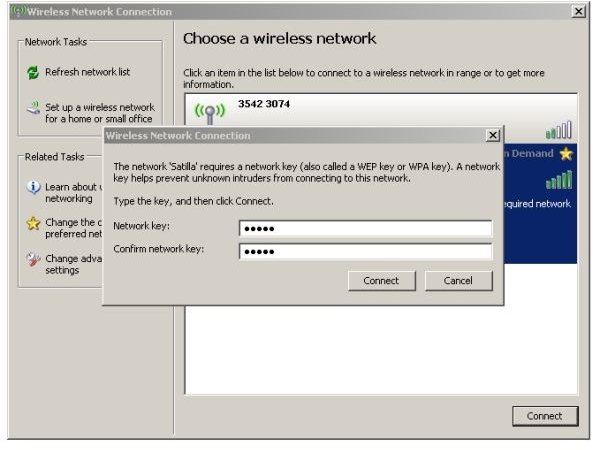
Select your own network and click “Connect.” Next, it will ask you to log in to the network.
(untitled)

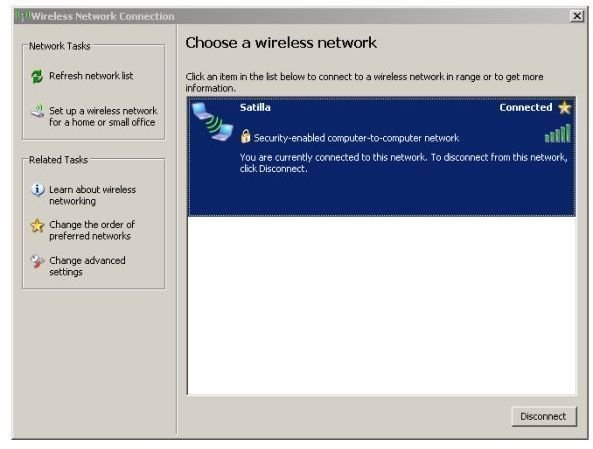
The dialog will then tell you that you are connected to “a ‘security-enabled’ computer-to-computer network.” It will say “Disconnected” in the top-right corner until other parties connect. It will then stay connected until no other party is connected.
(untitled)

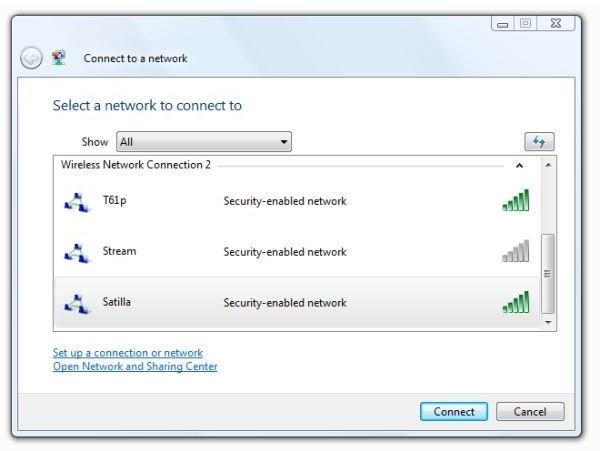
Your friends and colleagues should now be able to go to their “Network Sharing Center” and find your new network listed under “Connect to a Network.” Tell them the password and they'll be able to connect.

Here’s our desktop PC showing the notebook’s hotspot (Satilla) in the list of available networks.
(untitled)

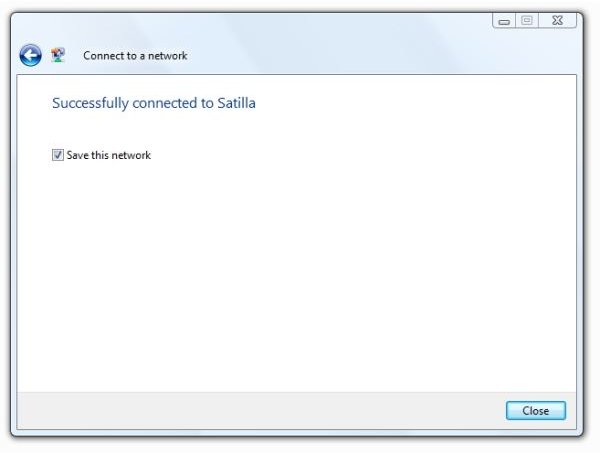
And here's what it looks like after connecting to the network.
(untitled)

Note: Some modern devices, notably smartphones and a few tablets, do not come with drivers that allow them to connect to ad-hoc networks. A work-around app for some Android devices is available in the Android AppStore. If you know of similar apps for other platforms like Windows Phone 7 and iOS, please help other readers by mentioning the solution in comments.

References

  • Author's expertise and experience
  • Screenshots by author

Comments

Showing all 48 comments
 
boom-cat Jan 6, 2012 12:56 PM
RE: How to Turn Your XP Laptop into a Mobile Wi-Fi Hotspot
oops i meant xp professoinal<br>
boom-cat Jan 6, 2012 12:55 PM
RE: How to Turn Your XP Laptop into a Mobile Wi-Fi Hotspot
hey i got to network conn. but the network connection tab isnt there everything else is the same tho i have xp professional any help? (all the other menus are the same just that tab is missing
ieee488 Nov 28, 2011 8:13 PM
RE: How to Turn Your XP Laptop into a Mobile Wi-Fi Hotspot
Okay, I got it all working.<br><br>This article should have the steps numbered.<br><br>If like Maurice Andrews, you don't see the Wireless Networks tab, it is because Windows is not in charge of your wireless network. I have a Dell and Dell WLAN utility was in charge of wireless network configuration. I uninstalled it. Even after that, I still had to go into Control Panel -&gt; Administrative Tools -&gt; Services and click to start up Wireless Zero Configuration.<br><br>Anyway, after following all the steps, I still didn't have internet on my iPhone 3G, so I clicked on the "Set up a home or small office network" link on the left hand box when you do Control Panel -&gt; Network Connections.<br><br>I hit Next button a few times, and then I put a X in the box that says "Ignore Disconnected Network Hardware". When I did that the wireless card showed up as a choice. Everything after that is pretty easy.<br><br>After everything was finished, I was told to reboot the computer.<br><br>I had to reconnect my iPhone after the computer rebooted into Windows.<br><br>Now I am going to see if I can do the same in Ubuntu Linux.
ieee488 Nov 28, 2011 7:44 PM
RE: How to Turn Your XP Laptop into a Mobile Wi-Fi Hotspot
<br>I was able to follow the directions okay until I get to setting up the Internet Sharing for my T-mobile Mobile Broadband device. I don't get the choice to select Wireless Network Connection from a dropdown box. All I have is Local Area Connection.<br><br>Maybe it is a problem with T-mobile's service; I don't know.<br><br>Also, for others, Windows Firewall may need to be disabled for things like this.<br>
ieee488 Nov 28, 2011 7:38 PM
RE: How to Turn Your XP Laptop into a Mobile Wi-Fi Hotspot
That's usually because another piece of software is controlling the Wireless setup. On my Dell, I had to uninstall Dell WLAN utility.<br><br>
Haris Nasution Nov 15, 2011 12:25 PM
RE: How to Turn Your XP Laptop into a Mobile Wi-Fi Hotspot
can it connect for my android tablet??or just for computer to computer?
Jan Čagánek Oct 20, 2011 1:18 AM
RE: How to Turn Your XP Laptop into a Mobile Wi-Fi Hotspot
I have the same problem as Maurice Andrews. Is here anyone who could be so kind and help us please?
Anonymous Oct 2, 2011 6:18 PM
thank you
I tried half a dozen tutorials on this topic, but your sequence of steps got everything to work!
thanks!
chichi Sep 14, 2011 5:32 PM
woorked!! but not on andriod tablets
hello all, tried it and it worked but could only connect to laptops and didnt connect or even saw the connection on my android tablet. any sugestion........
My Name Aug 19, 2011 6:38 PM
Does not work
My iPhone & EVO both saw the hotspot and connected to it, but would not give me any internet access…..
CHarles Jul 18, 2011 1:00 AM
RE: How to Turn Your XP Laptop into a Mobile Wi-Fi Hotspot
After created the hotspot connection but i am unable to connect it.Anyone can help...Thanks
Maurice Andrews Jul 14, 2011 9:15 PM
Cant find WIRELESS NETWORKS tab in Wireless Network Connections Properties window
I am trying to make my netbook a wireless hotspot. Its an XP.
Im opening up the Wireless network Connection properties but the only tabs are General and Advanced, I don't see a tab for WIRELESS NETWORKS. Am I able to turn my netbook into a hotspot?
Amz Jun 21, 2011 4:40 AM
RE: How to Turn Your XP Laptop into a Mobile Wi-Fi Hotspot
This works. You're awesome. Thanks!

Been looking for a way to hookup my phone thru the unlimited broadband I have on my netbook for so long. No more hassleful network bridges. Yay!
krishna Jun 16, 2011 3:15 PM
mhotspot
actlly i hav an android phone and i want to share my internet over my wifii lappy...

finally i have found a software for this without even installing this...it is..
"mhotspot"
u can try this....www.mhotspot.com
Manish Jun 12, 2011 10:44 PM
Firewall
1st it didn't worked but after reading last comment i diabled firewall then it worked fine on my iphone 4, we only nead to add it to exxeptions in firewall.

thanks
Jim Apr 3, 2011 9:54 PM
Don't forget firewall
I had to open up the firewall on the new wireless connection so that my iphone and ipad would work. They were connecting but were timing out. I told the firewall to allow everything by checking each item in the list.
Jim Apr 3, 2011 9:02 PM
forget bridging
Bridging is only useful if you already have two working internet connections and if you did, you wouldn't be reading this post!
Jim Apr 3, 2011 8:58 PM
Almost correct
This is almost right, but they forgot to tell you, when you create the new wireless connection, be sure to select "shared" as the type of network authentication to use, on the same properties panel you use to set "WEP" encryption and the password. With this small change added to what the author has, here, you connection should work!
Paul Mar 28, 2011 11:29 PM
It won't work until you bridge your connections
It didnt' work for me, I have a wired connection to my laptop, and then created a wifi hotspot . Make sure you share the primary network connection (in my case wired local area connection). Then you 've to click on your wireless network connection and say "add to bridge". Now your wireless knows how to get ip from your main connection and then send it across to the users.
does not work Mar 24, 2011 5:41 PM
NO ip address
It semi works… My other laptop will connect to the desktop being used to transmit, but the laptop will NOT acquire an IP address to allow internet access….
flagship Mar 23, 2011 5:31 PM
??????
Not working.....
SmaRtSEED Mar 17, 2011 8:21 AM
Can it Work from PC WIth Desire HD phone
Dear Mr.Lamar Stonecypher,
I try to get My desire HD connected Via WIFI with PC So what I have to do to get this Connection Working without any problem
SmaRtSEED Mar 16, 2011 4:17 AM
Dose it Work with Desire HD (Android)?
@Lamar Stonecypher:

Hello,

I'd appreciate if u can tell me Dose this Way get Work with Desire HD (Android phone)

Note: I have Desktop not laptop So any way to get it Connected Via WIFI?

Thanks in advance & Best Regards,

SmaRtSEED
Robert Feb 15, 2011 12:42 PM
This is NOT a Hotspot
This is NOT a Hotspot, its an Ad-Hoc connection! Many mobile phones do not support his.
Dave Jan 30, 2011 2:23 PM
Anyone having issues with iPhone
Hello, I have created the network on my laptop, do I need to connect my laptop to it to make it broadcast or should it just appear on other devices? Also, should I be able to connect my iPhone to it? The phone sees it, gets an IP Address but thats about it
Ronak Jan 30, 2011 6:13 AM
hw to use it in mac
hw to do this in mac pro??pls pls help..
T P Abraham Jan 15, 2011 10:57 PM
XP lap top into WI FI hot spot
I tried to do the following as mentioned in network connections the
“Advanced” tab and could not find the page showing check “Allow other network users to connect through the computer’s Internet connection.“
Instead it showed that windows cannot display the properties of this connection

KIndly help
LeCalif Jan 5, 2011 9:14 AM
Unable to see the wifi connection
Hi,

@Michael, how did you do to connect your android tablet? My desire can't even see the connection...
And the connection does exist as I can even connect it with my old nokia under symbian^1 (which seems to come from middle age compare to android...)
clark kent Jan 2, 2011 11:46 AM
RE: How to Turn Your XP Laptop into a Mobile Wi-Fi Hotspot
cool! thx for sharing!
Vikas Dec 21, 2010 9:21 AM
Not able to access internet
I successfully created hotspot with given instruction but when I connect to it using my wifi phone & try to open any page, internet does not work on my phone.
Michael Cox Dec 6, 2010 10:46 AM
Worked great
Wrong Ahmos, it worked great just now on my XP installation. Thanks for the tip. Using it to connect an Android tablet.
Jaco Nov 13, 2010 3:33 PM
RE: How to Turn Your XP Laptop into a Mobile Wi-Fi Hotspot
All clear - and working. Thanks...
Anonymous Oct 23, 2010 8:37 AM
hi
excellent!
ahmos Oct 2, 2010 6:52 PM
the title for this article is wrong
the method described here is for windows 7 and not XP !! in windows XP you can NOT select a wireless network to be shared through a WiFi adapter.
sakkil Sep 2, 2010 1:18 PM
RE: How to Turn Your XP Laptop into a Mobile Wi-Fi Hotspot
REALLY, THANK YOU!
skj Aug 8, 2010 10:33 AM
use of laptop wireless internet device to create Hot spot
A very customer needed requirement--
- While travelling need to used WIFI for Ipone to connect to Skype or gtalk.
How to do setting on laptop using wireless internet thru USB
- or need to develop a new add on device to laptop to create WiFi for other devices
MSG Jul 11, 2010 12:13 AM
I have not had any luck
Hi,

Over the past year, I have tried configuring XP to convert my laptop into a WIFI router. None of these suggestions ever worked. Sometimes, I would briefly be able to get it to work. Most times, it seems that the gateway (the ICS service on my laptop) would block any outbound traffic from the private LAN I created; i.e., although I was able to do the DNS lookups from clients that were connected to my laptop, they would not be able to ping external services like www.yahoo.com. I disabled the firewall and checked everything. Mind you I've been an IT consultant at IBM for 10 years, so I know this kind of stuff. After extensive research, I found that ICS is flaky. I then found NAT 32.

NAT 32 rocks. It's really easy to configure, and I have used it to create my personal WIFI hotspot. Essentially, the tasks are a bit similar--although you need to install NAT 32 and the protocol driver. After you do that, you create the adhoc network on the wireless adapter. Then you connect your Internet connection--in my case, it is a long range WIFI adapter connected to an open WIFI network. You start the NAT 32 configuration, and follow the configuration panels. I now have my personal WIFI router!
mathew May 25, 2010 1:33 PM
no acess point found
how do u get a network that supports stuff like psp and nintendo ds
Stuart Apr 8, 2010 11:58 AM
Thanks
Great article. I used these steps to share my wired laptop connection with my iphone. Worked first time!
Gary Feb 26, 2010 10:31 PM
RE: How to Turn Your XP Laptop into a Mobile Wi-Fi Hotspot
Same issue as Joe. Argh! Maybe I'll have to buy a Wii LAN adapter after all. I was hoping to avoid it.
Joe Feb 21, 2010 6:31 PM
Using my laptop as a hub to connect Nintendo Wii
Hi,

Thanks for the article, very helpful. I tried to use this to connect my Nintendo Wii to the internet. I followed all the steps and then in my Wii menu I search for a Wireless connection, as I would do if I had an actual wireless router...the Wii can discover the new hub but will not connect???? I get an error "unable to find access point. Please confirm SSID & try again". Any ideas???
John Feb 17, 2010 12:24 PM
Unable to surf
Hi.. thanks for this tutorial.. I've somewhat setup the hotspot.. my windows mobile 6.5 device able to hook up to hotspot, but cannot surf despite it shows it's connected.

I'm using a mobile phone modem connected to my laptop via usb and it dials from laptop to the internet.

Please enlighten where went wrong here.. thanks..
Lamar Stonecypher Feb 3, 2010 11:47 AM
Verizon pc5750 , sharing connection
Hi, Gabe,

If you want to connect two PCs without using a router- or- a WiFi connection, you can do this using an Ethernet "crossover cable." These cost about $10 in computer stores, and they allow two computers to interconnect as if they were on a network instead of a direct connection.

Then following the steps above, you'd click on your Ethernet adapter to "share this connection." The steps should be otherwise similar.
gabe Feb 2, 2010 6:58 PM
Verizon pc5750 , sharing connection
Hi, I do have a verizon wireless broadband via pc5750, I would like to share that connection for another laptop so my parents can watch another program. Is it possible to set up some kind of ad- hoc connection . I have no other internet connection, but Verizon Wireless Broadband, thanks/gabe
Lamar Stonecypher Dec 28, 2009 1:50 PM
Sharing a Dial-Up Connection
Hi, Kevin,

The same theory should apply. Just make your modem connection and, then, in Network Connections, select the modem connection (by name) to share. The Properties dialog should be the same - under the Advanced tab you'll just be sharing the dial-up modem instead of a wireless modem.

Thank you for visiting Bright Hub and commenting.
kevin Dec 28, 2009 2:16 AM
kj
can i do this with dial up
Lamar Stonecypher Sep 17, 2009 10:40 AM
E90 Error Message
Hi, Su,

A brief look around suggests that this error is not uncommon with the E90. Try doing a web search with the phrase

Nokia E90 "No Gateway Reply"

and hopefully you'll find somebody else who has a procedure to try that will work for you.

Good luck with this!
Su Sep 17, 2009 5:21 AM
No Gateway reply
Hi,

Thank you for the tutorial and I managed to set up one.
However, I intended to use my Nokia E90 to connect to internet through this method.
Wifi found but whenever I connect to internet, I got a message saying "No Gateway Reply".

What should I do?

Regards!
 
blog comments powered by Disqus
Email to a friend


