Did your ex log into your Hotmail account? Have you had the same password since you created your Hotmail account? These are just a couple of the reasons why you may want to change your password. Learn how to change your Hotmail password in just a few simple steps.
Overview
There are several reasons why you might want to change your Hotmail password. You may have forgotten your password and are now unable to log in to your email account. If you suspect that your account has been hacked or that someone else learned your password, you should change it immediately. It is also advisable to change your password regularly to help keep it secure. Learn how to change your Hotmail password depending upon your reasons for doing so.
Forgotten Password
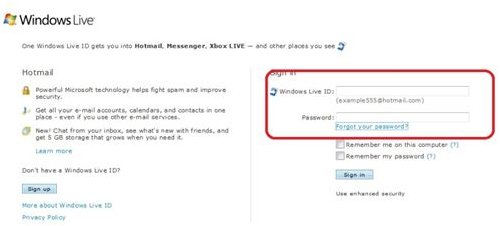
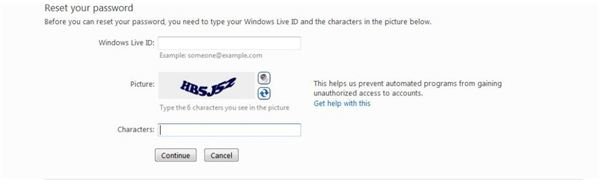
If you have forgotten it and need to know how to change your Hotmail password, start by going to the Hotmail sign in page. In the Sign In section on the left side of the page, click the Forgot Your Password link. You will be taken to the Reset Your Password page.
Enter your Hotmail email address into the Windows Live ID box. Be sure to include the @hotmail.com extension at the end of your email address, such as YourName@hotmail.com . Enter the “CAPTCHA” code and click Continue.
On the next page, select an option for resetting your password. You can choose to use your location information and secret answer to verify your identity, or you can have password reset instructions sent to you in an email. You will need to have an alternate email address set up on your Hotmail account in order to use the second option. Once you select the option you want to use, answer the questions provided or select the email address to which you want instructions sent. The site or email will show you how to change your Hotmail password.
Account Security
If your Hotmail account has been compromised or you simply want to help ensure its security, you will need to know how to change your Hotmail password. Sign in to your account using your Hotmail email address and current password.
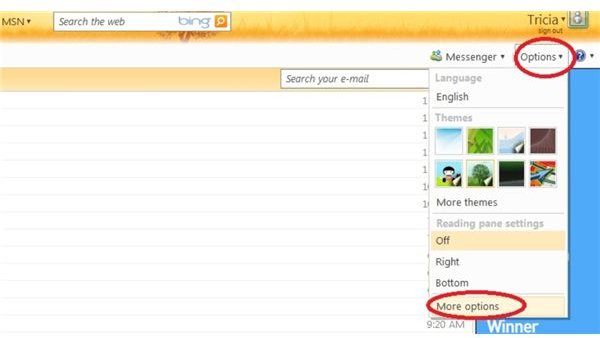
Click on Options in the top right side of your Hotmail window and then select More Options. The Mail Options page will open. Select View and Edit Your Personal Information under Manage Your Account.
On the Windows Live Account page under Password Reset Information, click Change. Enter your current Hotmail password into the Old Password field. In the next section, you will see how to change your Hotmail password: simply enter a new password into the Type New Password field. Check the password strength and choose another Hotmail password if the one you selected is not strong enough. For some tips on selecting a strong password, read the Bright Hub article Creating Unbreakable Passwords .
To help you remember to change your Hotmail password regularly and keep it secure, select the Make My Password Expire Every 72 Days check box. Hotmail will not only remind you but also require that you change your password again after 72 days.
When you have selected a strong password that you can remember, click Save and you are all set.
For more help with Hotmail, read Windows Live Hotmail – All You Need to Know and Power Gadgets for the Vista Sidebar - Windows Live Hotmail Gadget .


