Building relationships is one of the cornerstones of learning to create relational databases with Access 2007. Learn the basics of building powerful relationships to get the most from your Access 2007 database.
MS Access Table Relationships
The most common type of relationship in an Access 2007 database is the one-to-many relationship . A one-to-one relationship is unnecessary because you could simply collapse the data into one table. Many-to-many relationships are a bit more complicated but allow you to link many record in one table to many records in another.
Unlike flat databases, relational databases make use of multiple tables to reduce redundancy, create powerful relationships among records in those tables, and allow the user to make useful queries. However, there are some rules to building relationships that every Access 2007 beginner needs to know. Read on to learn these rules and avoid time-consuming mistakes when you start building your own relationships in your databases.
Rules for Building Relationships in Access 2007
First, you can only build relationships between tables within the same database. Unfortunately, you cannot build a relationship between tables that reside in two different databases. Your only alternative to build relationships between tables in two different databases is to import one of the tables into the database of the other.
Second, you could technically relate a query to a table but this is uncommon. For now, focus on building relationships between tables and work toward more advanced relationship building when you have enough experience with normal relationships.
Third, remember that you must explicitly tell Access 2007 how two tables are related. Simply having the same field in two different tables is not enough. You must specifically relate two tables for Access 2007 to know that you have built a relationship between them.
Finding the Relationship Window in Access 2007
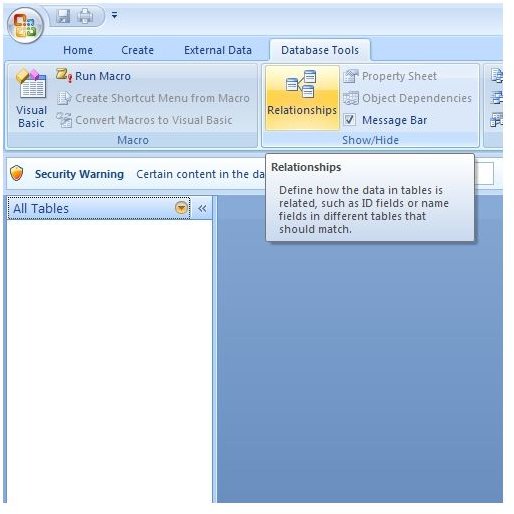
Like all functions in Access 2007, getting to the relationship window can be accomplished with the Ribbon. To bring up the relationship window, click on the DATABASE TOOLS tab on the Ribbon. Then, click on the RELATIONSHIPS button in the SHOW/HIDE area of the DATABASE TOOLS tab (see Figure 1).
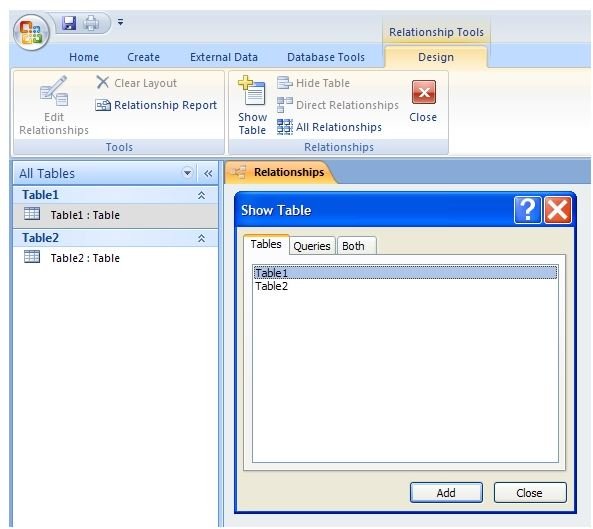
When you click on the RELATIONSHIPS button, the relationships window will open along with the SHOW TABLE window that lists all of the tables in your database (see Figure 2).
Creating Table Relationships in Access 2007

Now that you have the SHOW TABLE windows open, you can begin building relationships between tables. Building a relationship takes nothing more than a few clicks of the mouse. However, don’t be fooled into thinking that such as simple task does not create powerful relationships. Relationships are the heart and soul of a relational database.
To build a relationship between two tables, click on the first table in the SHOW TABLE windows and then click on the ADD button. This places the table and its contents in the RELATIONSHIPS area in Access 2007 (see Figure 3).
Now click on the second table in the SHOW TABLE window and then click on the ADD button again. This places the second table and its contents in the RELATIONSHIPS area of Access 2007.
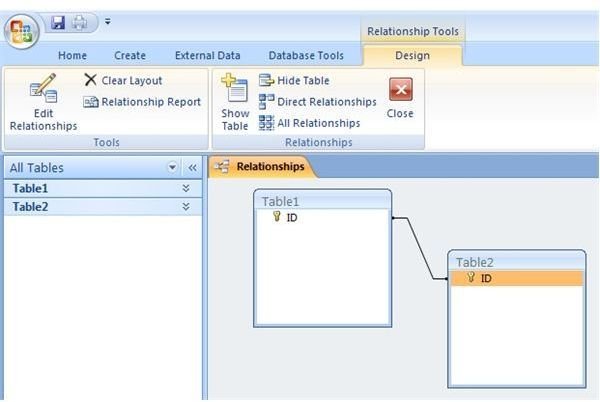
To build a relationship, both tables must have a related field which is normally the primary key. To build the relationship, simply drag the related field from the parent table to the related field in the child table. When you do this, the EDIT RELATIONSHIPS window opens where you can modify the options of the relationship. When you have finished selecting your options, click on the CREATE button. If you did everything correctly, you should see a line between the two tables signifying that a relationship has been established (see Figure 4).
Conclusion
Building a relationship between two tables in Access 2007 takes just a few clicks of the mouse. Relationships form the purpose of creating a relational database. However, there are some rules you must follow in order to be certain Access 2007 can relate two tables. One of the most important of these rules is that you can only build relationships between tables within the same database. To relate tables in two different databases, you will need to import one of the tables into the database that contains the other table.


