In this second part of our How to install a Windows 7 Language Pack series we show everything needed to successfully install Windows 7 Language Interface Packs on any edition of Windows 7, including the parent language dependencies.
If you have Windows 7 Home Basic, Home Premium or Business, or if you have the Windows 7 Starter edition you cannot install a Language Pack, also known as a MUI or Client Language Pack, as explained in the first article of this series. However, any Windows 7 edition permits the installation of one or more Language Interface Packs (LIPs), which have only the most commonly used parts of the Windows 7 GUI translated, yet are limited to non-major languages.
Which Localization of Windows 7 do I have?
Before you set off to install a LIP in a given language make sure your Windows 7 computer has the prerequisite parent or base language installed, as explained in Bright Hub’s article Understanding Windows 7 Language Packs: Introduction and Architecture . To find out which localization of Windows 7 you have, go to Start Search and type msinfo32. In the right pane of System Information / System Summary check the value of the item Locale.
List of Windows 7 LIPs with the supported base and parent languages in brackets:
Afrikaans (en-US)
Albanian (en-US)
Amharic (en-US)
Armenian (en-US)
Assamese (en-US)
Azeri (en-US, ru-RU)
Basque (es-ES, fr-FR)
Bengali (en-US)
Bosnian (en-US, hr-HR, sr-Latn-SP)
Catalan (es-ES, fr-FR)
Filipino (en-US)
Galician (es-ES),
Georgian (en-US)
Gujarati (en-US)
Hausa (en-US)
Hindi (en-US)
Icelandic (en-US)
Igbo (en-US)
Indonesian (en-US)
Inuktitut (en-US)
isiXhosa (en-US)
isiZulu (en-US)
Kannada (en-US)
Kazakh (ru-RU, en-US)
Khmer (en-US)
Kiswahili (en-US)
Konkani (en-US)
Kyrgyz (ru-RU)
Lao (en-US)
Luxembourgish (fr-FR, en-US)
Macedonian (en-US)
Malay (en-US)
Malayalam (en-US)
Maltese (en-US)
Maori (en-US)
Marathi (en-US)
Nepali (en-US)
Norwegian (nb-NO)
Oriya (en-US)
Persian (en-US)
Punjabi (en-US)
Quechua (es-ES)
Serbian (sr-Latn-CS, en-US)
Sesotho, Setswana (en-US)
Sinhala (en-US)
Tamil (en-US)
Tatar (ru-RU)
Telugu (en-US)
Urdu (en-US)
Uzbek (en-US, ru-RU)
Vietnamese (en-US)
Welsh (en-US)
Yoruba (en-US)
They can be obtained from Microsoft: https://windows.microsoft.com/en-US/windows/downloads/languages
If the display language you want to install is not listed here then it is not available as a Windows 7 Language Interface Pack, but most likely is available as a Windows 7 Language Pack. More Information about Windows 7 Language Packs can be found in
-
Understanding Windows 7 Language Packs: Introduction and Architecture: https://www.brighthub.com/computing/windows-platform/articles/56625.aspx
-
Windows 7 Language Packs Details and Availability: https://www.brighthub.com/computing/windows-platform/articles/56630.aspx
as well as the first part of this series: How to install a Windows 7 Language Pack .
Windows 7 Language Interface Pack Installation
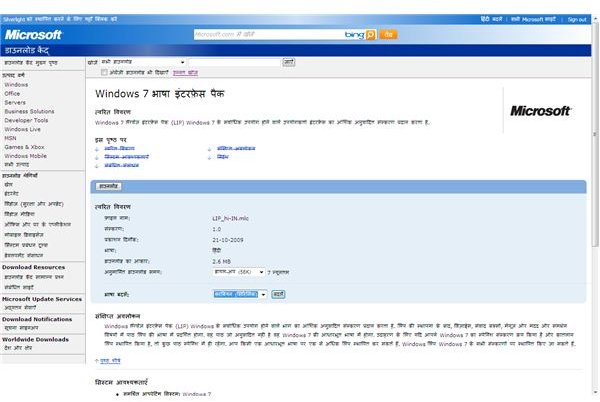
1. Go to Microsoft Download or follow our link.
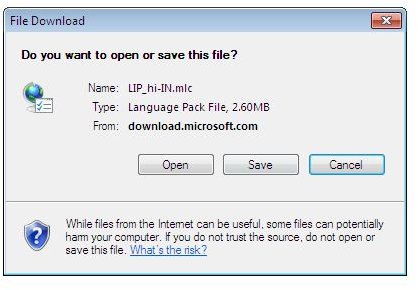
2. Click Download (Menu displayed in the LIP Language, Hindi here). Then click Save.
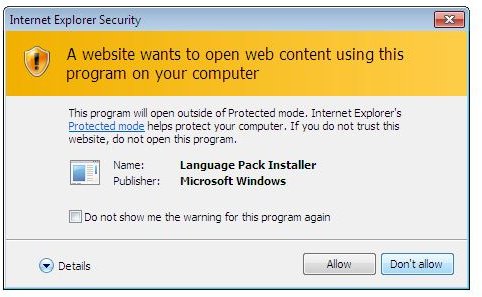
3. When the download completes select Open, then click Allow. On the next screen click Next.
Change the display language as outlined below in the section below.
Changing the Display Language:
This will affect only the user profile under which you are currently logged on!
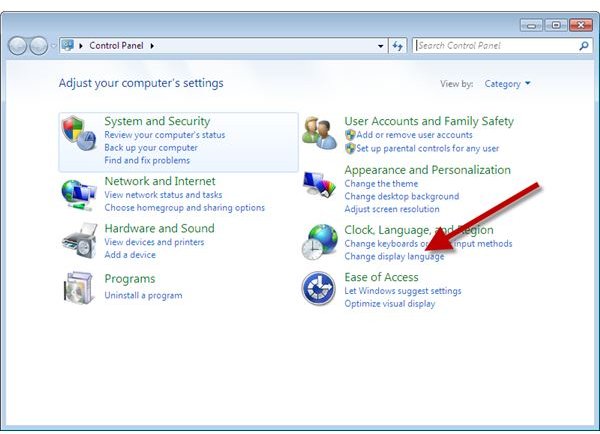
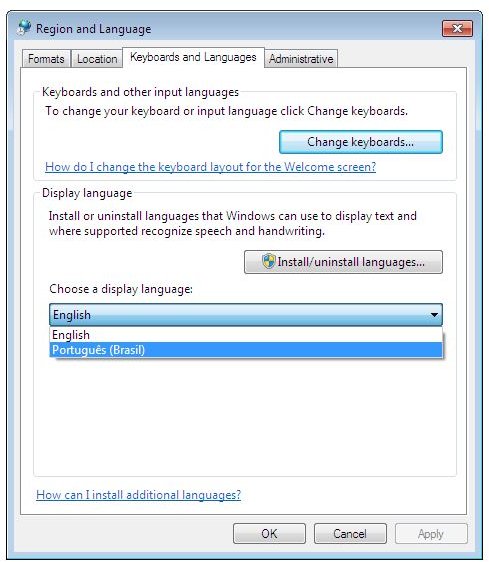
1. Go to Start -> Control Panel -> Clock, Language, and Region / Change the display language
2. Switch the display language in the Choose a display language dropdown menu.
3. Click OK
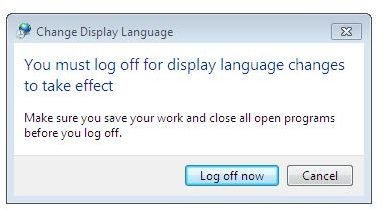
4. Log off for the changes to take effect.
Reference
Author’s experience
Screenshots taken by the author
This post is part of the series: How to install a Windows 7 Language (Interface) Pack
This series features an article explaining how how to install a Windows 7 Language Pack plus an article about how to install a Windows 7 Language Interface Pack.


