There are two common reasons why a Favorites folder does not work in Internet Explorer 8. Learn how you can get your Favorites to start working again in IE8.
When Microsoft released Internet Explorer 8, the Internet was filled with people looking for help with fixing several things that went wrong after they upgraded to the new web browser. One of the most frustrating parts of upgrading or switching web browsers is getting the Favorites folder to function as it did with the old browser.
Two of the most common reasons why the Favorites folder stops working are discussed below. One of the reasons is not related to Internet Explorer 8 at all. The other requires a quick change the Windows Registry to make the Favorites folder work again.
Changing Accounts and Getting the Favorites Folder to Work
Whenever you start to troubleshoot a computer problem , you have to start with the simplest and most obvious causes of the problem. For example, if your computer won’t turn on, you need to check to see that it is plugged in before you open the computer up and start fiddling around inside.
If your Favorites are not working, you need to make sure your Favorite folder is “plugged in” and ready for use. We do this by checking to see if you are using your usual Windows account.
Many people are unaware that Windows can have many user accounts so that everyone who uses it can set up their workspace as they want. With your own personal account, you don’t have to worry about disappearing icons, changes to the desktops resolution, or having someone access or delete you personal files. One of these personal files is the Favorites folder.
It may seem obvious to some people but one of the most common causes of “disappearing” Favorites in Internet Explorer 8 is the fact that the individual is not logged in to his/her usual Windows account. Since each account has its own Favorites folder, each list of Favorites will be different for each account. Before you start troubleshooting your Favorites folder, be sure you are using your own account and not someone else’s.
Changing the Location of the Favorites Folder in Internet Explorer 8
Internet Explorer 8 does not allow you to change the default location of your Favorites folder . In most cases, Windows XP holds your Favorites folder in the following location:
c:\documents and settings\user account\favorites
The “user account” folder above is the name of your account in Windows XP and will be different for each user. It is possible that your Favorites in Internet Explorer 8 are not working because the default location of your Favorites folder has changed.
The reasons why your Favorites folder location may have changed are too many to list here. However, the most common reasons are viruses, Trojan horses, malware, or even a mischievous administrator. Regardless of the reason, follow the steps below to reset the location of your Favorites folder.
Editing the Windows Registry to Reset the Location of Your Favorites Folder
Before we proceed, here is a word of warning. Making changes to the Windows Registry can cause irreparable damage to the operating system resulting in the need to reinstall Windows on a clean hard drive. Before you make any changes to the Registry, backup all your important files or leave the editing of the Registry to a professional.
First, go to the following directory and make sure your Favorites are where they should be. Go to:
c:\documents and settings\user account\favorites
where “user account” is the name of the account with which you are having trouble with your Favorites. The drive letter may be different depending on where Windows is installed on your computer. If your Favorites are located here, you need to check that Windows knows where your Favorites reside on your hard drive.
Click on START and then click on RUN. Alternatively, you can hold down the Windows key on your keyboard and hit the “r” key. When the RUN window opens, type in the word “REGEDIT” without the quotes and click on OK.
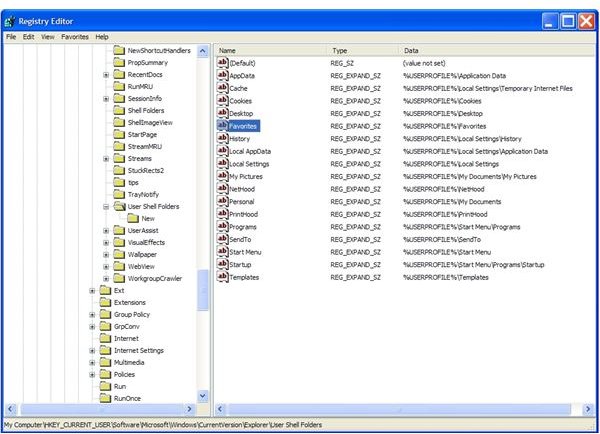
You are now using Windows own Registry Editor. Using the + signs next to each of the following items, click until you are viewing the contents of the following Registry folder (see Figure 1):
HKEY CURRENT USER\Software\Microsoft\Windows\CurrentVersion\Explorer\UserShellFolders
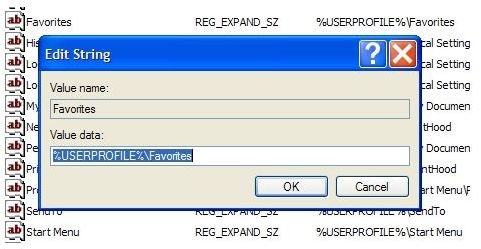
Double click on the FAVORITES item in the right pane and the EDIT STRING window will open. Notice the value of the VALUE DATA box (see Figure 2). This is the location of your Favorites folder. By default, it should read:
%USERPROFILE%\Favorites
where %USERPROFILE% is the location of the current user’s personal files and settings. This is normally located at:
c:\documents and settings\user account
where “user account” is the name of the account you are currently logged in with. Although the drive letter could be anything other than “c,” most people install Windows on a computer’s “c” drive.
If the VALUE DATA is anything except:
%USERPROFILE%\Favorites
Type that string into the VALUE DATA box and then click OK. Restart your computer and your Favorites are likely to operate normally with Internet Explorer 8.
Conclusion
One reason why the Favorites folder does not work in IE8 has nothing to do with Internet Explorer. Some people just forget that each account in Windows has its own Favorites folder. A more complicated explanation is that Windows and Internet Explorer 8 think that the Favorites folder is located somewhere it is not. Using the Registry Editor above, you can check and change the location of your Favorites folder to its default location so IE8 knows where to find it.


