Problems Waking Up a Windows 7 Computer

The subject of Windows 7 and sleep mode has generated a lot of chatter since the RC was released. There have been many problems cited, namely not being able to wake the computer up, systems not going to sleep properly, and computers waking themselves up randomly.
Sleep mode keeps your session in memory, but puts the computer in a state of low power consumptions until the computer is woken up, at which point work can quickly be resumed. There are a few things you need to check if you are having any kind of sleep problems with Windows 7.
Firstly you need to make sure all your drivers are up to date, especially for your graphics and motherboard. There have been links made to problems with incompatible BIOSes, but as long as S3 Suspend Mode is supported, Windows 7 should be able to sleep and wake properly.
If everything is up-to-date, run an Energy Report on the computer to see what it says. This is a good way to see if your components can enter sleep or suspend mode or not.
To do this, open a CMD window and type powercfg –energy. This will produce an HTML report analyzing the power capabilities of your machine. If your computer isn’t sleeping properly, this report may give you an indication as to why. Components that can’t enter a low power mode appear in pink. They may not be the problem though, as the motherboard can switch off USB devices without needing input from Windows. If there is anything unusual there, investigate it further.
Memory can also be a factor in the sleep behavior of Windows 7. Overclocked or wrongly clocked RAM can also be an issue. Motherboards have the ability to either dynamically clock memory, or you can set it manually. Normal Windows use is unaffected, because it can cope with slight differences in timing. Sleep however seems to have a problem with it. Letting your motherboard control the DRAM timings is also a method of getting sleep to work properly.
Also check your power plan. Go to Control Panel, System, Power Options, Change Power Settings. Here you need to ensure that the power plan permits sleep mode. You will need the following settings.
Sleep: Allow Hybrid Sleep set to Off
Sleep: Hibernate after set to Never
Power buttons and lid: Set to Sleep
Multimedia settings: When media sharing set to Allow computer to sleep.
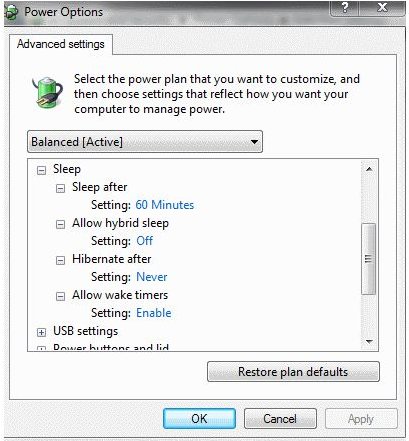
With those settings on the power plan, sleep is fully enabled and should work properly. The last entry, the multimedia settings, is what often wakes the computer up for no reason, especially if connected to a cable or always on network connection.
If after following these steps, sleep still doesn’t work properly, it’s time to check hardware. A USB device is often the culprit, and the easiest to test. Try removing all non-essential USB devices from your machine. Try to connect USB keyboards and Mice via PS2 for the test if you can. Either use old ones, or use a USB/PS2 converter.
Experiment with sleep mode with all devices removed and see what happens. If it works, replace them one by one until you can isolate the device that is preventing sleep. If the system still doesn’t wake up, remove all hardware you can, including the graphics card if you have onboard VGA and do the same thing.
If you STILL can’t get sleep to work properly, it is either the Windows install or your motherboard/BIOS. The only options there are to update the BIOS, change the motherboard, and re-install Windows, none of which are simple or particularly pleasurable tasks.
Reference
Author’s experience
Images by original author