This short guide will tell you how to use the Windows XP Professional Group Policy Editor to lock down a PC. This will allow you to set custom wallpaper, prevent users from saving to the desktop, and more.
I have worked in IT (Information Technology) for more than 10 years now, and if there is one thing I have learned it’s that people like to mess around with their computers both at work and at home. This is why most IT staffs will lock down work computers and limit the user’s capacity to do anything other than run programs. In this article, I’ll tell you how to lock down a Windows XP Professional computer using the built-in Group Policy Editor.
The “Group Policy” name might be a little confusing, because you’ll be using this Group Policy Editor to change local settings. This means that whatever settings you put in will only affect users logged into that particular computer, and will not carry over to any other PCs. These settings apply to everyone, including Administrator account logins.
To load the Group Policy Editor, go to Start – Run, and type gpedit.msc and click OK. You’ll have a variety of options available to enable or disable nearly every aspect of the look and function of Windows XP Professional. To enable/disable an option, just double click on it. Below you will find some of my recommended settings.
Recommended Group Policy Settings
**
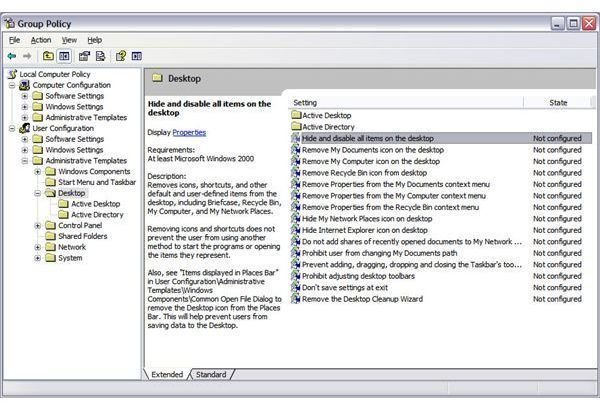
User Configuration – Administrative Templates – Desktop:
Hide and Disable All Items on the Desktop – This will remove everything from the desktop, and you can’t even right-click on it any more. Follow the on-screen advice for removing the Desktop option from the Places menu so that users won’t have the option to access the Desktop from Open/Save menus.
User Configuration – Administrative Templates – Desktop – Active Desktop:
Enable Active Desktop – You need to first enable this in order to set a desktop background.
Active Desktop Wallpaper – Enable this and then set your own wallpaper. This will make the Desktop wallpaper the same no matter who is logged in. Users may complain about not being able to set their own background, but having a nice company logo is often better than the family photos, comic book characters, or scantily clad women that often end up on machines.
User Configuration – Administrative Templates – Control Panel – Display:
Prevent Changing Wallpaper – Enable this option so that the user can’t change the wallpaper. If they go into the Display properties, the window and buttons will be grayed out. Be sure to enable this option if you are manually setting your own wallpaper with Active Desktop.
User Configuration – Administrative Templates – Control Panel – Display – Desktop Themes:
Remove Theme Option – Enable this option to keep people from changing the theme, which controls the look of nearly everything in Windows. This will help to prevent people from setting weird color schemes and other customized looks that some people like to put on their machine.
You are welcome to explore the variety of other options found within the Group Policy Editor, but these previously mentioned ones are what we use at my work. It still leaves employees the freedom to adjust their screen resolution, because some users with vision issues like to have large icons.
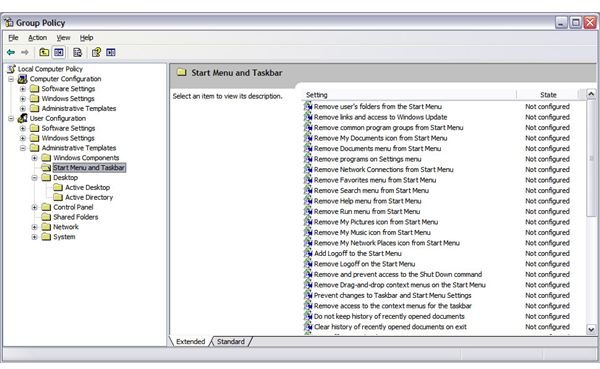
Depending on your security needs, you may want to dig a little deeper than these suggestions. You should start with the variety of options under User Configuration – Administrative Templates – Start Menu and Taskbar. These can be used to limit what icons and programs are even available for the user to run, which is a good way to keep users from playing around with too many programs. You could even make it so only one or two program icons are available and everything else is locked down. This is especially helpful in public access areas where you never know who might be using the computer and what they try to do with it.
Roaming Profiles
If you use roaming profiles in your network environment, locking down the desktop can help cut out a lot of issues with corrupt profiles. What often happens is people dump a lot of their files on the desktop, and those files get passed back and forth every time they log on the PC. I’ve seen user profiles reach several gigabytes in size, then those users have the audacity to complain that it takes a half hour or more for them to log in and out. By preventing people from saving to the desktop, this can greatly cut down on profiles sizes, which in turn leads to less file corruption in a roaming profile environment.
Another thing to keep in mind is that if you are replacing an old computer with one that is locked down, you may want to rebuild the user’s profile on the server. Otherwise, any files they may have had on the desktop will still transfer over even though they won’t be able to see them. Although it’s not entirely necessary, I prefer to refresh the user profile when a new computer is installed, just to keep everything fresh. You never know what kind of hidden settings might be buried inside of their profile, and issues can arise when those settings suddenly don’t apply to the new computer.
Conclusion
Locking down a Windows XP Professional computer may not make the IT department all that popular, but it is a necessary step toward keeping the computers in working order and to help increase security. Despite their initial complaints, users will quickly get used to what amounts to only an extra click or two. Getting the users to realize that their work computer belongs to their employer and not them is something that all IT staffers wish for, but will probably never happen.
References
- Image credits: Screenshots provided by the author. All rights reserved.


