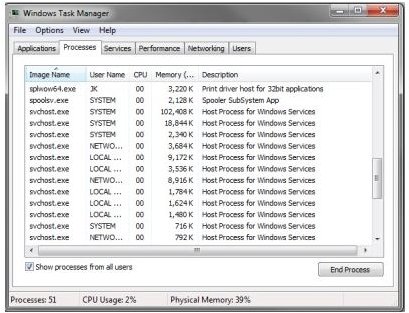
The Host Process feature is used a lot in Windows, especially apparent when using Task Manager to view running processes. Here we unravel the mystery of this elusive program.
Many Windows users will have come across the Host Process in their time with the system. It appears many times in Task Manager and any attempt to find out more about it from within Windows draws a blank. This article attempts to shed some light on this mysterious process and what it does.
The first logical step in finding out about a Windows service is Microsoft. All they could say about it was “svchost.exe is a generic host process name for services that run from dynamic-link libraries.”
Not the most informative description you will ever read, but a first step in the investigation. During the Windows XP days Microsoft decided to move away from using executable files (.exe) for everything in favor of Dynamic Link Library files (.dll). These files were centrally located resources that any application could use if they needed to. The idea was to have a pool of resources for everything to share rather than make each application have its own. This would save space, disk access, and improve security, as .dll’s could not be run on their own like executable files can be.
But why so many of them?
This goes back to vulnerability. If all of the files needed were called from one executable file, what would happen if that exe crashed? The rest of the system would follow soon after. It was decided that the files needed would be grouped under .exe files in a logical way. For example you have a svchost for the desktop, one for networking, one for a firewall, and so on. Under these will be the myriad of files needed to run each service. It is possible to check to see what each svchost covers, just open a CMD window and type tasklist /svc.
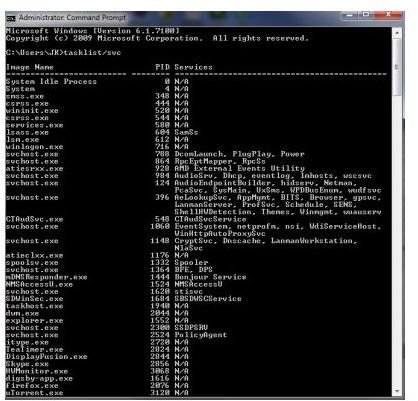
The great thing about doing it this way is that you can see the real name under the Description column, so you can choose to disable the service if you don’t want it running. You can also double-click on a svchost.exe instance and select the Services tab, where you can choose to stop one of the services if you choose.
Now this doesn’t really help you if you want to disable these services. The only way to do it is to find out the dependencies of each svchost instance and disable the services underneath it. This you can do by checking each service manually in Task Manager or using the services.msc snap-in.
There are two methods of disabling these services. The most straightforward is to use the Process tab of Task Manager. Right click on one instance of svchost.exe and select Go To Service(s). This will switch view, and the corresponding services under that svchost.exe will be highlighted in blue. Right clicking and selecting Stop Service will shut them down.
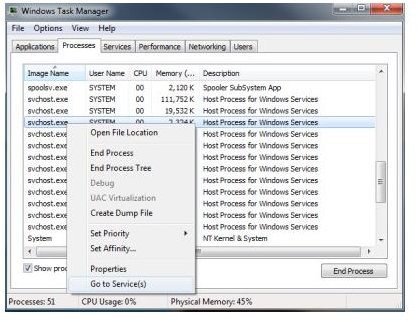
The other method, which is slightly longer is to use Task Manager again but this time navigate to the Services tab and check the corresponding service listed in the CMD window. Here you can close each one individually by right clicking the service and choosing to Stop Service.
Be careful though as some of these services are essential for keeping Windows running correctly. It’s okay to experiment as long as you save all your work first as the service will automatically start again once you reboot the system. To disable these services permanently you will need to go to the services.msc dialog box either by using the Services button at the bottom left of the Task Manager window or by typing services.msc in the CMD window. Right click the services and select Properties and change the Startup Type to Manual or Disabled.
Any changes you make there will be permanent so make sure you know what you’re doing before playing around in there!
Hopefully this has thrown some light on these “mystery” services that can sometimes dominate your Task Manager. Now you can investigate them properly if they start to take over system resources and close the culprits easily.


