
Internet Explorer 7 is considered the most stable and safest browser from Microsoft. However, sometimes Internet Explorer 7 shuts down without any apparent reason leaving you wondering about the cause. This article takes a look at fixing this issue.
Windows Internet Explorer 7 Shuts Down – Problem Description
The sudden shutting down has been a recurring feature in all versions of the Internet Explorer browsers released to date. This problem is less frequent in the latest version of Internet Explorer, version 8. While the previous browsers from Microsoft closed without giving any reason, Internet Explorer 7 presents you with a dialog box that says something like this: “Internet Explorer has encountered a problem and needs
to close.” It also creates an error log and displays options in the dialog box for sending the error log to the Microsoft team. The dialog box also contains a check box to restart Internet Explorer without you having to click on the shortcut again. Internet Explorer version 8 goes one step further by trying to restore the web pages on which you have been working.
There may be several reasons on different machines for this behavior of Internet Explorer 7. The following sections take you through the troubleshooting steps to fix the recurring problem when IE 7 shuts down frequently.
Windows Internet Explorer 7 Shuts Down – Simple Troubleshooting
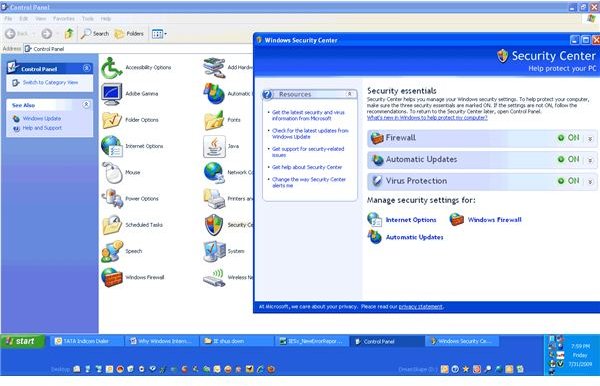
Check out the status of your anti-virus and anti-malware in the Windows Security Center. If the Firewall or Anti-virus is not present or is outdated, the Windows Security Center presents you with a bold warning. In some cases, the Security Center also offers you a Recommendation button. You can check out the recommendations by clicking on the button.
The Windows Security Center also lets you to make changes to your Firewall, Anti-virus, and Automatic Updates from a single point (see Figure - click for a larger view). You can access the Windows Security Center from the Control Panel.
Note: You can also open the Run dialog box and type in wscui.cpl to access the Windows Security Center.
If you find problems with your Firewall or your Anti-virus, fix it and try using Internet Explorer 7. You will have to wait for a while before the error appears again. If it does not appear, you have been able to fix the problem. If not, please proceed to the next step.
Tip: Sometimes the problem is due to some websites that you visit. Check by opening reputed websites to see if Internet Explorer 7 still shuts down.
If the problem is not with the anti-virus, firewall, antispyware, or any webpage, chances are that your Internet Explorer 7 settings are interfering, causing the Internet Explorer 7 to shut down. In such case, the best bet is to reset the Internet Explorer Settings. Resetting these settings takes it to the state when it was first installed, thereby removing any custom settings and add-ons that might have been added over time**.** To reset IE, please read the first section of our article, How to Reinstall IE in XP . The same method is applicable to IE7 in Vista too.
After you reset Internet Explorer 7, you need to close all instances of the browser. Open a fresh window of Internet Explorer and browse through for a while to see if the problem re-occurs. If it does not, you have fixed the problem. Else, you will need to go for advanced troubleshooting of Internet Explorer 7 that involves re-registration of all the components of Internet Explorer 7.
Internet Explorer 7 Shuts down – Advanced Troubleshooting
Re-registering all components of Internet Explorer will take considerable time and effort - plus there are chances that you may miss out on any component. I will suggest creating a batch file so that all of them are re-registered with one command.
To create a batch file, open Notepad. Copy the commands given below to the file. Click Save. In the Save As Dialog box, Select All File Types. In the file name field, type in “C:\reregister.bat” and press Enter. The commands to be copied to the Notepad file before saving it are:
regsvr32 /u /s urlmon.dll
regsvr32 /u /s mshtml.dll
regsvr32 /u /s shdocvw.dll
regsvr32 /u /s browseui.dll
regsvr32 /u /s jscript.dll
regsvr32 /u /s vbscript.dll
regsvr32 /u /s scrrun.dll
regsvr32 /u /s msxml.dll
regsvr32 /u /s actxprxy.dll
regsvr32 /u /s softpub.dll
regsvr32 /u /s wintrust.dll
regsvr32 /u /s dssenh.dll
regsvr32 /u /s rsaenh.dll
regsvr32 /u /s gpkcsp.dll
regsvr32 /u /s sccbase.dll
regsvr32 /u /s slbcsp.dll
regsvr32 /u /s cryptdlg.dll
regsvr32 /u /s oleaut32.dll
regsvr32 /u /s ole32.dll
regsvr32 /u /s shell32.dll
regsvr32 /u /s initpki.dll
regsvr32 /u /s msjava.dll
regsvr32 /s urlmon.dll
regsvr32 /s mshtml.dll
regsvr32 /s shdocvw.dll
regsvr32 /s browseui.dll
regsvr32 /s jscript.dll
regsvr32 /s vbscript.dll
regsvr32 /s scrrun.dll
regsvr32 /s msxml.dll
regsvr32 /s actxprxy.dll
regsvr32 /s softpub.dll
regsvr32 /s wintrust.dll
regsvr32 /s dssenh.dll
regsvr32 /s rsaenh.dll
regsvr32 /s gpkcsp.dll
regsvr32 /s sccbase.dll
regsvr32 /s slbcsp.dll
regsvr32 /s cryptdlg.dll
regsvr32 /s oleaut32.dll
regsvr32 /s ole32.dll
regsvr32 /s shell32.dll
regsvr32 /s initpki.dll
regsvr32 /s msjava.dll
Once you have saved the file, it is time to run the file so that all components are re-registered. Before running the command, close all Windows Explorer and Windows Internet Explorer Windows. Open Start Menu and select Run. In the Run dialog box, type “C:\reregister.bat” without quotes.
You can see the execution of each command in a black window. Once the process is finished (you will know when the black window is closed), you need to restart the computer. After restarting the computer, open Internet Explorer and work on it for a while. If it does not create any problem, you have successfully fixed the issue where Internet Explorer 7 shuts down.
In case the problem still persists, you will have to reinstall Windows Internet Explorer 7 to see if it helps. If you are using Vista, please read our article, How to reinstall IE in Vista and Windows 7 . If reinstallation solves the problem, you are good to go, else you will have to contact Microsoft Technical Support and inform them that Internet Explorer 7 shuts down frequently so that they assist you in fixing the problem.
My Opinion: Upgrade to Internet Explorer 8. It offers more stability while also giving higher security among many other features. This way, you won’t have to lose your work when Windows Internet Explorer 7 shuts down while you are working.


