Microsoft Word has two ways to sort text (lists, etc.) in a document. The first method sorts just one column of text. The second works through a table and will sort multiple columns. This article demonstrates both methods and shows how to convert a tabbed list to a table for more convenient sorting.
The Quick-and-Easy Way to Sort Text
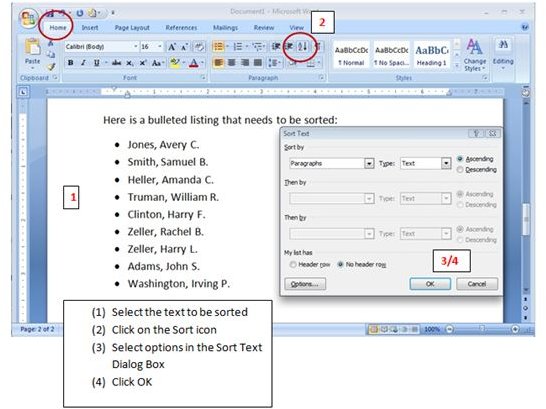
MS Word will sort bulleted, numbered, or plain lists of text. Here’s how:
♦ Select the text to be sorted.
♦ On the Home tab in the Paragraphs group, click on the sort button (second last icon on the top labeled with an A over the letter Z and a down arrow).
♦ In the “Sort Text” dialog box choose what you are sorting (normally “Paragraphs”) and select “Ascending” (A to Z) or “Descending” (Z to A).
Note that the “Then by” options are not active. This method only works on one column.
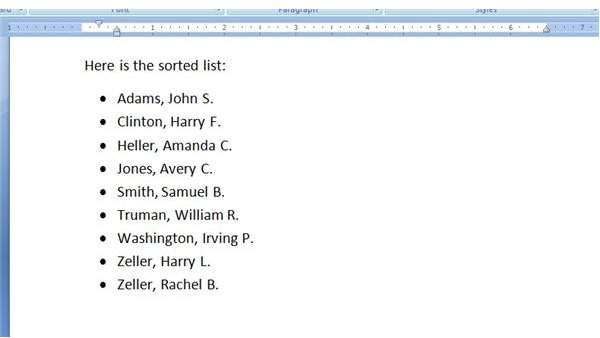
The screenshot below illustrates the above steps.
Sorting By More Than One Column
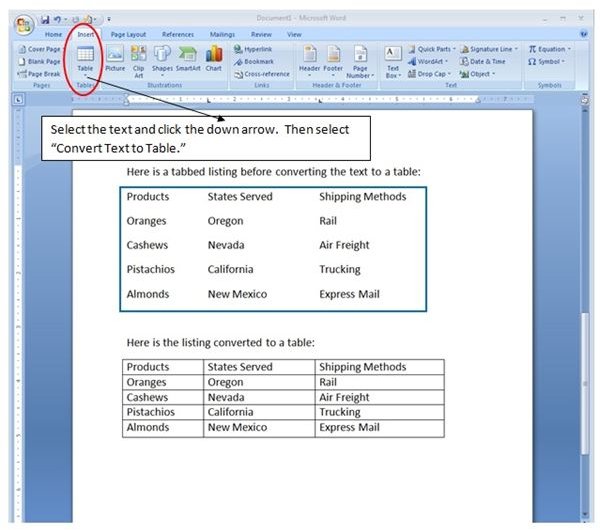
To sort text in more than one column, the text must be in a table. You can create a table in MS Word 2007 from the Insert tab by clicking on the down arrow under the Table group, or you can create a table from a tabbed list in your document. Here’s how:
♦ Make sure each data column is on the same tab stop in the ruler at the top of the document. (Otherwise, you will end up with more columns than you need.)
♦ Select the text.
♦ Click the Table down arrow (second icon on the right on the Insert tab. Select Convert Text to Table (third selection down in the menu).
The screenshot below illustrates the steps in converting tabbed text to table.
Sorting the Table
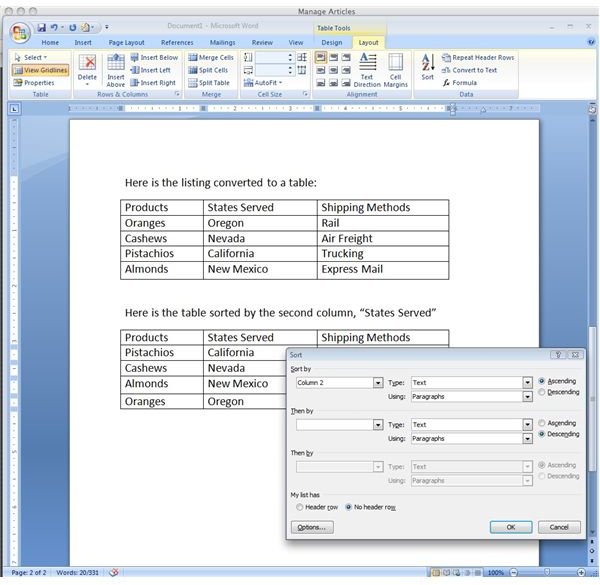
♦ Click anywhere in the table. The Table Tools Tab will appear at the top of the window with two additional Tabs Design and Layout.
♦ Select Layout and click on Sort in the Data group on the far right. Select which column(s) you wish to sort by.
Note: Select the My List has a header row button to make sure your header rows are not sorted with the rest of the columns.
The screenshot below illustrates the steps in sorting a table by the second column.
Note: To sort all three columns alphabetically, perform the foregoing steps after selecting just the column (inside the table) to be sorted. See the Microsoft Office Online Demo, “Sort Data in a Word 2007 Table” linked in the next section.
More Information on Sorting Data in Microsoft Word 2007
Microsoft Office Online: Sort a list alphabetically
Microsoft Office Online: Sort Data in a Word 2007 table
Also, check out the Bright Hub collection of Microsoft Word User Guides and Help for more tips, hints and troubleshooting steps.


