Microsoft Access 2007 has a more open look and interface than previous versions. However, as our database population of forms, queries, and reports grows, we are faced with the ironic challenge of having to organize the database that organized our data. One good way is through the switchboard.
What is a switchboard?
A switchboard is a Microsoft Access form that creates buttons that help the user “switch” back and forth between objects in a database. As a database grows, the user quickly discovers that the same forms are being created, the same reports are being repeatedly accessed and printed, or the same parameter queries are being executed. The switchboard takes the tedium out of manipulating a large database and provides quick access to repeated steps.
The advantage of a switchboard
Let’s imagine a hypothetical database that tracks customers, sales, and product inventories. As the customer base and sales records grow, so do the number of queries and reports. The database could be managed from the traditional normal Microsoft Access 2007 interface, but a switchboard would make the process more user-friendly and allow lower-level employees to navigate and maintain the database by a “push of the button.”
Plan first, then execute.
Before we actually use the Access switchboard manager (explained below) to make our switchboard, we’ll need to decide just what we want the switchboard to do. If you want your employee to just enter and change sales records and to be able to look up customer data, you could create a single switchboard page that goes directly to those forms and records designed for that purpose.
So the switchboard page would have buttons that do the following:
-
Enter new records » Opens a blank form that updates the database.
-
Change existing records » Executes a parameter query that retrieves an existing record in the edit mode.
Advertisement -
Look up customer data » Accesses an existing customer record.
You can have a maximum of eight buttons per switchboard page, but as many switchboard pages as you need. A button on one switchboard page can be used to open another switchboard page or return to a previous one. You’ll need to plan carefully, and it is a good idea to draft your switchboard plan on paper before you run the switchboard manager.
When it is time to execute…
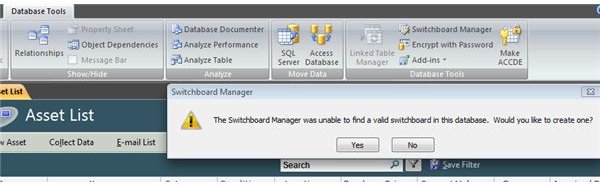
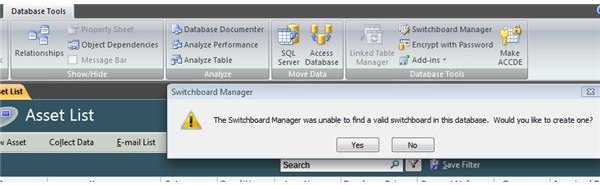
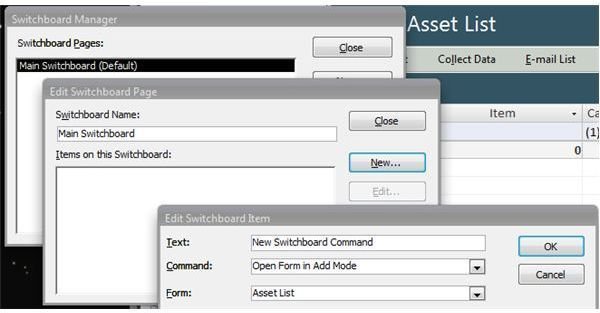
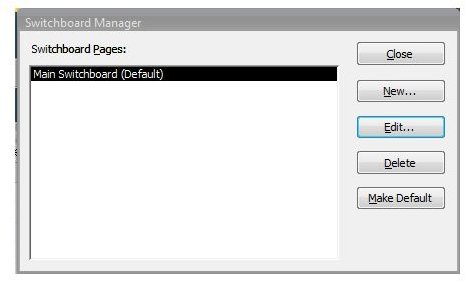
To create a switchboard page in MS Access, select the Database Tools tab. Click on “Switchboard Manger.” You will get a dialog box asking if you want to create a new switchboard. Click “Yes.” The Switchboard Manager Window opens and you are ready to build your switchboard page(s).
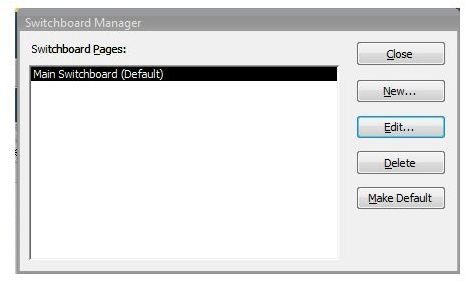
If you are planning more than one switchboard page for your database, click on “New…” If your switchboard will contain multiple pages, you will probably use the “Main Switchboard (Default)” to open other pages. For the purposes of this example, however, we will just build one switchboard page.
To add a new button to your switchboard page, select “Edit…” You are now ready to add an item. It could be an existing form, a report − anything that already exists in the database, including a macro. From this point on, the process becomes quite intuitive, because the switchboard manager already has an inventory of your existing forms and reports.
When built-in options are not enough…
The Switchboard command lines cover only the basics – open or edit a record or a form, etc. If you’ll need it to do more, you’ll want to design a macro and run it from the switchboard. For example, you might want a switchboard button that opens a table. The switchboard inventory does not access tables, so you’ll need to write a macro that does that.
Editing, changing or adding buttons to your switchboard
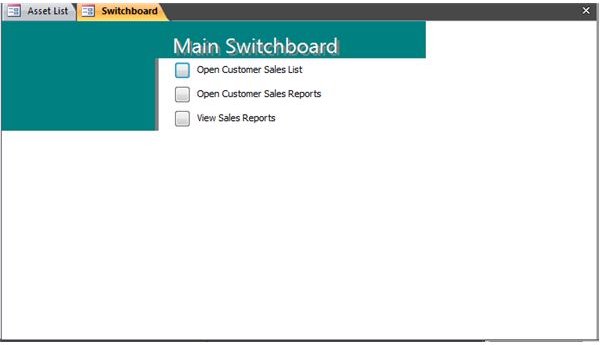
A new switchboard becomes part of your tables and forms inventory. You open the switchboard by selecting it from the forms list. (The form is called, naturally, “Switchboard.”) You edit the switchboard from the same source that you created it: the Database Tools/Switchboard Manager. Make the switchboard your “greeting page.”
You can have your database open with the new switchboard page. To make it your default form, select “Access Options” from the lower right of the “Office Button,” (which is on the upper left of your database window). Select “Current Database” in the left pane of the window and select “Switchboard” from the dropdown list in the “Display Form:…” dialog.
Additional Resources
See Microsoft’s website “Create and use a switchboard” for a good rundown on creating and managing a switchboard.
Looking for a less restrictive switchboard configuration? Watch this video on creating a custom switchboard .
Be sure to browse through the other articles in Bright Hub’s collection of Microsoft Access user guides . More items are being added on a regular basis, so check back often.
A recap of the steps to create a switchboard in MS Access 2007
This post is part of the series: MS Access 2007: Using Switchboard Forms
Microsoft Access 2007 switchboard forms help us streamline our database. They act as a “central hub” in accessing our forms, reports, queries, etc. This two-part series demonstrates (1) how to use the built-in wizard to automate switchboard creation and (2) how to make your own custom switchboard.


