How to Install Windows Server 2008 on VirtualBox - Server 2008 Installation Guide
Windows Server 2008
Microsoft Windows Server 2008 is one of the most powerful server operating systems available. Windows Server 2008 allows for the management of shared files and folders as a file server, and it can be loaded as a DNS, DHCP, Active Directory or database server (SQL). Being one of the most secure operating systems, Windows Server 2008 can be installed as a guest operating system for educating users or as a production server.
Setting Up VirtualBox
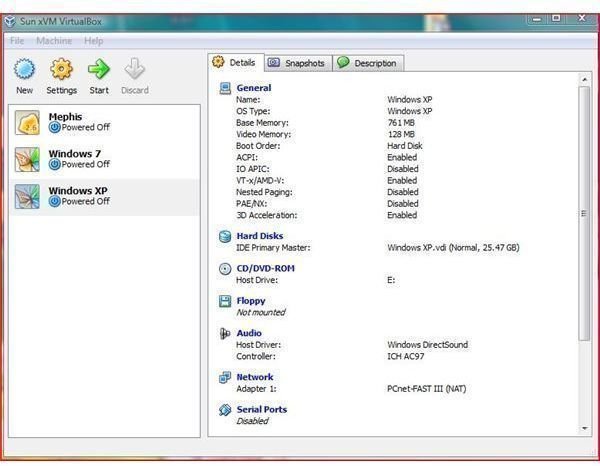
Sun Micro’s VirtualBox is an application that can be used to run a client operating system on another host computer. This application is one of the most powerful free virtualization software suites available today.
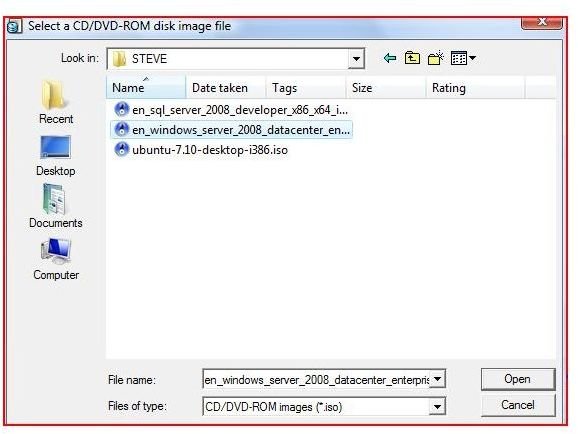
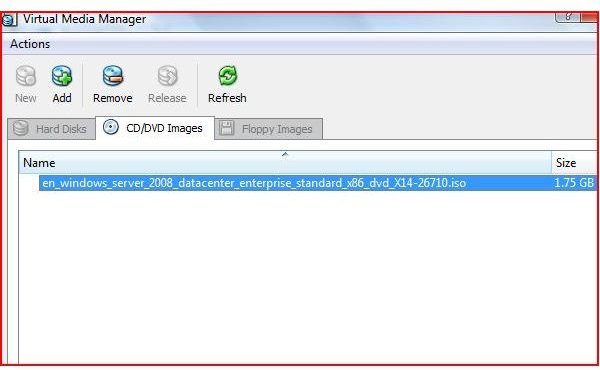
Prepare an ISO of the operating system (you can use the original DVD) and copy to a DVD or the host hard drive.
In order to Setup VirtualBox, start the application after its installation.
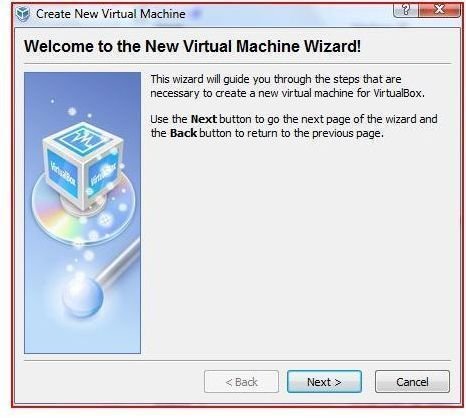
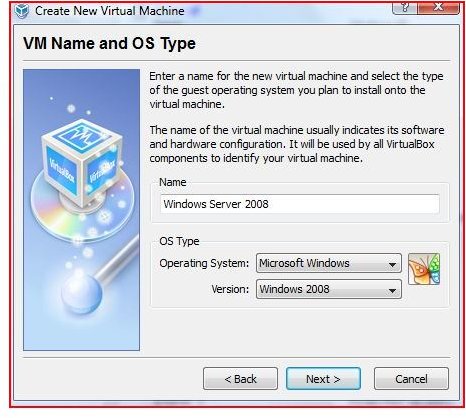
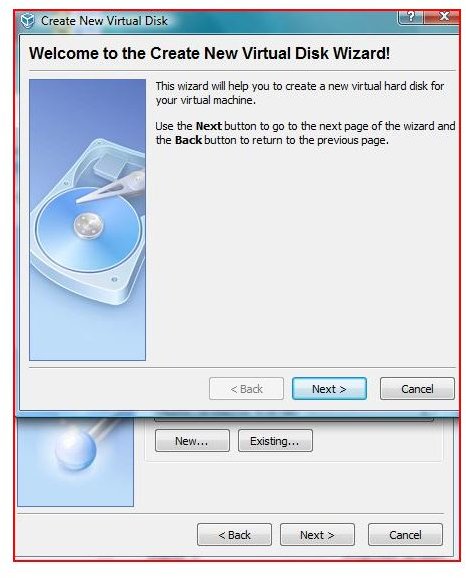
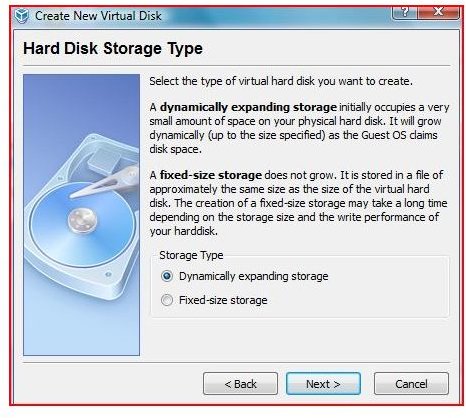
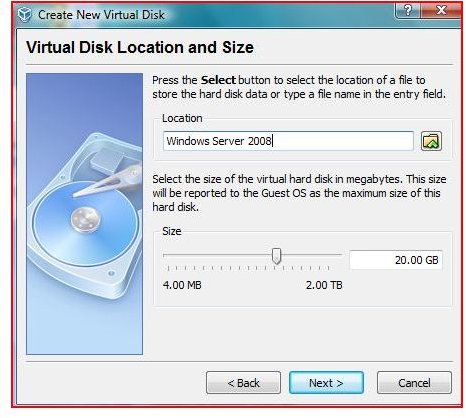
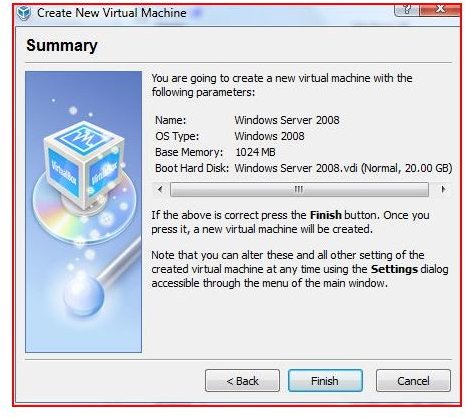
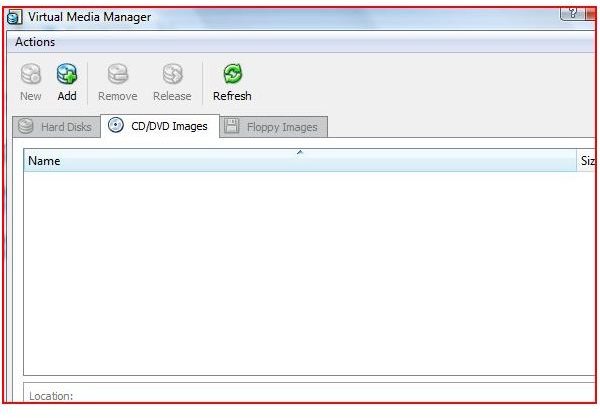
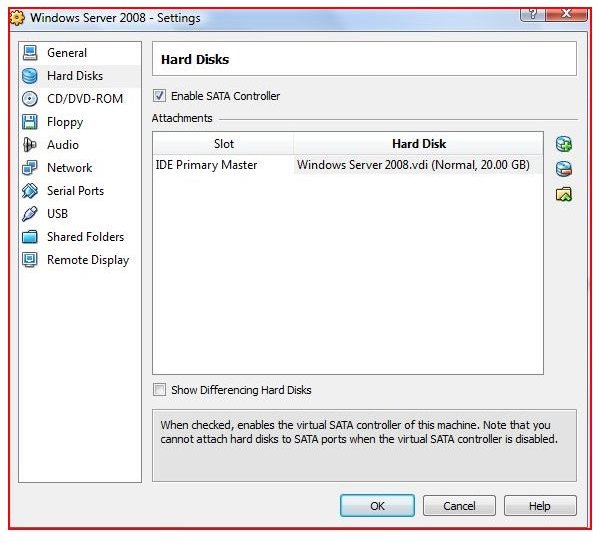
Click on New and follow the wizard setting the path to the ISO and naming the operating system. Make sure the hard drive has plenty of room for the operating system application. With hard drive space being inexpensive, your server operating system can easily use as little as 20 gb as a DHCP server or with as much space that is needed for the role of a file server.
Setting Up VirtualBox


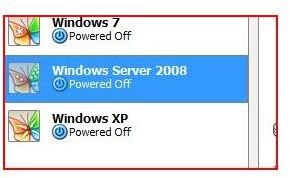
Settings in VirtualBox
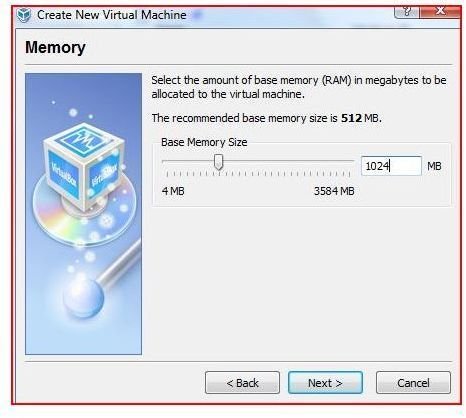
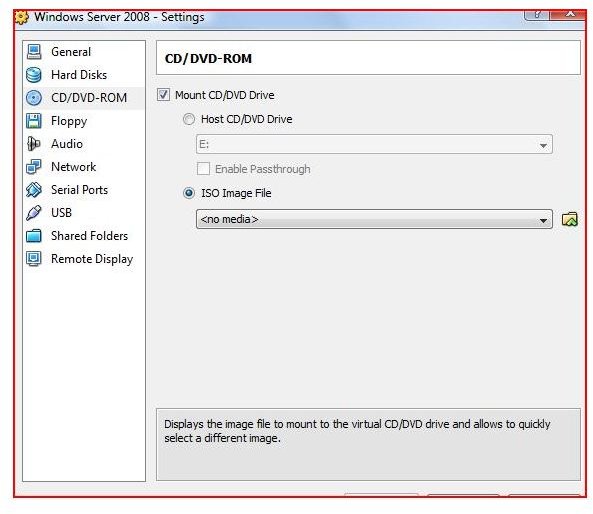
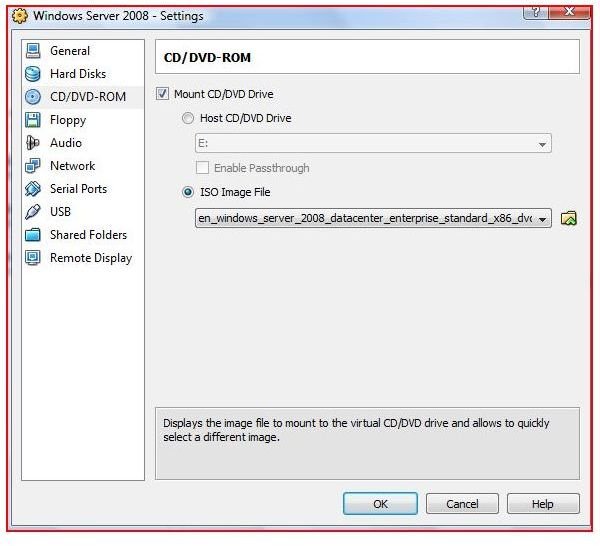
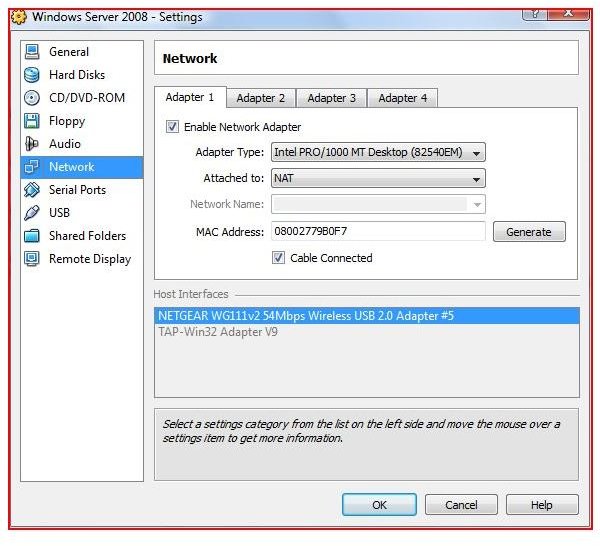
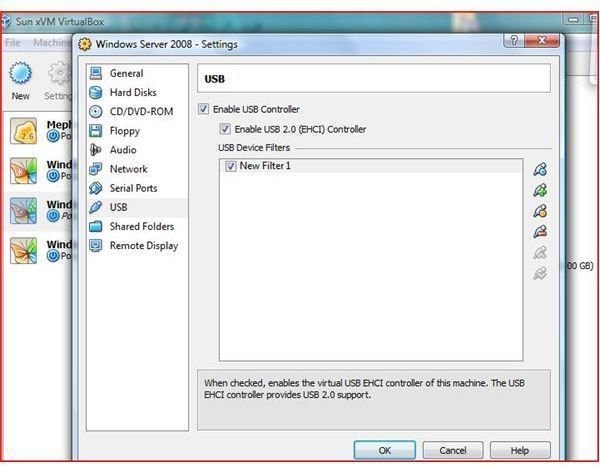
After setting the path to the ISO or DVD, highlight the operating system and click on Settings on the menu. Give the operating system as much memory as you can without affecting the host system. The host system is the key to the stability of the guest operating system. Setup the USB, SATA, Network Card (see article on NAT, Host or Internal Networking) and any other key elements you may need for this server operating system. Always view the license of VirtualBox (this depends on how you will use the operating system).
It may also be hepful to check out this explanation of networking and USB options.
You should plan on using Remote Desktop when installing Windows Server 2008. This option will allow you to manage the desktop from any computer once VirtualBox with the Windows Server 2008 operating system is running (see this article on connecting using remote desktop).
These key settings are self explanatory and can be changed even after the installation takes place.
Configure Settings in VirtualBox
VirtualBox Roles and Protection
In this scenario, the loading of VirtualBox on a Windows Vista computer allows for the testing of Windows Server 2008 as a guest computer. This allows users to explore this operating system without the fear of crashing their current system. If Windows Server 2008 is loaded inside of another Windows Server 2008 computer, the host computer and setup is the same.
If the operating system is going to be used as a production computer, the user or administrator needs to protect the operating system with antivirus software and backup critical files on a schedule. In order to keep the operating system safe, Microsoft updates and application updates also need to be scheduled, downloaded, installed and updated.
Continue on to the next page to find out more about how to set up Windows Server 2008 in VirtualBox.
Setting Up Windows Server 2008
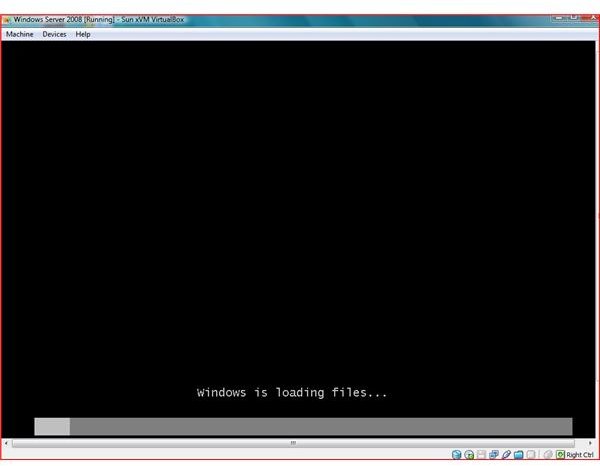
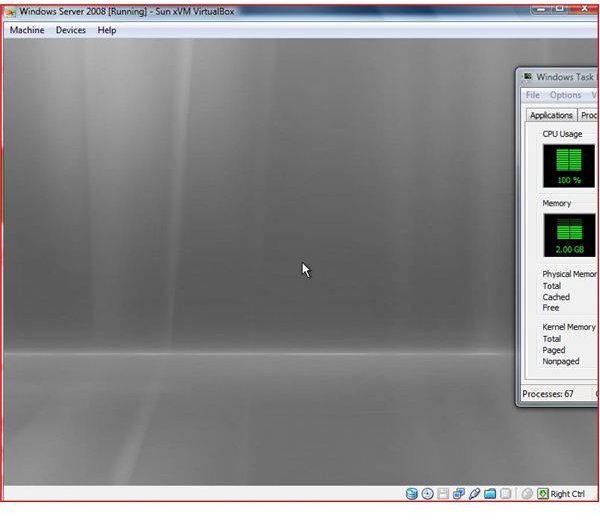
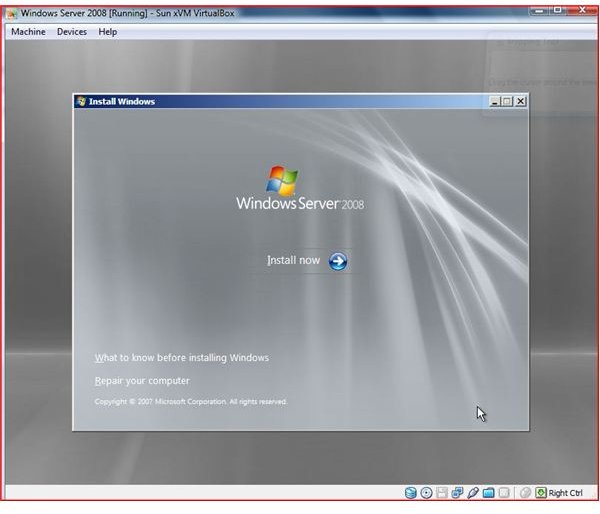
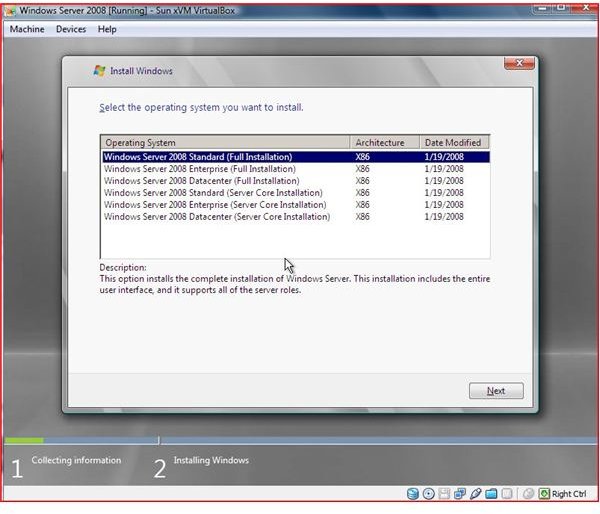
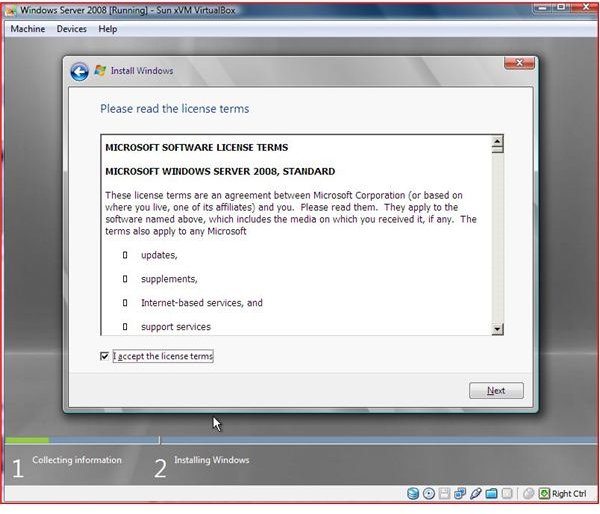
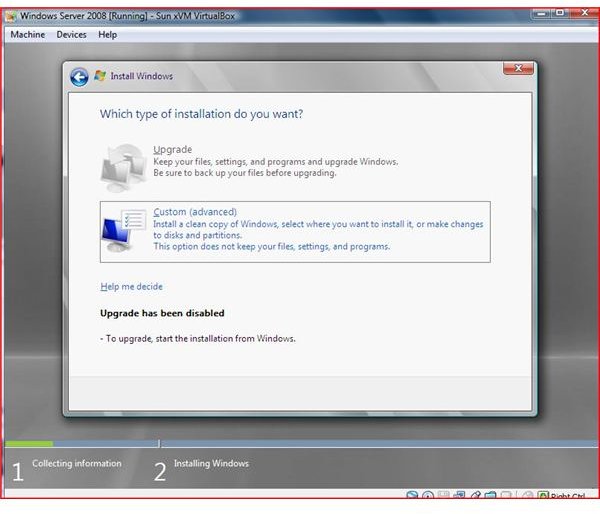
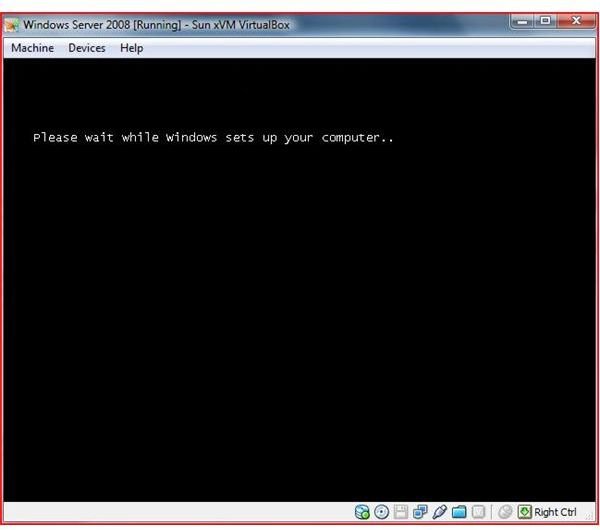
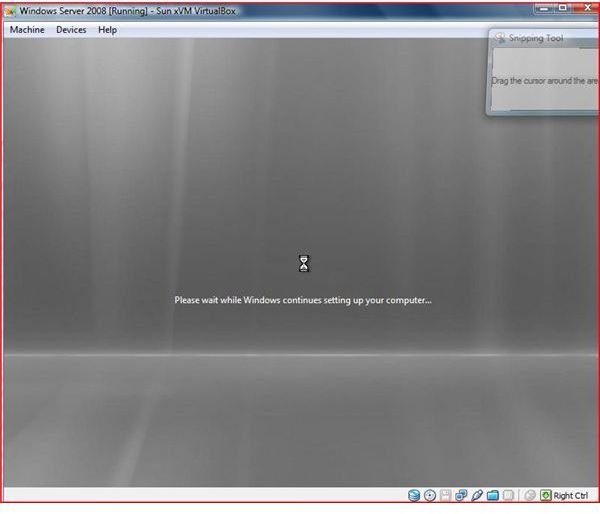
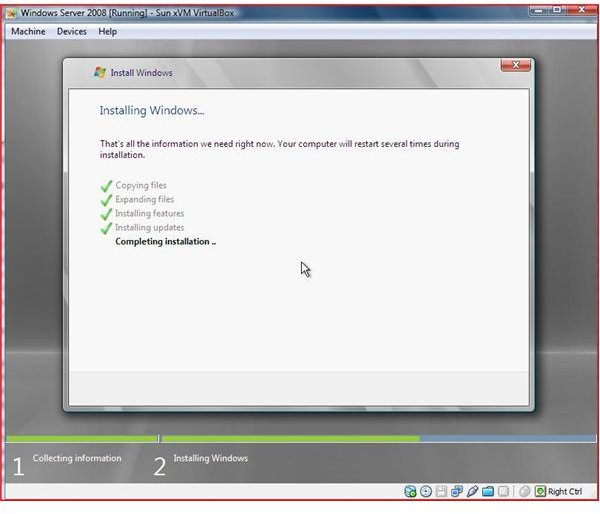
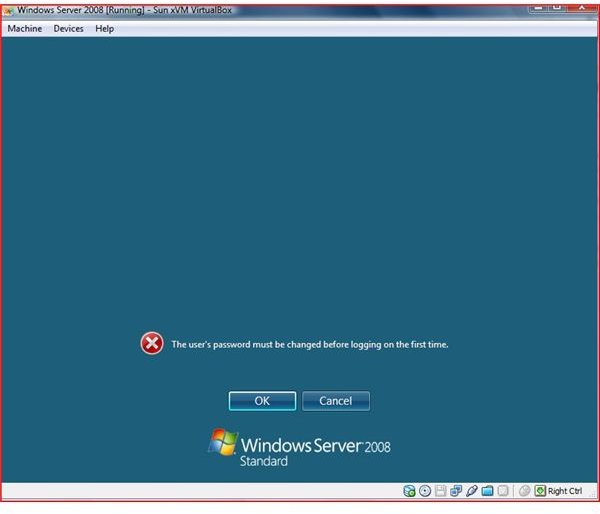
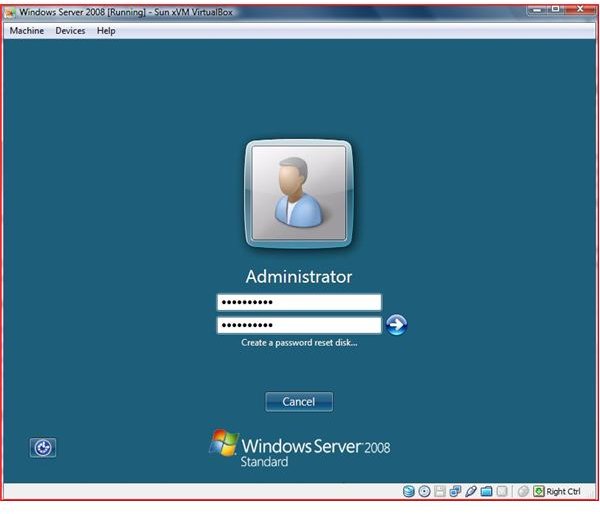
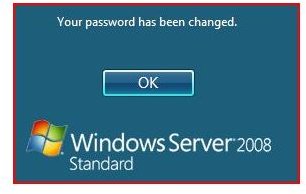
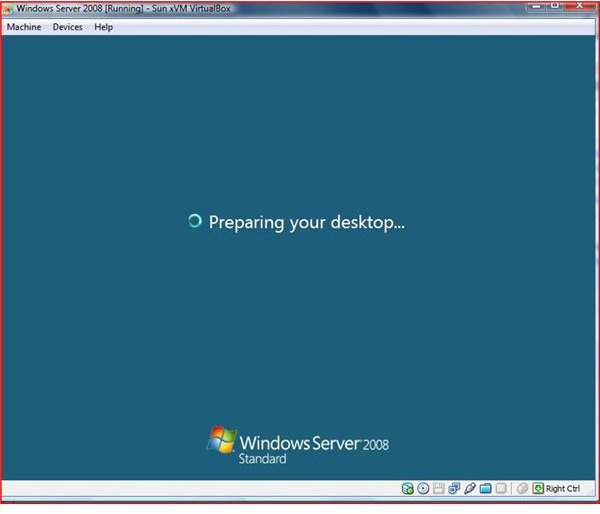
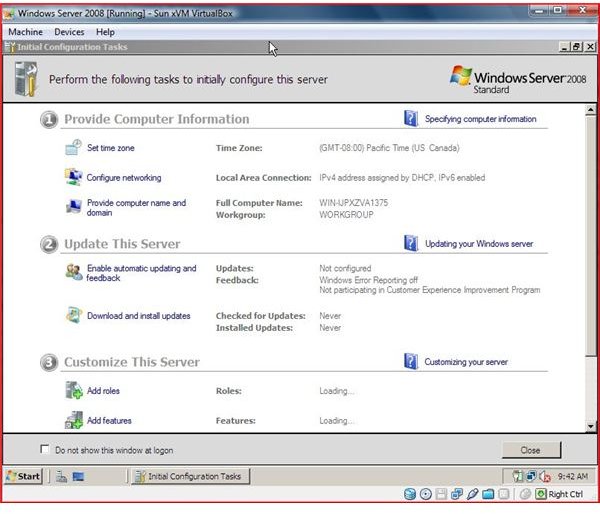
When setting up Microsoft Windows Server 2008 in virtual box, double click on the menu and make sure the settings point to the ISO or DVD. This will boot the operating system and start the installation. Follow the instructions (this OS installs very similar to all Microsoft Operating Systems) providing the product key and key information requested by the operating system setup screen. Once the installation completes, the look and feel of Server 2008 is very similar to Windows Vista.
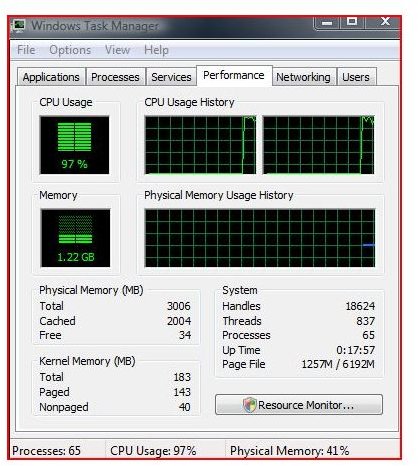
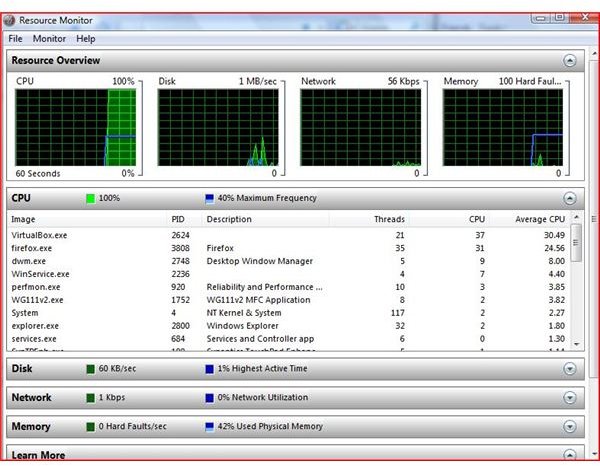
It is very important to monitor the resources (CPU, hard drives, and memory) during the install and while the operating system is running. With Windows Server 2008, you can use the Resource Monitor (Vista has this great tool) to monitor the system’s performance once the installation completes. By monitoring this information over a period of time, you can determine if the resources on the guest system and the resources allocated are going to be enough.
Lag or slow response may indicate that the guest operating system (Windows Server 2008) needs more memory. RAM and CPU are the two most critical resources to consider when performing the initial setup.
Installing Windows Server 2008





Conclusion
VirtualBox provides all virtualization support and with Windows Server 2008, hardware drivers are installed without any effort. Sun Micro provides an excellent forum and frequent updates to help support your newly installed software. Key factors when installing any operating system are to make sure both the guest and host are protected with OS updates, application updates, firewall, and antivirus software.
Virtualization provides not only a ‘green’ savings on energy cost but also provides savings in hardware cost. The catch phrase of ‘virtualization’ is slowly becoming a reality. As more and more companies turn to virtualization, users need to be aware of how to install and configure operating systems.
For more information on VirtualBox, visit VirtualBox’s website.