In the third and final part of this series we look at how to transfer bookmarks and other Firefox settings from Windows to Ubuntu. We also look at a step you could take it you decide to use Ubuntu as your main operating system.
How do I get my Firefox bookmarks working in Ubuntu?
When using the Firefox browser in Ubuntu, you will not have your existing bookmarks and other data such as stored passwords from Firefox in Windows. However, it’s easy to copy these over:
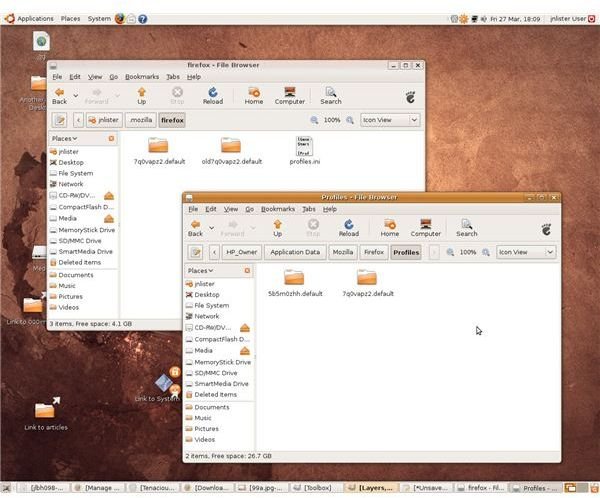
You will find your original bookmarks by opening up Filesystem in Linux and selecting Host, then going into Documents and Settings > Application Data > Mozilla > Firefox> Profiles. Here you should find a folder ending in “.default.”
(If you have more than one user account in Windows, your user name will appear in this route between “Documents and Settings” and “Application Data.”)
Now open the Home folder in a separate windows and, if necessary, press CTRL+H to show hidden folders. To locate the bookmarks for your Ubuntu version of Firefox, open the Mozilla folder, and then open the Firefox folder. This should bring up another folder ending “.default” but with a different name.
The final task is to replace this folder with the folder you opened in Windows, but keeping the same name. The safest way to do this is:
- rename the folder in Ubuntu by adding ‘old’ to the start of the name.
- copy across the folder from Windows into Ubuntu
- rename this folder to the name of the original Ubuntu folder
Next time you open Ubuntu, you should find all your old bookmarks and other data are working. The only downside is that when you next add a bookmark using Firefox in Ubuntu, it won’t show up when using Firefox in Windows and vice versa.
What if I want to keep Ubuntu as my main operating system?
If you are satisfied with using Ubuntu, you may consider converting your Wubi installation so that it becomes a genuine disk partition. This means Ubuntu will have its own area on your hard drive, completely separate to Windows. This may make the system run slightly faster and improve reliability. However, the process – while not particularly complicated – may be a little daunting unless you are fairly confident about how disk partitions work.
If you want to convert your installation in this way, the best option is a tool know as the Loopmounted Virtual Partition Manager . You can download it, and read more about how to use it at the website just linked.
Images
This post is part of the series: How to Run Windows and Linux on the same PC
Looking at the options available to you the end user when deciding whether to run with Linux and/or Windows as your operating system of choice.


