If you have data in an Excel spreadsheet that you want to use in another application, you may need to convert that information to a text file before the other program can read it. In this tutorial, we’ll show how to export a spreadsheet to a CSV file, making it easier for other applications to read.
Excel Spreadsheets and CSV Files
In another Excel tutorial here at Bright Hub, Bill Fulks explained how to import CSV files into Microsoft Excel . Sometimes though, you’ll need to go about that process the other way around. That is, you may have an existing Excel 2007 spreadsheet containing data that you want to use in another application that doesn’t support Excel’s file format. Since almost every program out there does support CSV files in some form or another, one way to convert the file is to export the Excel data to a CSV file and then import the resulting file into the other application.
The process for performing this type of export is actually pretty simple. The trouble that most people have when attempting this procedure is that they are looking for some “Export” command in all the tabs of the Excel ribbon, but there’s not one to be found. Instead, you have to use the Save As command as we’ll describe in the steps below.
How to Export an Excel Spreadsheet to a CSV File
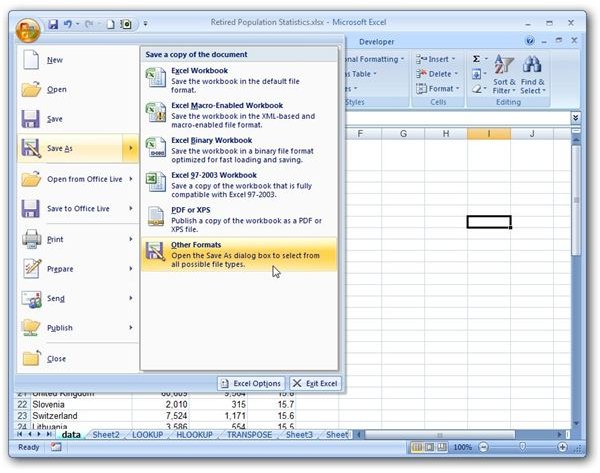
Step 1: Click on the Office button in the upper left-hand corner of Excel. Select Save As and then choose Other Formats.
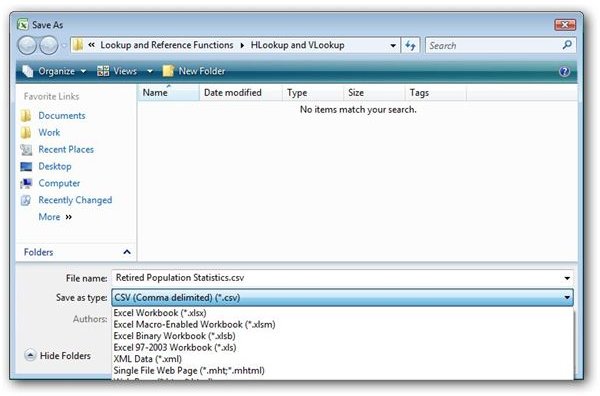
Step 2: In the Save As window that will appear on your screen, choose CSV (Comma delimited) (*.csv) from the Save as type drop down field. Pick any name for your file and then click the Save button. Note: It’s okay to use the same name for both the CSV and the XSLX file – you’ll still be able to distinguish between the two by looking at the file extension.
It’s also important to note that you can only export one spreadsheet to a CSV file at a time. If your Excel workbook contains multiple spreadsheets that you would like to export, you’ll have to handle each one individually.
Step 3: Open the newly created CSV file in a text editor such as Notepad or Crimson Editor . Here, you can check to make sure that everything in the new file is appearing as you had planned. It’s possible that you may have to make some manual corrections here, depending on the format of your original Excel file.
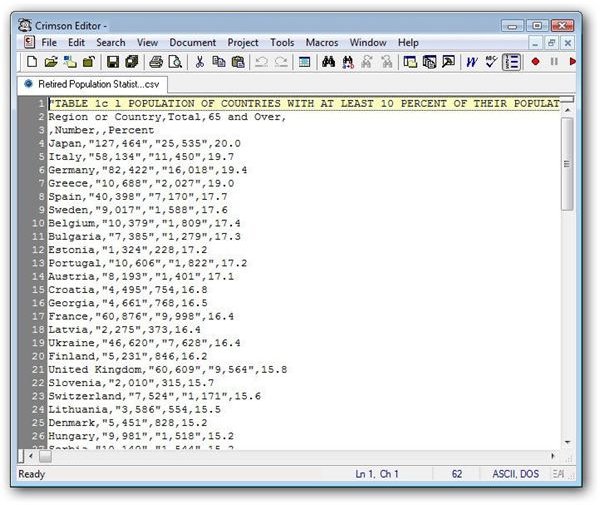
The screenshot above shows how the new file would appear in Crimson Editor.
Once you’ve checked the file and made any necessary changes, you’re all set to import the file into the other application of your choice.
Be sure to check out the other Microsoft Excel tutorials and user guides available here on Bright Hub’s Windows Channel where you can learn new techniques for creating charts and graphs , how to modify macro settings , and more.
In addition, if you’re thinking about moving on to a more complete database utility, you may want to take a look at our Microsoft Access tutorials . New items are being added all the time, so bookmark us and check back often.


