Microsoft SyncToy is a user-friendly application to backup data on different storage devices, and it helps to copy, delete, rename and move the files from one folder or computer to the other. This is feasible with its great synchronization features
SyncToy (ST) is free file synchronization software designed by Microsoft to aid the user to synchronize, copy, backup and maintain folders of files on computers. Unlike most other methods, ST acts very fast in synchronizing the files in folders by copying, renaming and deleting files. ST is much simpler to configure and user-friendly.
SyncToy features
- In a synchronization process it can simultaneously handle multiple sets of folders and amalgamate files from two different folders.
- Again, for synchronizing multiple folders one click is sufficient with SyncToys.
- Can be installed on as many computers as you want with great flexibility.
- All file changes and deletions are stored in a well manageable database system.
- Supports all types of file systems
- Synchronizes data between desktop PC and laptop without duplication
- Capable of updating and creating backup files over both intranet and internet
- Facility to synchronize removable devices with local drive
Need for backup
Computers are prone to sudden crashes like corruption of your hard drive, unanticipated virus attacks or system failures. So there is an real necessity for backing up data. If a user either forgets or ignores the need to backup data, then such data will be irretrievably lost when a computer crash occurs. Fortunately, with the availability of external hard drives, shared network drives, flash drives and other similar devices, there are now many possibilities for creating backups. But keep in mind one thing - whatever version you download, the common back up process enables you synchronize multiple files and folders effectively. In fact this is the main idea behind all the versions of SyncToys.
The data backup process
The obvious first step is to download Microsoft SyncToy and save it to your preferred location on your PC (mostly desktop). Latest version 2.0 can downloaded here . It will be saved with the name “setup.msi". Double click this downloaded “setup.msi" file to complete the installation program. After this the program will be installed in the “All Programs” menu. Now back up the files to an external hard drive, a flash drive or any other storage device. (The older version is no longer available from the Microsoft site, but it is possible to find earlier version 1.4 on Google.)
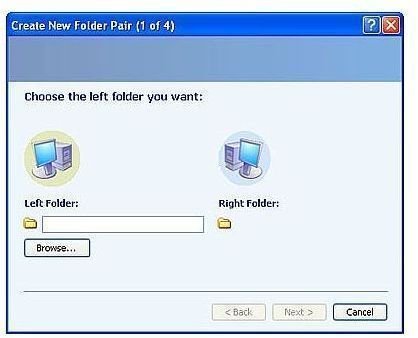
So to create a backup for this particular system, open “My Computer” and locate the storage device connected to the PC. Next go to the Programs menu, open SyncToy and click on “Create New Folder Pair” to back up the files and folders. The left folder is the source folder and the right folder is the receptacle for the information to be backed up. Click on “Browse” to locate the file or folder from which the backup has to be done. Next click “Browse” for the right side folder, to choose the location for backup.
Continued Page 2
Continued from Page 1
SyncToy uses right and left folder pairs for creating backups. Click on “Browse” on the right folder, selecting the drive for choosing the location of the backup. Create a new folder in this drive by clicking on the “Make New Folder” button, right-clicking on this folder, and then selecting “rename.” The user now has to type a suitable name as “Backup.” And then click on “Next” for going to the next screen. Select one of the backup options for backing up the information by choosing synchronize, subscribe, echo, combine or contribute.
Synchronizing two folders
To start with, users can create a folder pair consisting of two folders - to compare and synchronize. These folders can be either on the local drive or on any external device, or even on a different computer with netshare facility. There are five different types of tasks to synchronize two folders (call the files left and right) - Synchronize, Echo, Subscribe, Contribute, and Combine.
Synchronize means copying the new and updated files both ways with renaming and deletion in one folder repeated on the other. Echo is the process of copying from left to right the new and updated files. The renaming and deletion on the left are done again on the right. Subscribe means the copying to the left the file name that already exists on the updated files on the right. Contribute is to copy left to right the new and updated files with renaming on the left done again on the right. This is same as Echo though there are no deletions. Combine is to copy both ways the new and updated files ignoring the renamed and deleted files. Note that the Combine and Subscribe options are absent in SyncToy version 2.0.
To read more on Synchronization features read Microsoft SyncToys
Reference
For elaboration and more pragmatic approaches read these two informative pieces:
Using Microsoft SyncToys for Data Back up


