There may be times when you run short on time or otherwise need to skip out of a PowerPoint presentation early. This tutorial will show you how to create an alternate ending that will allow you to transition out of the slideshow quickly and smoothly.
Create Two Presentations
Create your PowerPoint presentation from a Word outline , a template or from scratch. Save the completed slideshow and close it for the time being.
Create a second PowerPoint presentation, which will be the alternate ending to the original. You might want to simply reuse the last two or three slides of the original presentation. You may want to create a unique alternate ending that includes condensed information from the original presentation. Make sure to use the same design template or theme, so that it will appear to be part of the original slideshow.
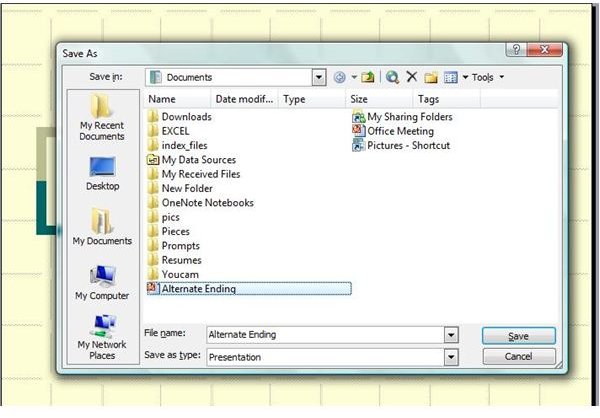
Save the alternate ending presentation. Give it a name that you will associate with the original PowerPoint slideshow, such as “Slideshowname Alternate End.”
Add a Link
Determine where in the original presentation you want to create a link to the alternate ending. If you are unsure, you can add a link to a few different slides in the original PowerPoint slideshow. Insert a graphic on the slide that coordinates with the slideshow, or select an existing graphic on the slide.
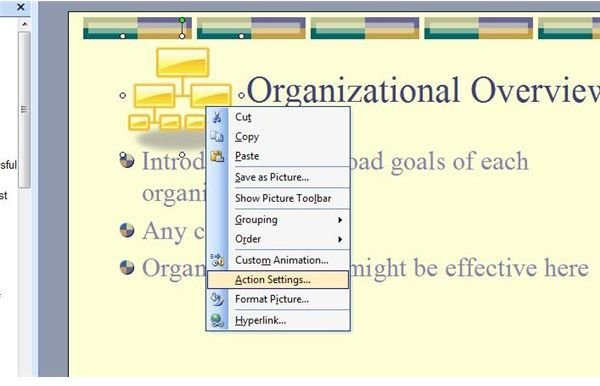
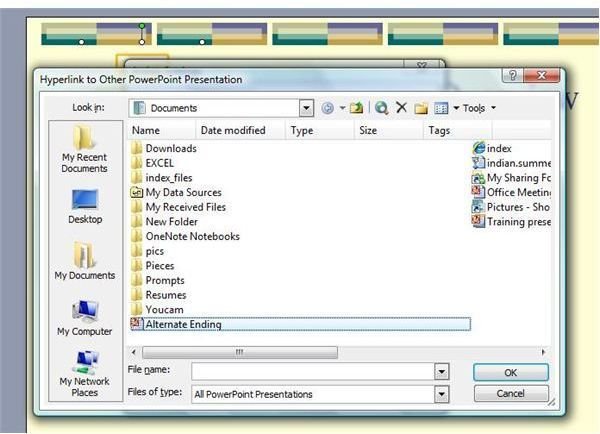
Right click the graphic and select Action Settings. The Action Settings dialog box will open. Select Hyperlink To. In the drop down menu, select Other PowerPoint Presentation. Navigate to the alternate ending slideshow in the Hyperlink to Other PowerPoint Presentation dialog box. Select it and click OK.
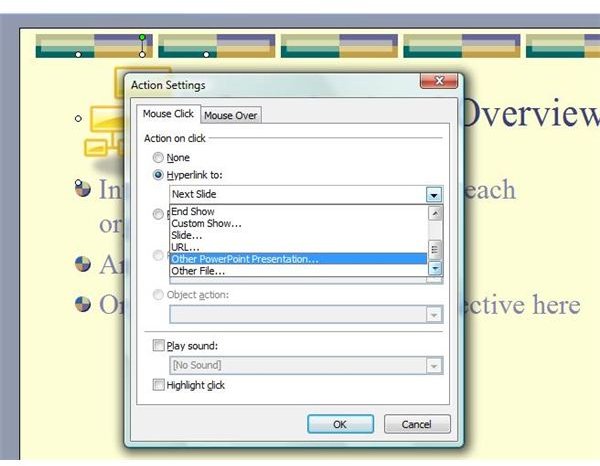
In the Hyperlink to Slide dialog, select the first slide of the alternate ending presentation and click OK. Click OK on the Action Settings box.
Where to Add a Link
If you are unsure where you might need to use the alternate ending, simply add or select graphics to several sporadic slides in the original slideshow. When running the original presentation, if you find yourself short on time or otherwise needing to end the slideshow, simply click on one of the linked graphics. You will be taken directly to the alternate ending, and no one viewing will be the wiser.
If you want to add an extra section to a PowerPoint slideshow that you can present if time allows, you can use the same premise as an alternate ending. Simply create a second presentation with the supplementary slides and save it. Just as you did in the alternate ending option, you would link a graphic to the second slideshow. In addition, link a graphic in the “alternate ending” presentation that will loop you back to the slide following the one you left in the original slideshow.


