If you’re having trouble with Excel recalculating formulas too often (or not often enough), you can modify the calculation settings to fix this problem. These changes are especially helpful if the calculation process is taking too much time and slowing down productivity.
Excel Calculations
The default setting for calculations in Microsoft Excel is to automatically recalculate cells whenever a change is made to the spreadsheet. For most cases, this is a convenient setting since it allows users to see the effect of changes as soon as they are made.
However, there are other times when it makes more sense to change this setting to perform calculations manually. For instance, if you’re working in a very large spreadsheet with several complex formulas, updating all calculations in the sheet can take some time. In this case, it’s pretty frustrating to have to sit and wait for the whole file to update simply because you’ve made one little change. Even if your file isn’t that big in size, it may contain certain functions, like those that generate random numbers , that you don’t want recalculated with every modification.
How to Change the Calculation Options in Excel 2007
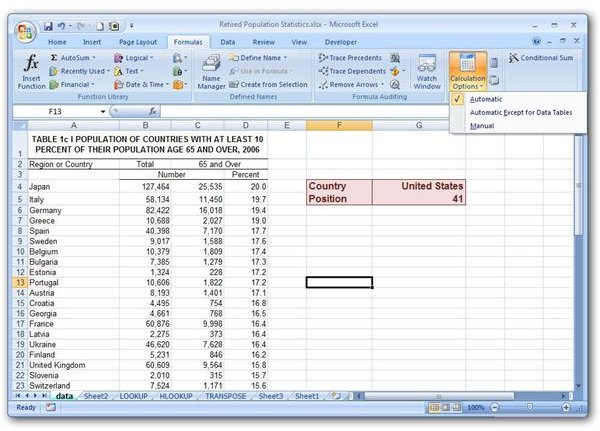
To change the method of cell calculation in Excel 2007, first go to the Formulas tab on the Excel ribbon. Click on the Calculation Options button. (Click any image for a larger view.)
Here, you can choose one of three options.
-
Automatic – Choosing this option will cause Excel to recalculate all dependent cells whenever a change is made on the spreadsheet.
-
Automatic Except for Data Tables – As its name implies, this setting will recalculate every dependent cell, except for the ones in data tables, each time a change is made to the spreadsheet.
Advertisement -
Manual – If you pick this option, cells will only be recalculated when you explicitly choose to perform this action.
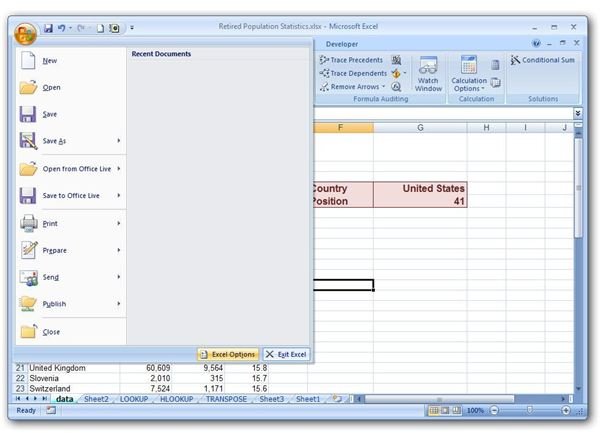
You can also choose to modify the default Excel settings for Calculation Options. To do this, click on the Office button and select Excel Options.
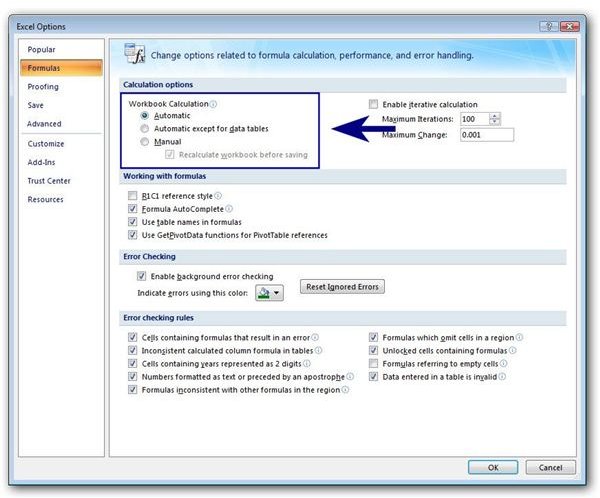
Select Formulas. In the main window of this screen, under Calculation Options, you have the same choices as above with one additional option. For the Manual setting, you can also decide if you want to Recalculate workbook before saving. Again, depending on your file, you may want to uncheck this box and disable this option in order to have complete control over formula calculations.
Calculating Manually
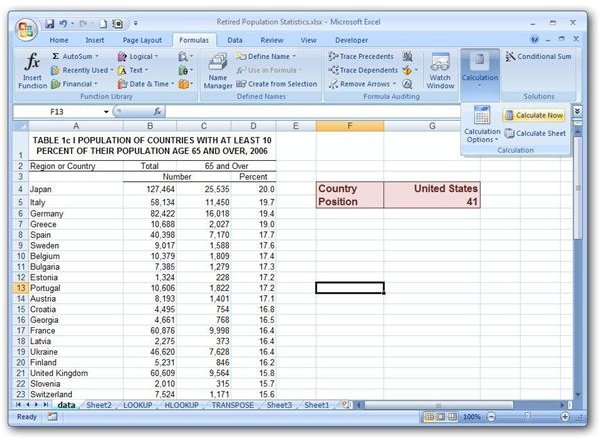
If you’ve decided to use the Manual calculation option, you can recalculate formulas any time you want by either pressing the F9 key, or clicking the Calculate Now or Calculate Sheet button on the Formulas tab of the Excel ribbon. The Calculate Now button will update all open worksheets, while the Calculate Sheet button will only update the active worksheet and any charts linked to that sheet.
As we mentioned before, one of the reasons that people choose the Manual calculation option is because of the length of time it takes these calculations to complete in large workbooks. However, if your computer has more than one processor, you may be able to reduce this time by instructing Excel to use all processors when performing calculations.
Return to the Excel Options window and select Advanced. Scroll through the options until you see Formulas.
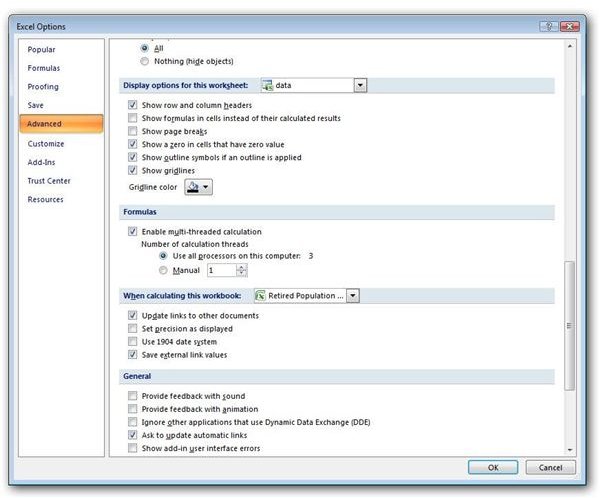
Put a check in the box next to Enable multi-threaded calculation. You can now specify exactly how many processors you want Excel to use when performing calculations. Keep in mind, though, if you are running other processor-intensive applications at the same time as Excel, enabling this option could slow them down.
Related Reading: If you’re looking for more Excel tips and tricks, check out the other user guides and tutorials available on Bright Hub’s Windows Channel. Learn how to create a dropdown list or read through any of the articles on chart and graph design . More items are being added on a regular basis so check back often!


