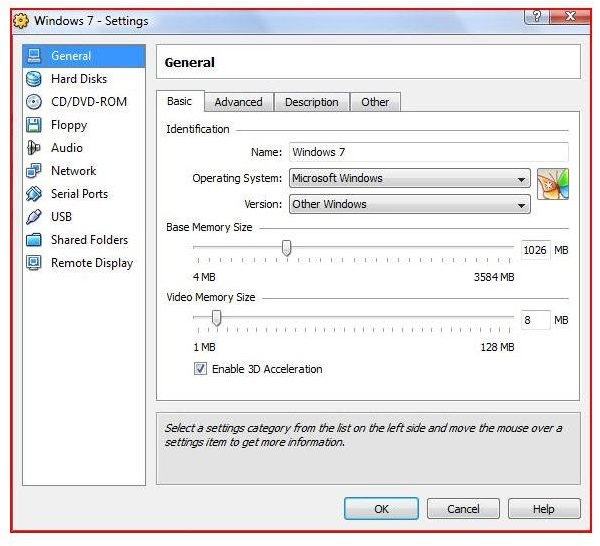
Running virtual computers in a network increases the size of your network and can provide logistical problems when you need to connect to a virtual computer. With Virtual Remote Display in Sun’s VirtualBox, you can connect to your virtual computers remotely using Remote Desktop Connection.
VirtualBox and Virtual Software
Sun’s VirtualBox has become more versatile and powerful. Because virtualization is becoming a key component in information technology, software such as Sun’s VirtualBox is growing in popularity.
VirtualBox offers many settings and features that allows administrators or users to tweak the virtual operating system. This fully loaded software also allows you to connect to your virtual computers through Microsoft’s Remote Desktop Connection. By connecting remotely, users don’t have to be sitting at the host computer to control the virtual machine.
Creating a Remote Connection
In order to create a remote connection, open VirtualBox and select the operating system of your choice.
In this demonstration, we will connect Microsoft’s Window’s Vista to Microsoft’s Beta Windows 7 Build 7000.
To Enable Remote Display
- Open Sun’s VirtualBox
- Select the Operating System
- Click on Settings (Gear Icon)
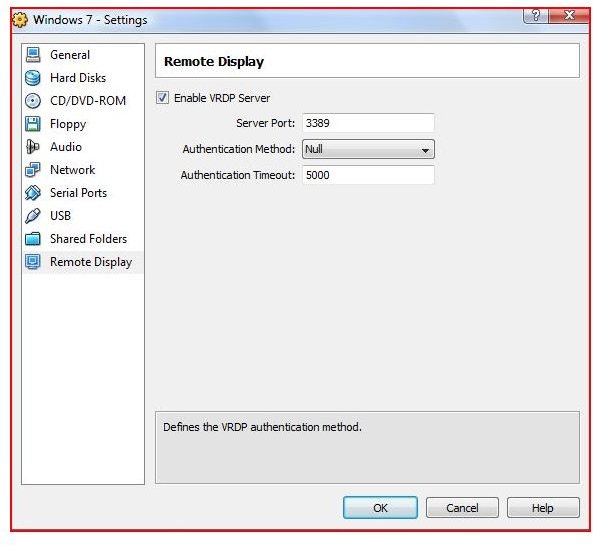
- Click on Remote Display
- Check the VRDP box in the right window
- Choose a server port number (Generally the default of 3389 will work)
- Select an authentication method
- Leave the timeout at 5000ms
- Click OK
These settings generally work for most computers in a LAN (local area network).
Additional Screenshots
Using Remote Display
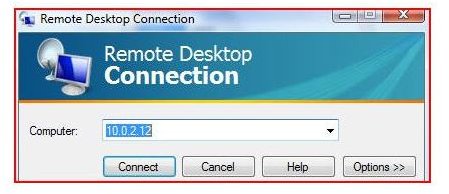
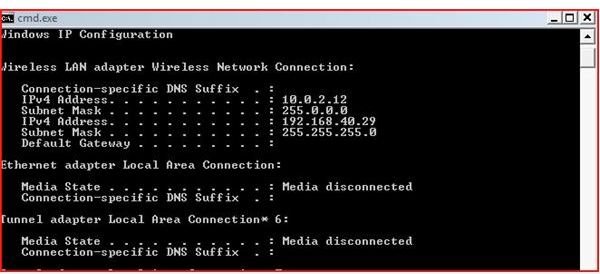
By using the remote display, network administrators can remote into the virtual computer without being at the computer. In this example, we use our own IP address given by VirtualBox.
Your DHCP server may give you an IP address however; when VirtualBox is running on the host computer, it will have two IP addresses. In the example (see cmd shell window above) you will see two IP addresses. The 10.x.x.x number was assigned when the Virtual Computer started.
To Use Remote Display
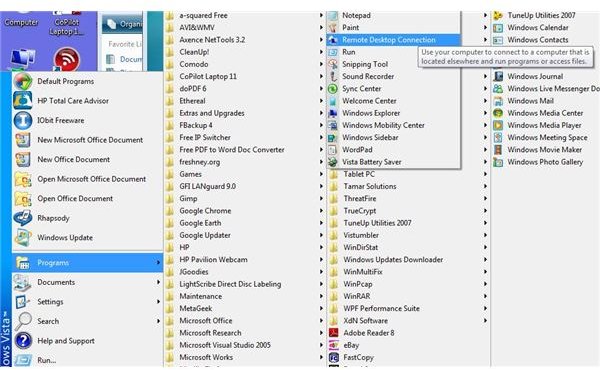
- Click on Start (or the Windows Logo)
- Select Programs
- Open Accessories
- Click Remote Desktop Connection
- Type in the IP address of the Virtual computer
Note: You can add a static IP address to your computer in a work environment with an IP address for your local network and an IP address in the same network as your virtual computers (assigned when the virtual computer is started). This will allow you to control the virtual computers much like terminal services.
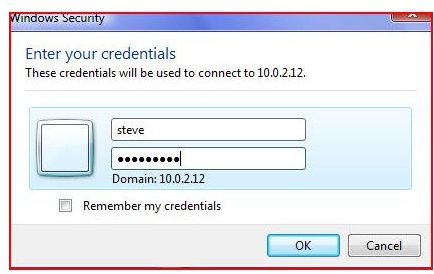
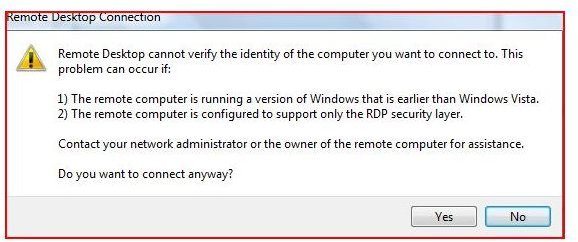
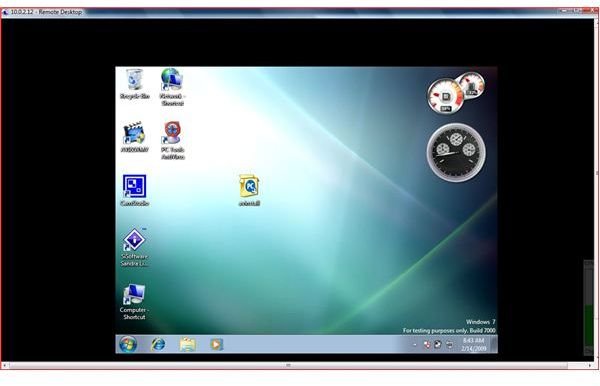
Starting and Using Remote Display
Conclusion
Using Remote Display in VirtualBox is just one of many tools VirtualBox has to offer. With virtualization, this open source software is one of the best hosting software available.
Many small and medium size business network administrators today may be in denial in regards to virtualization. Virtualization is here to stay. Much like cloud computing, virtualization combines resources to create computers within computers on the internet. The day to day activities of information technology is growing more complex and information technology professionals will have to grow in order to stay technically proficient.
Interested in learning more? Read how to configure VirtualBox options to run three operating systems on a PC.


