How to Delete SeaPort

Article by Brian Nelson (18,015 pts ) , published Nov 8, 2009

You updated your Windows Live Writer, or you downloaded some other Windows Live applications and now your PC runs seaport.exe all the time. There is no uninstall, so you’ll have to delete it yourself.

Guide to Kill SeaPort.exe

SeaPort.exe is installed by various Windows Live applications. Officially, it is part of the Windows Live Toolbar and should only be installed as part of that, but there have been conflicting reports as to whether or not this is actually true. Regardless, if you want to remove SeaPort.exe you’ll have to do it manually because there is no uninstall program installed along with the service.

Why Delete SeaPort Service

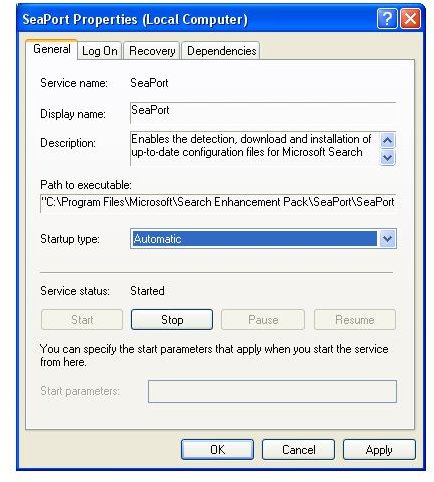
seaport-propertiesThe SeaPort service is setup as a Windows automatic service, which means that it runs at boot time on each and every start-up. This increases what may already be a painfully slow Windows boot-up sequence. Additionally, seaport.exe runs continuously in the background. Doing so costs you around 4.5 MB of RAM. And, whenever SeaPort decides it is time to check for and download those updates, it will soak up some of your bandwidth as well.

As always, the prudent move is to weigh the benefits against the costs. Microsoft’s description of SeaPort says that it is used to download and install configuration files for search applications. The only one specifically named is search history. If you don’t use search history, or are fine with the un-enhanced version, then you have no need for seaport.exe and the resources it uses are simply wasted.

Even if you do use the enhanced search features of search history, there is the question of whether the benefits are large enough. If a process is set to run continuously on every startup a user should expect frequent and on-going updates which are important to the needed functionality. However, it does not appear that the files are updated even daily or weekly which begs the question as to why an always-on process is necessary.

Delete SeaPort Permanently Step-by-Step

Deleting SeaPort is cumbersome, but not difficult. If you noticed it was running, then you are most likely familiar with the tools that will required to shut it down for good or remove it.

First, in Service Manager, shutdown the SeaPort service by clicking the Stop button. You can also kill the process from within your task manager if you prefer.

Second, set the startup method of the SeaPort service to Disabled from Automatic.

For most users, this should be sufficient, but some people have reported SeaPort re-enabling itself somehow. If this is the case, or if you just want to be really sure, then go to \Program Files\Microsoft\Search Enhancement Pack\SeaPort\ and either delete or rename the seaport.exe file.

Deleting the file, of course, completely removes the component from your PC, while renaming it provides the option to rename it back should the situation arise where you actually need SeaPort.

Hopefully, Microsoft will re-think the method it used this time to add this additional service, and be more forthcoming in the future both with the options to not install in the first place, as well as the option to remove such services later if it turns out that a particular user finds no need for it.

19 Comments

Showing page 1 of 2 (19 Comments)
Oct 21, 2009 1:50 PM
Dave Leippe
Uninstall Seaport
http://support.microsoft.com/kb/290301

Download the Windows Installer CleanUp Utility from the above link. That will remove the Seaport/Enhancement product. It might break your Gmail Talk (chat). If so go to Google and reinstall Google Talk.
Oct 19, 2009 9:22 PM
raz
awesome!
i did this on vista, some names were different but i did it in 5 mins. thanks heaps. live long and prosper.
Oct 18, 2009 6:07 AM
Doug
Eradicating Seaport
Thanks for the information, another nail in MS's coffin. Why do they do this ????
Is it just incompetence or something more sinister? Whatever the answer is, you guy's have given us the choice something sadly missing from the initial installation.
Oct 14, 2009 11:11 AM
BK
RE: How to Delete SeaPort
My system was very slow a moment ago and I checked up task manager and first thing I saw was seaport.exe. Didn't know what it was; I just ended the process. And after that I googled for it and that was how I ended up here. Good that I deleted it permanently. :)
Sep 24, 2009 5:22 PM
seaport
I wanted to Thank You for your help and knowledge on how ro rid my computer of this devil memory stealing program.Curse you Microsoft.I still have the name in my config box but it is STOPPED.I went to the microsoft file and I deleted that trash.
Is there a way to get the seaport icon out of my config ?
Thank you again for your knowledge.
Later Sarah
Sep 21, 2009 5:33 PM
Stace
SeaPort
Hi Brian,

Thank you for the tips on disabling SeaPort.exe. This is the first time that I have read instructions online that were dead on accurate. It worked. Great article. Keep it up. I'll be searching more of your articles!

Sep 13, 2009 2:02 PM
Barney Stills
Re: Williamm - SeaPort
Williamm, Service Management is not a Vista thing. Windows services (and the function of Service Management) have existed for a long time, although it does have different names.

Service management in XP is done through "Administrative Tools"... (might have to be enabled) which can be many places - in Control Panel, on "Start - Programs". If it is on "Start - Programs" I usually move it to "Start - Programs - Accessories".

After you locate the group in your version of Windows (XP,NT,2K etc), you will see "Services" and-or "Computer Services". I usually choose "Services" which can be run under XP from "%SystemRoot%\system32\services.msc /s", yet "Component Services" will give you access to the same service manager through "Console Root - Services (Local)".

Once you see the list of services, you may set the properties for any service (you're looking for Seaport ) just as the article above says... setting the service's "Startup Type" to "Manual" or "Disable".

Regards,

Barney Stills
Sep 2, 2009 8:53 AM
Bill Reed
Remove Seaport
After following the other instructions run "regedit"
and do a search for Seaport.exe. There will be
9 -10 entries. You want to delete the key in the left side screen, not just seaport.exe. Of course back up your registry first as you can do irrepairable harm by altering the registry without knowing what you are doing! Need help email me. bllreed@hotmail.com - make Seaport the subject!
Aug 14, 2009 3:17 AM
joe martin
delete SeaPort.exe
Thanks for the instructions. I took out the entire directory of enhancements and deleted the whole damned Search Enhancement Folder. This looks like spyware and my machine was doing fine until this loaded WITHOUT MY PERMISSION. Microscum will always find a way to whiz we Windows users off, and they don't know how to build a good product without fixing it if "it ain't broke". What a bunch of bums and parasites they are. I did not give them permission to put this crap in and did not have any notice or options, as usual the MICROSCUM WAY.
Jul 29, 2009 10:08 PM
Dan Roehm
seaport.exe
Good Info! This thing was eating between 20 and 30 MB of RAM - I just don't need this junk - I disabled the service and then renamed the exe.
Showing page 1 of 2 (19 Comments)
 
Sponsors
 
Camtasia: record, save, share!
Record onscreen activity, your voice, and webcam video. See how great your presentation videos can look with Camtasia screen recording software!


