Convert Word 2007 to Word 2003: Save Word 2007 Documents as Older Versions of Word
About Microsoft Word 2007 Documents
Microsoft Word 2007 documents are saved with a ".docx" file extension. This file extension is different from previous versions of Word where a ".doc" file extension was used. In Word 2007, you can open documents created in older versions of Word, however, these documents will be opened in what is called “Compatibility Mode”. While in compatibility mode, some features in Word 2007 are disabled. You can convert the document to Word 2007 document by clicking the Microsoft Office button and choosing Convert. However, if you will be sending the document to someone who has an older version of Word, you should leave Compatibility Mode on.
The reason you would want to save Word 2007 documents as an older version of word is because older Word versions need a little help when it comes to opening Word 2007 documents. Anyone with an older verion of Word will need to install the <strong><em>Microsoft Office Compatibility Pack for 2007 File Formats</em></strong> in order to open up a Word 2007 document. And since you won’t always know whether or the not person you’re working with has installed this program, you should save your Word 2007 document as an older version just to play it safe. In addition, even if the other person has installed this program, some of the elements of a Word 2007 document will be disabled when opened in an older version of Word.
Save Word 2007 Documents as Older Version by Default
Follow these steps to change Word 2007’s default saving process. By changing the default setting, all of your Word 2007 documents will automatically save in the old Word version format.
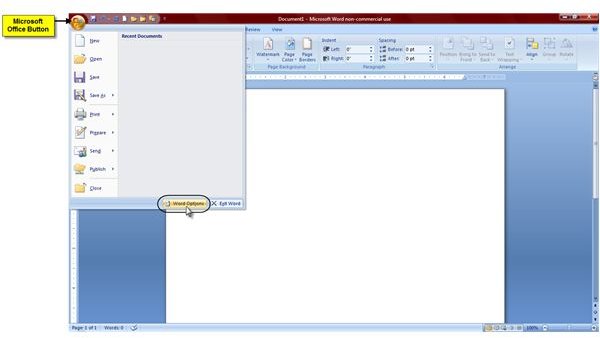
1. Click on the Microsoft Office Button.
2. Click the Word Options button on the bottom of the window.
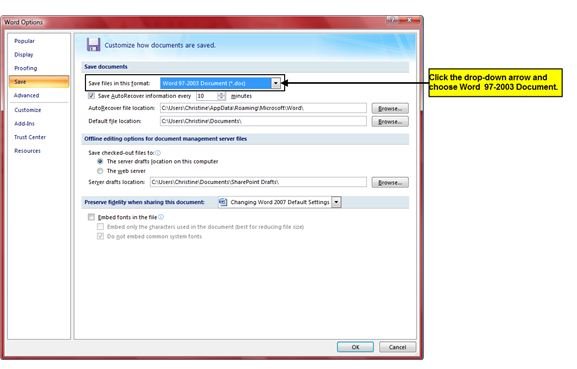
3. When the Word Options window opens, click Save in the left pane.
4. In the ‘Save files in this format’ section, click the drop-down arrow and choose Word 97-2003 Document (*.doc).
Saving Word 2007 Documents to Older Version on an As-Needed Basis
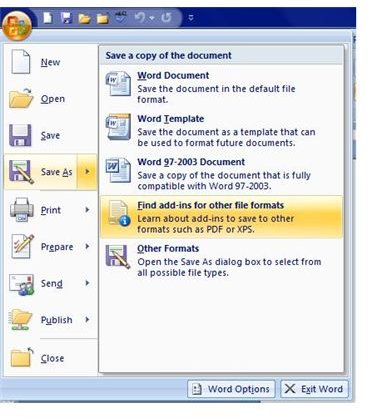
If you don’t want to change Word 2007’s default file type to “.doc”, you can instead just change the file type each time you save a document. To do this, just click the Microsoft Office Button, choose Save As and choose Word 97-2003 Document. This will change the file type just for the document that you are currently saving. You’ll just have to remember to do this with each document that you want saved as an earlier version of Word (".doc").
Be Aware!
When you change a Word 2007 document to an earlier version of Word (".docx" to “.doc”), you will lose some of the new features available in Word 2007. So keep this in mind when making this change. You’ll know the feature is disabled when you hover your mouse over a command that is exclusive to Word 2007 and see a tooltip explaining why the command is disabled.
This post is part of the series: Customizing Word 2007 Default Settings
In this Word 2007 series, learn how to easily change Word 2007’s default settings for font, line spacing, margin settings, and Save To location.