DirectX is a multimedia system that is one of the key components of Microsoft Windows. Keeping it updated is an important way to make sure you are getting the most out of your games and using your video card to the utmost of its capabilities.
Microsoft DirectX
DirectX is a multimedia component of Windows and also a requirement of most modern PC games. As of this writing, DirectX version 11 is already in place for Windows 7 while version 10 is also still commonly used today (mainly because some older video cards don’t support version 11). When Windows 8 releases in 2012, it will include DirectX 11.1.
If you don’t have the right version on your machine, it could adversely affect how well some of your games run… or if they even run at all. This article will tell you how to update your version of DirectX in Windows 7 as well as XP and Vista.
What Version Are You Using?
The first thing you need to do is figure out which version of DirectX you already have installed on your computer. To check your version, follow these steps:
- Click on the Start button, then go to Run.
- In the Open box, type ‘dxdiag’ and click OK.
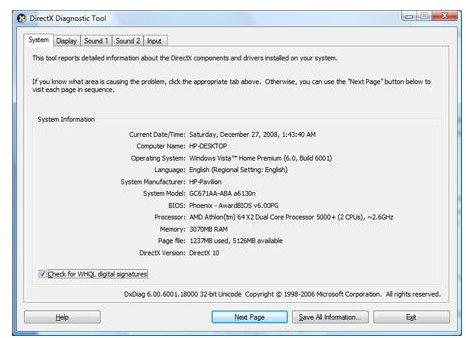
This will bring up the DirectX Diagnostic Tool, as seen in the screenshot here. If you look toward the bottom of the first screen, it will say what DirectX version you have. As you can see in this screenshot, this screenshot was taken from my Windows Vista PC and has version 10. If you want to use DirectX 11, you’ll need to update to Windows 7 .
If your computer is showing DirectX version 9 or 9.0c or something similar - don’t panic. This doesn’t necessarily mean your computer is out of date. In order to run DirectX 10, you also need a graphics card that can support it. Otherwise, version 9.0c is the best your Windows XP system will run. For example, you’ll need an Nvidia GeForce 8000 series or better card to utilize DirectX 10. If you prefer the ATI chipset, you’ll need an HD 2000 series or better card for DirectX 10.
Update DirectX
Pretty much every modern game I’ve played included a DirectX update in the install routine, but just in case you run into one that doesn’t automatically update, or doesn’t do it properly, you can always download the latest version from Microsoft’s DirectX website . It is recommended that you do it this way because you are downloading the entire install package and it’ll have all the resources it needs to properly update your system.
After you have installed or updated your version of DirectX, be sure to test your computer to make sure everything is working properly. Follow the steps above to run ‘dxdiag’ again, and this time wait for the little meter in the bottom left corner of the DirectX Diagnostic Tool window to finish loading. After that, click the Next Page button and go through each section – Display, Sound, etc – and make sure there are no errors reported. In DirectX 10 and 11, it runs the tests for you, but in older versions you may actually have a Test button under each section.
If your games still don’t perform that well after a DirectX update, it may be time for you to get a new video card .
References
- Microsoft DirectX - http://www.microsoft.com/download/en/details.aspx?displaylang=en&id=35
- Image credit: Screenshot provided by author. All rights reserved.


