How to Insert Symbols and Special Characters in Microsoft Word 2007
The Versatility of Microsoft Word
Remember the days when you had to draw copyright symbols and Greek letters by hand in your printed documents to finalize them? Maybe you don’t, but I do and it wasn’t a whole lot of fun. Even one or two handwritten additions would give the whole report or research paper an amateurish look.
With Word 2007, you don’t have to worry about this anymore. You can insert copyright symbols, Greek letters, currency symbols, and many other types of special characters into any Word document. You can even access and add various mathematical objects.
How to Insert a Symbol
Step 1: Make sure that your cursor is located at the point in your document where you want to insert the symbol or special character.
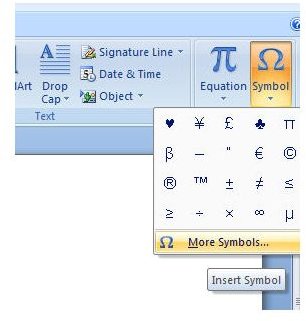
Step 2: Open the Insert tab of the Word ribbon and click on Symbol (Ω). This will expand a list that includes your most recently used symbols. If the symbol you want to use is there, you can click on it. If not, click on More Symbols to access the full list of available symbols. (Click the image for a larger view.)
Step 3: If the symbol you are looking for is really a special type of character such as a trademark sign or paragraph marker, click on the Special Characters list. Here, you can scroll through the available options, select the one you want, and click Insert.
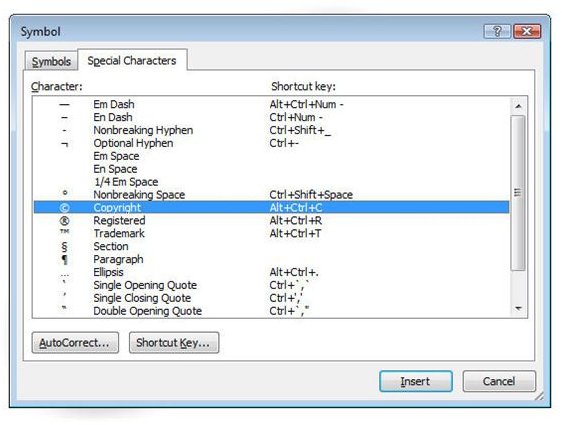
On the other hand, if you’re looking for other types of symbols, click on the Symbols tab. You can scroll through all the choices here, but there are quite a few so you may want to use the Subset drop down list to narrow down your search.
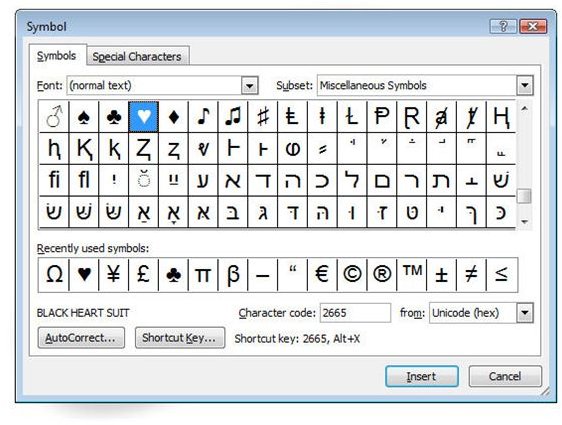
Step 4: If choosing a symbol, you can select a new font style for the character from the Font drop down list. The default choice (normal text) will insert the symbol using the same font currently defined at the insertion point in your document.
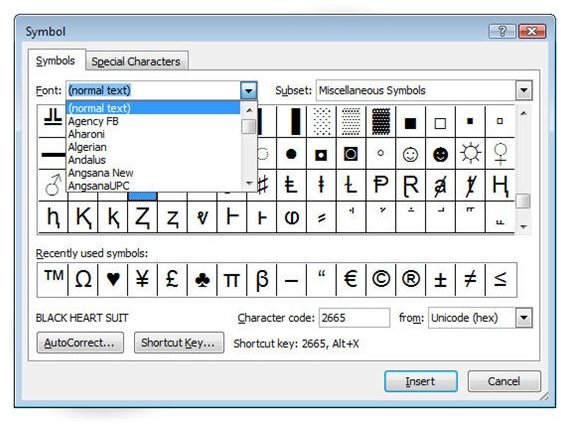
Step 5: Click Insert and the symbol will now appear in your document. If you want to modify the font style, size, or color, you can do so in the same manner you would use for any other text in the document.
If you’re only using this technique to add accent marks, there is a quicker way. More details on this can be found in Shortcuts for Typing Accent Marks in Microsoft Word.
For more tutorials and user guides, be sure to browse through the other items in Bright Hub’s collection of Microsoft Word tips and tricks. New and updated articles are added on a regular basis, so be sure to bookmark us and check back often.