Windows Vista makes e-mailing photos easy by offering a wizard to do the work of compressing and attaching the pictures for you.
Right-Click Method
One of the most common ways to share pictures is via e-mail. It’s fast and easy, you can share your pictures with a lot of people at once, and it doesn’t require a trip to the post office. There are many way to send pictures through e-mail, including attaching them yourself or using Windows Photo Gallery, but here you’ll learn how to use Vista’s right-click method to send the pictures through Windows Mail.
To send a single picture or multiple pictures using Vista and Windows Mail:
-
Open the folder that contains the pictures you want to e-mail. This is probably the Pictures folder or one of its subfolders.
-
Select a single picture to send by clicking it once. If you want to send more than one picture, hold down the CTRL key on the keyboard while selecting. To be on the safe side, try to always send less than 10 pictures per email. If you send more, and you don’t compress them small enough, they may create a message too big for the recipient to receive.
Advertisement -
Right-click any of the selected pictures, select Send To, and then Mail Recipient.
-
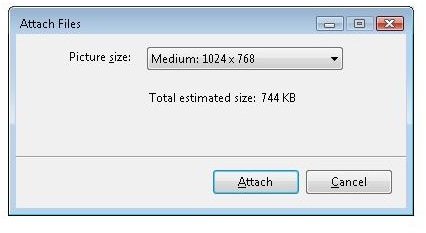
Choose from the following: [See Image 1]
Advertisement
Smaller: 640 x 480 – Choose this when sending a large group of pictures, to keep the size of the e-mail down.
Medium: 1024 x 768 – Choose this option most of the time. You want to keep the attachment under 2 MB. If the attachment is larger than this, start again, and this time select Smaller.
Large: 1280 x 1024 – Choose this if you have to send a high-quality photo. If the attachment is over 2MB consider compressing the images before sending. See the next section.
Original Size - Choose this option if you want to send the original picture without changing its size. If the attachment is over 2MB consider compressing the images before sending. See the next section.
- Fill in the recipient’s e-mail address, a subject, and a message, and click Send.
Compress Before E-Mailing
If you need to send a picture or a group of pictures via e-mail but the size of the attachment is over 2 MB, you can compress the pictures prior to emailing them.
To compress a group of images, and then send them via e-mail:
-
Select the images to send, and right-click any one of them in the group.
-
Select Send To, and then Compressed (Zipped) Folder.
Advertisement
-
Name the folder when prompted. The folder will appear with a zipper on it.
-
Right-click the folder, select Send To, and then E-Mail Recipient.
Advertisement
If you’re a Windows 7 user exploring other email options, you may want to take a look at the Top Five Free Windows 7 Email Software Applications .


