Windows is quite a famous platform used in most PCs, laptops, and notebooks today. Most end-users of the operating system don’t really know much about how it works. We explain the System Registry and how to back up and restore it.
The System Registry is an integral component of Windows. It can easily be defined as a database for storing information about programs installed in the machine. It also holds entries and values that define how an application should function on your system; such as user-defined configurations, file locations, associations, and more. Without the registry, we could never fully enjoy the functionality of Windows and getting every bit of use out of it.
The Windows System Registry greatly affects the function of your computer. A well-organized Registry increases performance in terms of speed and usability. A cluttered Registry, on the other hand, will increase application or file load time or even cause various errors to crop up.
What’s Inside Windows Registry?
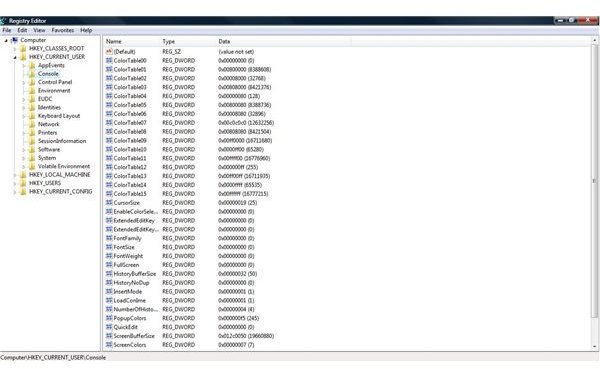
The Windows Registry is quite easy to understand since the Registry Editor’s interface resembles that of Windows Explorer. You can load Windows’ Registry Editor by clicking on RUN in your START menu, type REGEDIT then press ENTER.
The left-side pane contains the keys that can be expanded to reveal their respective sub-keys. Major Windows Registry keys are:
- HKEY_CLASS_ROOT (HKCR)
- HKEY_CURRENT_USER (HKCU)
- HKEY_LOCAL_MACHINE (HKLM)
- HKEY_USERS (HKU)
- HKEY_CURRENT_CONFIG (HKCC)
- HKEY_PERFORMANCE_DATA (HKPD)
- HKEY_DYN_DATA (HKDD)
Sub-keys may vary according to the version of Windows you’re using or applications installed on your system.
The right-side area of Registry Editors contains all the entries and values assigned to that particular key or sub-key. This is where you normally change or delete entries and values to define how you want your machine to function or to improve its performance.
Backing Up Your Registry Database To Avoid Risks
Beforeimproving your Windows’ performance by tweaking the System Registry, it is best to understand the risks involved and how to avoid them.
For starters, accidentally deleting an entry or value might cause some installed programs to malfunction. There’s also a possibility that some of the basic functions of the platform might be disabled when you accidentally tinker the sensitive components in the database. Manually undertaking this project entails a thorough knowledge of the application, its files and components; where it is stored in the Registry, and how it will affect your computer’s performance when you make modifications or removal. If this sounds intimidating, you can use a third party Registry Cleaner. The procedures are compared and explained in the next article.
One piece of advice for avoiding these problems is to backup your current Registry. If some problems do crop up after editing, you can easily load your previous settings to put it back to normal. Here are the steps to backup your Windows Registry:
1. Load Registry Editor (START > RUN > type REGEDIT > press ENTER)
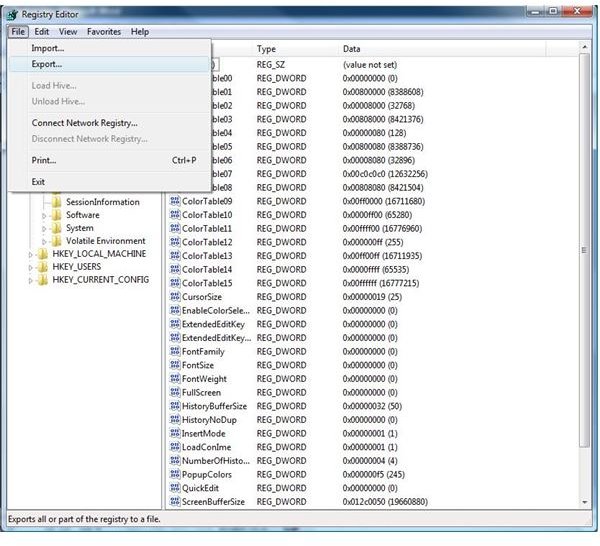
2. Click on FILE then EXPORT to create a file containing your Registry data
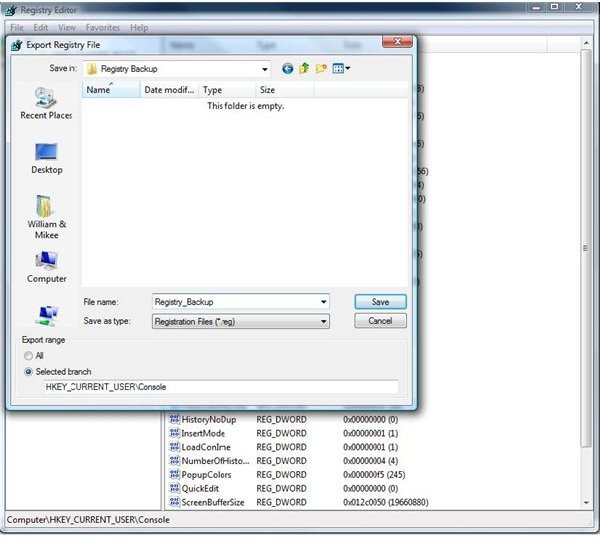
3. Give your backup file a name and select a secure location for it on your computer (note that all Registry files have the .reg extension).
Now that you have successfully created a backup file, you can now start tinkering away with your Windows Registry, a process explained in the next article. You can load your Registry backup file by clicking the IMPORT function under FILE in your Registry Editor. If Windows won’t load properly, boot your PC in safe mode to get in and restore the registry.
This post is part of the series: Editing the Windows Registry by Hand or with a Cleaner
There might come a time that editing your Windows Registry might be the only option left to improve its performance.


