How to Have Multiple Home Pages as your Default in Internet Explorer, Firefox, Safari, Opera and Google Chrome
When you first use your browser, it comes set with the home page of the organization who provided the browser. For Internet Explorer, this is Microsoft - recently the Microsoft Live entrance page. Safari brings up the Apple page. Firefox gives you the Mozilla homepage. Google Chrome gives you a very uncluttered page, but it is their home page. Opera also has a pretty clear interface, but it gives you the Opera home page. As well, many ISPs put up their own home pages, and so do many of the companies that sell their own brand of computer.
But you have a site you visit a lot. You want to arrive there before you do anything else. Perhaps it is your work site, or your favorite blog, or a news site. You may like to have several tabs open, because you move from one to another webpage regularly, as part of your work or interests.
I work as an editor at Bright Hub. I don’t want to have Gateway, Dell, HP, Microsoft Live, Yahoo!, or Firefox as my homepage. I bookmark sites so I can refer to them if I have a reason to go there, but I don’t want to be there when I first open my browser. I want brighthub.com to come up, because Bright Hub is where I need to be to work. I want a page to come up open to the interface where I edit articles. I like to have the Home page for Bright Hub come up, so I can tab to it and see what has been recently published, or how items I approve look, once they are published on the site. As well, I like to have the Google search page open, to check details in an articles, or to find a link that needs to be pasted into an article. I’d like all three of the pages to open up every time I open my browser- whichever browser I am using.
Setting Your Home Page(s)
Internet Explorer 7
When I bring up Internet Explorer for the first time, I get a Microsoft sponsored page, a portal to Microsoft Live. My default search provider comes up as Microsoft Live. For me, the easiest way to change home pages is to open up the pages that I want to have as my home page settings, and close the window that Microsoft Live opened.
I navigate to Bright Hub, at www.brighthub.com. Next, I open up a new tab, and go to brighthub.com again. Now, because I am an editor, I have access to the article writing interface, where I do my work. I go to that page after I bring up Bright Hub for the second time, navigating to a channel where I edit, and I click on a link to allow me to Manage Articles. Now, I open a new tab. I type Google in the address bar, and hit the control key and the enter key. This puts in the prefixes and suffix I need for a complete address, and I hit enter to go to the site. Now, I have three pages on separate tabs in the IE7 browser.
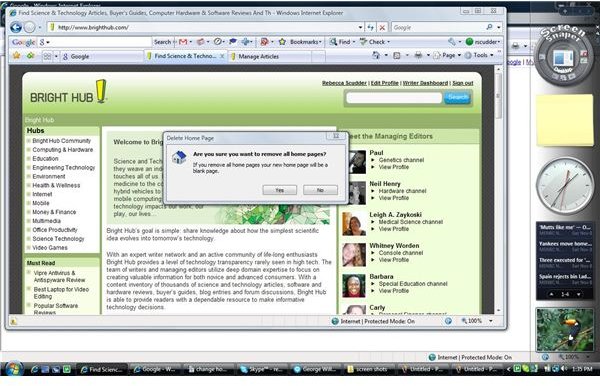
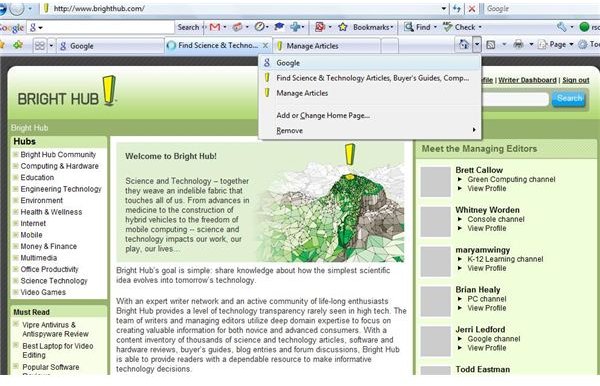
Find the home page icon. It is located in the same line as the tabs, over toward the right hand side. It looks like a tiny house, and has a small black triangle next to it, which will bring up the menu for the icon. (At this point, if you click on the icon and not the menu, you will return to the original home page.) On the menu, you will see options to add or change the home page, or remove the current setting. Select ‘Add or Change Home Page’. The options are: ‘set this webpage as your only home page’, ‘add this webpage to your home page tabs’, ‘use the current tab set as your home page’. Select the one that you want. You can also click on the menu on the home page icon to use the Remove option. Highlight a page, if you have several currently selected, or select ‘remove all’. This brings up a dialog which asks if you are sure. If you select ‘remove all’, your home page will be a blank window.
Firefox
In an open Firefox browser, click Tools on the browser bar. Go to Options > Main. There select: when Firefox starts ‘show my home page’. You can type in the URL of the page you want to use, or select ‘use current page’. Then click on OK. When you click on the house icon, it should now bring to your newly selected homepage. To show more than one tab when you open your browser, navigate to the site you want, such as www.brighthub.com. Open another tab. Navigate to the next site you want to open, such as google.com.
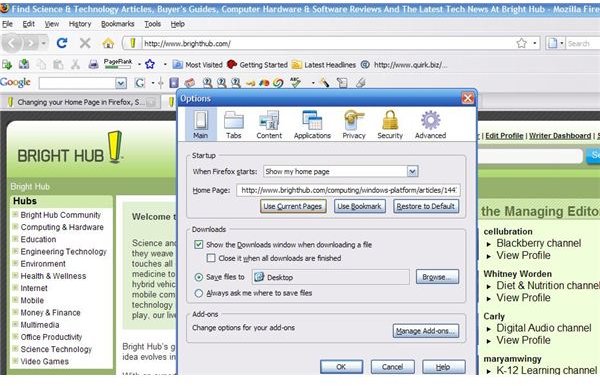
When you have opened as many tabs as you want, Go to Tools > Options > Main. When you select ‘show my home page’, Firefox should now show a button reading ‘use current pages’. Click on OK. The next time you open Firefox, all of the webpages you selected will open in separate tabs.
An alternative method of putting in multiple pages you want as home pages is to type the URLs into the ‘show my home page’ Home page line with the pipe character (|) between each one. (https://www.google.com|https://www.brighthub.com/) No space is needed between the | and the URL.
Safari
In an open Safari browser, select Edit > Preferences > General. Here you can change your default browser to Safari, select the search engine you want to use most of the time, select what page new windows open in (you can select a blank page, home page, or other choices), and some other basic setup choices. Select ‘home page’. Safari has the URL for Apple entered. You type in the URL you want, such as https://www.brighthub.com, or whatever page you want to use. Alternatively, if you have changed the page you are on to Bright Hub, or another choice, you can click the button ‘Set to Current Page’. Now, you can click the home page icon- a stylized house- and go to the page you selected. If the home page icon is not on the browser header, go to View > Customize Toolbar, and drag the home icon over next to the icons near the top left corner of the browser, next to the forward & back arrows and refresh icon.
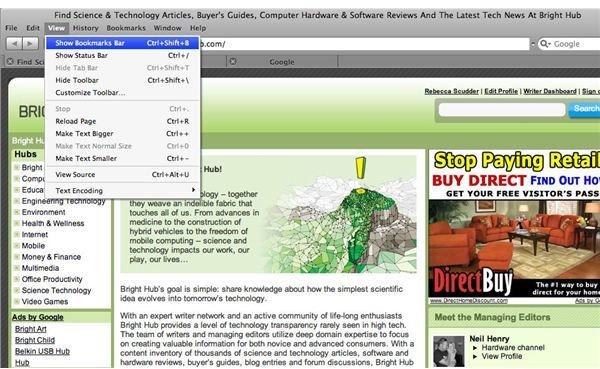
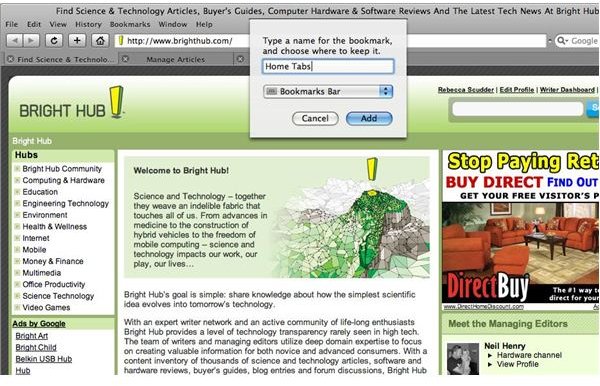
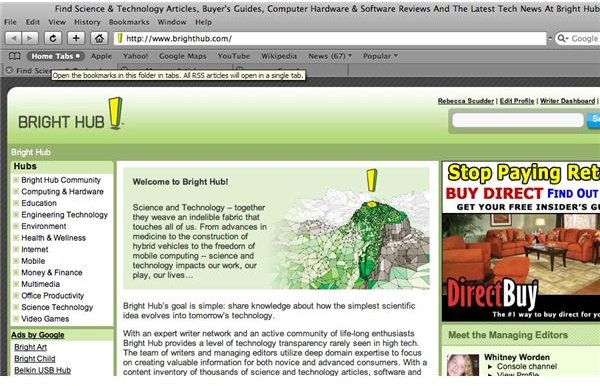
In Safari, if you want to bring up multiple tabs at the same time, you need to use the Bookmark bar. Go to View, and select ‘show bookmark bar". Open tabs to each page you’d like to have open up together when you start using your browser. Click on Bookmarks in the Menu bar. Select “add bookmark for these tabs’. In the pop up window, type the name for the bookmark, ‘Home Tabs’, and then choose where to keep it. Select Bookmark bar. Now, when you start Safari, just click on ‘Home Tabs’ in the Bookmark bar, and the pages you selected will all open.
Bookmark multiple tabs in Safari
Opera
Open the Opera browser. Navigate to the page you want to use as your home page, like your favorite channel at Bright Hub. Go to
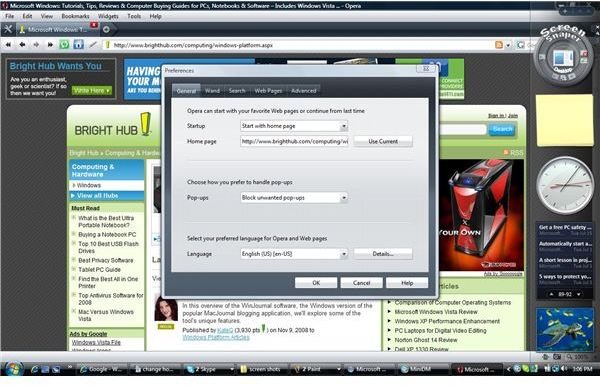
Tools > Preferences > General. Under startup, select whether to start with a home page or a blank page. You can type in an address here, https://www.brighthub.com/computing/windows-platform.aspx, or click on ‘use current page’.
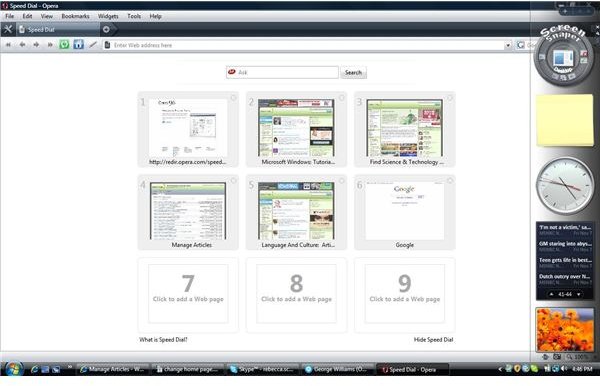
Opera offers a method for people who want to quickly access multiple pages; their speed dial function. To use this, navigate a page, and then click the + sign on the tool bar. This opens up a page with nine large thumbnail spots, the first of which is filled with Opera’s website. You can click on the space below an empty thumbnail and type in a URL, or you can click in the empty thumbnail, and it will show you a list of recently visited pages. If you click on one of the listed pages, it will fill the thumbnail. If you want a page you don’t see in the list, navigate to the page in a tab, and then return to the speed dial tab. Now you can click on an empty thumbnail and see that site in your list of choices. To change what a thumbnail shows, right click on the thumbnail, and select either edit or clear, and put in another site if you want. Opera also offers an opportunity to reload each thumbnail, either manually, or at an interval you specify.
Google Chrome
Open the Chrome browser. Navigate to the site you want to use as your home page. Our example will be https://www.brighthub.com. In the browser, look for the wrench icon on the lower right of the toolbar. Select Options > Basics. On startup, click ‘open home page.’ At home page, you may select ‘use new tab’, or select ‘open this page’. Paste in the URL you want. https://www.brighthub.com will set the Bright Hub Main page as your home page. Click close.
For multiple pages, click on the wrench icon. Select Options > Basics. On startup: select ‘open the following pages’. If you have the tabs for the pages you want open, click ‘use current’. Or, you can click on ‘add…’, and you will see a pop up window showing you recently visited pages. It also allows you to type in a URL. Select the pages you want, or type in the URL. Click Close. Now, when you bring up Google Chrome, all of the pages you selected will open in their own tabs.
These instructions will let you set multiple pages as the default in the most commonly used browsers. These procedures work in both administrator and standard accounts in Windows XP and Vista Home Basic and Windows 7.
It is possible to have your home page changed by installing certain applications, or by malicious software. In those cases, these procedures may not always work.