Love Outlook 2010, but bored with the appearance of your emails? Learn how to apply built-in themes that change the font and stationery for Microsoft Outlook email messages.
What Are Outlook 2010 Email Themes?
Provided your edition is part of an Office Suite including Microsoft Word,
Outlook 2010 themes include stationery for Microsoft Outlook email, patterns, fonts, colors and more. You can apply a default theme for all emails, add stationery to a single message or create your own stationery to use instead of those offered by Outlook.
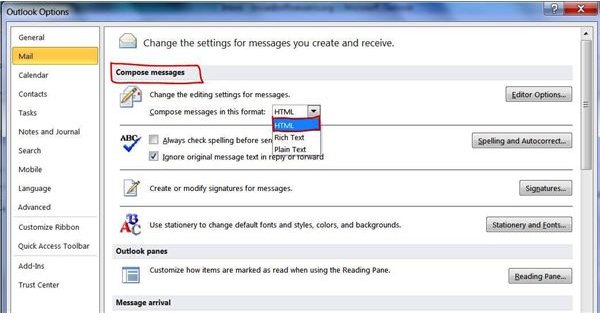
First, though, you must make sure that your default email format is HTML in order for the stationery to work.
To set HTML as your message format, go to the File tab and click on Options. Click Mail in the left pane. Select HTML under Compose Messages in the Compose Messages in This Message Format List**.**
How to Apply a Default Theme
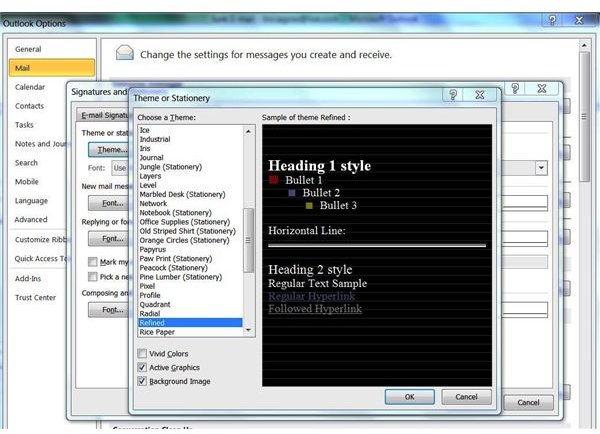
If you want the same stationery applied to all of your email messages by default, go to the File tab and click on Options. Click Mail in the left pane of the Options window. Click the Stationery and Fonts button in the Compose Messages section.
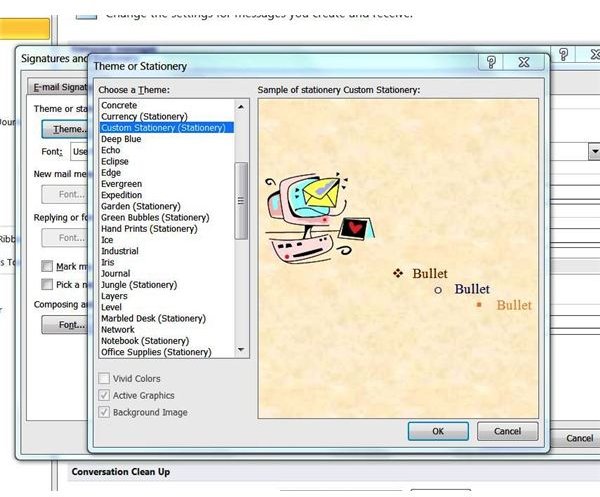
Click the Theme button on the Personal Stationery tab to view a list of available themes.To see what the background, fonts, bullets and colors look like in a specific theme, click on the name of that theme to open it in the preview window. If you see (stationery) to the right of a theme name, it means that applying the theme will only change the backgrounds of your email messages, not the fonts or other aspects.
When you find a theme that you like, select it and click OK. Click OK again to apply the changes and close the Outlook Options window.
Apply Stationery to a Single Email Message
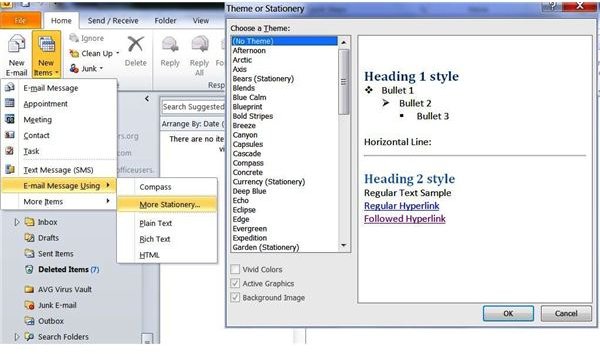
If you do not want to apply stationery to all of your email messages but like the option of using stationery whenever you want, you can easily add stationery for Microsoft Outlook email any time.
From the Inbox, go to the Home tab. Click on New Items in the New group. Point to Email Message Using and select More Stationery. To see what the background, fonts, bullets and colors look like in a specific theme, click on the name of that theme to open it in the preview window. When you find stationery that you like, select it and click OK. A new message window opens with the theme you selected.
You can also use this method if you selected a default theme but would like to use something different for a single email message.
Make Your Own Custom Stationery
Finally, if you simply cannot find a theme that you like or wish to use a custom background such as your company’s logo, you can make your own stationery for Outlook 2010.
Open a new email message. Apply fonts, bullets and other effects to the message. You can insert shapes, clipart or any other object you choose.
If you want to use a color for your stationery background, you can do so by going to the Options tab, clicking Page Color in the Themes group and selecting a color.
If you want to add an image as the background, go to the Options tab and click on Page Color. Click Fill Effects at the bottom of the drop down. Go to the Picture tab. Click Select Picture, navigate to the picture you want to use as your stationery background and click Insert.
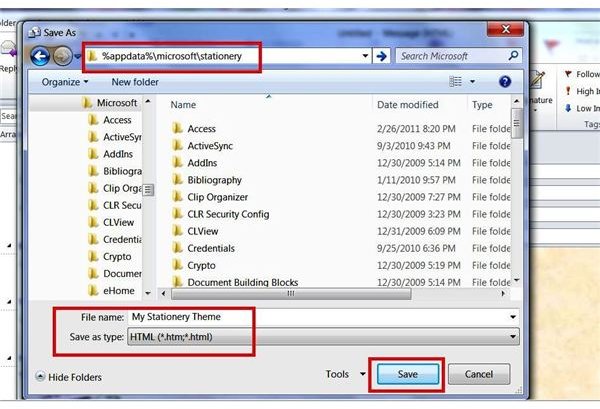
Once you have designed the custom stationery theme you want, go to the File tab of the message window and select Save As. Enter a name for your custom stationery. Select HTML in the Save As Type list.
Click inside of the address bar at the top of the Save As window, type (or copy and paste) %appdata%\microsoft\stationery and press Enter. When the Outlook Stationery folder opens, click Save to save your new, custom stationery. Close the message you used to create the theme.
The next time you open the Theme or Stationery window, your custom theme will appear.
Please note that the standalone version of Outlook 2010 does not include themes. You must have Word installed as well in order to use them.
References
Sources:
Author’s own experience
Images:
Screenshots provided by the writer


