How to Import CSV Files into Microsoft Excel 2007 - Working with Delimited Text Files
CSV Files Explained
In Windows, a file with a .CSV extension denotes a Comma Separated Values file. It’s a very simple text file format where the data is separated with commas, hence the name of the file. CSV files are most commonly used for transferring data between programs, such as exporting your Outlook Contacts into a .CSV file so that it can be imported into Excel or Access. Because .CSV files are just text, they can also be transferred between operating systems.
Working With CSV
The .CSV file extension has been around since the earliest days of computing, and it is still supported by many programs today. If you’ve ever been given the tedious task of transferring data between two different programs, then comma separated values will save you lots of headache. Microsoft Excel is great for importing this data and automated wizards built within the program help expedite the process.
Suppose you wanted to export an address book from one program into Excel. Let’s assume that program lets you export to CSV, as many do. When finished, your data will look something like this in the .CSV file:
Name,Address,City
Bill,124 Here,Biloxi
Christy,243 There,Biloxi
Mike,256 Alpha,Gulfport
Lucy,674 Beta,Gulfport
David,127 Horse,Biloxi
In the above example, you see the first line contains the label for each column, then underneath are five different data entries. Each piece of information is separated by a comma. Also notice the space between the street number and name.
Import to Microsoft Excel
To import this back into Microsoft Excel 2007, click on Data, then click the From Text button in the Get External Data menu. This will bring up the Text Import Wizard.
In the first step, make sure you have Delimited set as the first option. You can also select which row you would like to start from. In this example, I’m doing the whole thing starting with the first row.
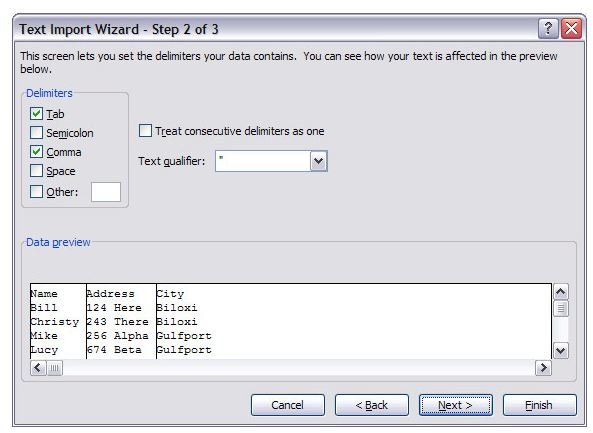
In the second step, make sure you check the box next to Comma. (See screenshot for an example.) This will then show your data in columns at the bottom. If you click the check next to Space, it will divide the address column into two lines, in this example. Sometimes this can be helpful when you are trying to break down data during the import, as some programs tend to lump data together.
The third step simply lets you choose the format of the data, such as numbers, text, or dates. After you’ve done that, just click Finish and the data will be imported into your spreadsheet. Depending on how big the .CSV file is, the import process could be instantaneous or take several minutes. I’ve seen giant database exports pulled into Excel that took a while to load, but they still worked just fine.
Additional Resources
That wasn’t so bad, was it? Comma Separated Value values are very easy to work with, which is why they are still around today. They are mainly used for importing and exporting data between other programs, but they still function as a viable file format even though they are not very secure. With all the complications that get piled into every new version of some software out there, it’s good to know that the basics like .CSV files are still available.
For more tips and tricks, be sure to check out the other Microsoft Excel user guides and tutorials available here at Bright Hub:
- Learn all about Excel functions
- How to create pivot tables
- Read more articles about Microsoft Exce****l
References
Author’s own experience
Image credit: Screenshot from author’s PC