What is Coranti Antivirus and Anti-Spyware? How does Coranti Antivirus differs from other antivirus programs? Can you use BitDefender, Lavasoft Spyware Remover, F-Prot and Norman virus scanners to receive ultimate protection from viruses? Check out this Coranti Antivirus product review for answers.
Coranti 2010 Multi-Core Anti-Virus & Anti-Spyware
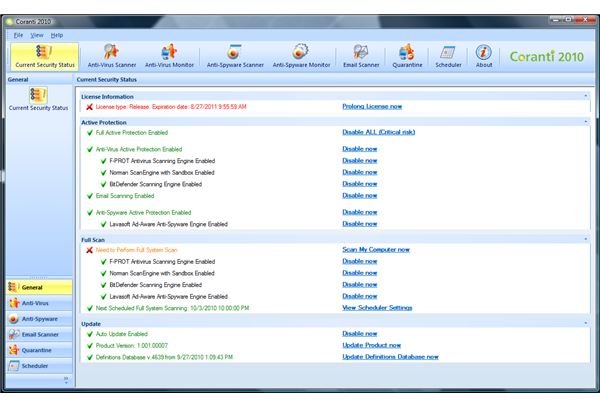
It’s not new to find anti-malware scanners using several scan engines but here’s a new program to check-out called Coranti 2010 Multi-Core Anti-Virus & Anti-Spyware. Coranti 2010 provides real-time protection from known and new viruses and malware using the top rated antivirus and antispyware scan engines such as BitDefender, F-Prot, Norman and Lavasoft. What impressed me in reviewing Coranti is its performance while detecting and preventing malware. It’s almost perfect and you’ll find more information in this article.
Features and Installation of Coranti Anti-virus & Anti-Spyware (5 out of 5)
The install process of Coranti is straight-forward. A reboot is not required to start protecting the PC from any types of malware activity.
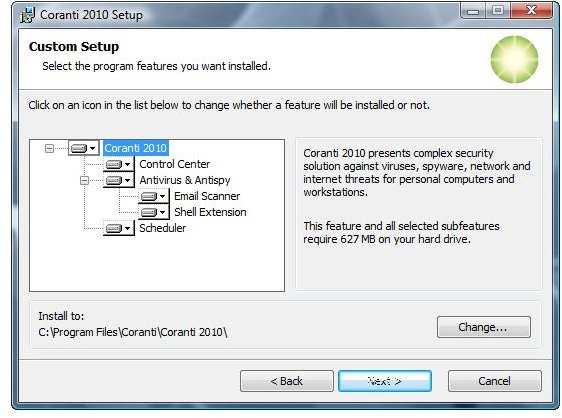
It does not disable Windows Defender, which is the built-in antispyware in Vista and Windows 7. There are two options to install Coranti AV & AS:
- Complete install - All of the components will be installed and these are the control center, real-time and on-demand scanners for antivirus and anti-spyware, e-mail scanner for widely used e-mail clients such as Microsoft Outlook, Thunderbird, The Bat, Outlook Express, and Windows Mail, a shell extension to scan a file, folder or any visible path in Windows from Windows Explorer context menu, and a scheduler to perform a scheduled scan or product updates.
- Custom install - An option to individually install any of the above components that a complete installation will perform. This is a good option for end-users who don’t want or need an e-mail scanner.
Coranti AV & AS is not compatible with Windows Security Center. It reports its status to the Windows Security Center but uses a format that is no longer supported in Windows. The vendor was informed about the problem. It does not affect the functionality of the antivirus program but for end-users who wonder why the Windows Security Center is not “green”, expect an update from Coranti in the future. Coranti uses 627MB of hard-disk space which is a huge amount of space and runs on 32-bit and 64-bit editions of Windows operating systems, including Windows servers.
After the install process of Coranti, the product automatically checks for product and definitions update which you can cancel or send to the background. A full system scan dialog box will be displayed after the update which is recommended since the default action for any detected threats or suspicious files is to ask the user. This option can be changed in the preferences of the program.
Options in Using Coranti Anti-virus & Anti-Spyware (5 out of 5)
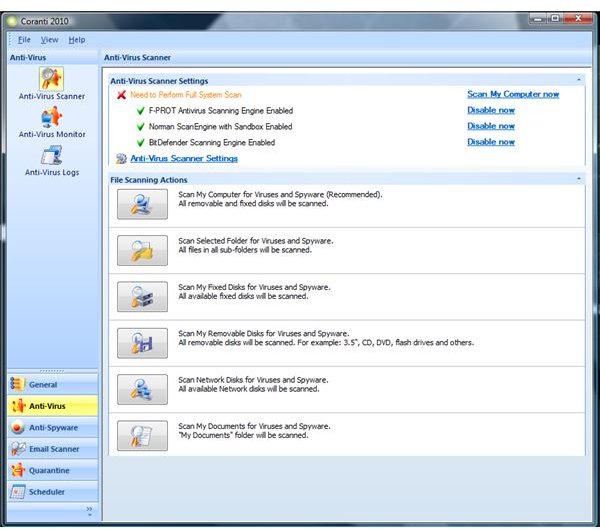
Coranti’s main user interface is simple which means you won’t have to dig around in order to find the available options for the program. The screenshot at the left displays the simple to use option and easy to understand functions or menus. You have the option to change the way you want to view the user interface, which I really like. You can have the menu in the side-bar or on top as a toolbar menu.
The default options or settings in Coranti are actually OK but I would rather see the antivirus program automatically handle a threat by sending it to the quarantine or terminating the malware process before sending to quarantine. By default, Coranti only blocks and reports the malicious activity. An end-user of Coranti has the option to disinfect then delete, to block if it cannot delete, or to quarantine. Below are the other options for using Coranti which as you can see, an option to adjust the levels of scanning, heuristic and depth scanning. Also there is an option to adjust the level of scanning archived files and how to handle any macro infections:
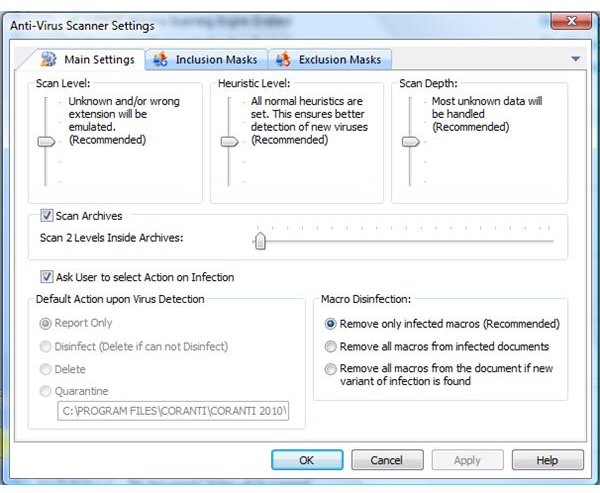
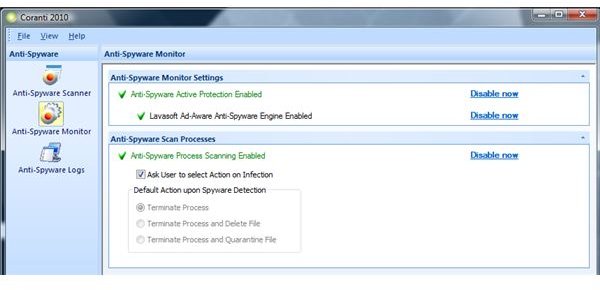
Note that the above options are for the antivirus scanner to use and are the same available options for antivirus real-time protection settings. You may include or exclude paths or files to monitor and scan in real-time or during an on-demand scan. The anti-spyware scanner in Coranti uses the Lavasoft anti-spyware scanner to ask the user for actions which is something I recommend you change by selecting “Terminate process” or “Terminate and quarantine”. All settings are applied whether you have BitDefender, F-Prot or Norman scan engines enabled or only one or two antivirus programs enabled or in use. See also the BitDefender review by Ryan Tetzlaff or Lavasoft spyware remover review by yours truly.
Performance and Memory Usage of Coranti Antivirus & Anti-Spyware (4 out of 5)
I expected Coranti antivirus and antispyware to slow the computer because of several scan engines enabled by default, but I was mistaken because the computer did not show any lag even if 4 scanners are protecting the PC in real-time. This is an impressive antivirus loader which seems to have received a rigorous testing by its development team.
I noticed a slight delay in opening any Windows application for the first time after installing Coranti. This pause is a result of a quick scan done by Coranti before allowing an application to open which is actually good because it is being checked by Coranti:
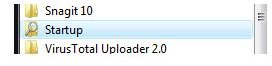
In the above screenshot, you’ll see the startup folder has a ‘scanning’ icon which is done by Coranti. This should happen once only unless a new item is found for the scanner to detect or check.
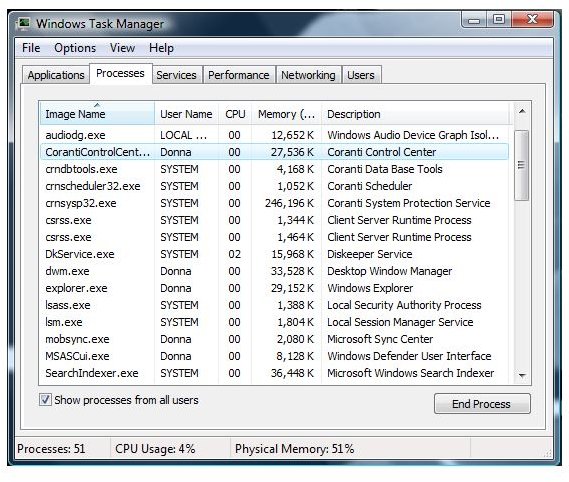
Coranti uses a lot of memory so if you are using less than 2GB of RAM, you will not enjoy Coranti. My test system has 3GB of RAM and below is the memory usage of Coranti while it is monitoring the system for any malicious activity:
A system drive scan using Coranti Antivirus will finish in an acceptable time. For example, a 150GB system drive which has 37GB of data was scanned in less than an hour using 3 antivirus scanners.

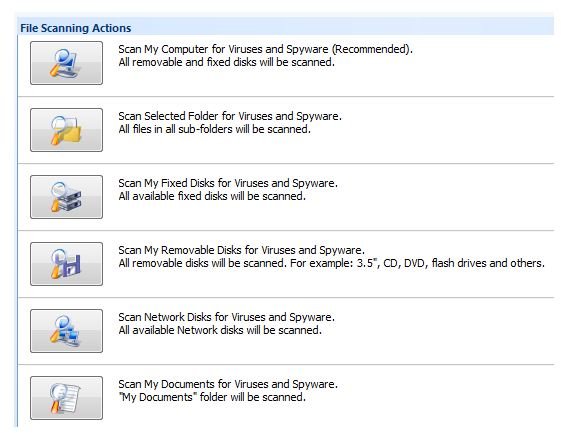
You can scan the computer using many options using scan engines by BitDefender, Lavasoft, F-Prot and Norman:
Malware Protection and Prevention of Coranti (5 out of 5)
I wrote in the first page of this article that I’m impressed with the detection and prevention offered by Coranti and here’s why. I transferred 390 malware samples to the system drive after configuring Coranti to automatically quarantine any detected threats. Coranti has detected or protected the system from 301 malwares, in real-time:
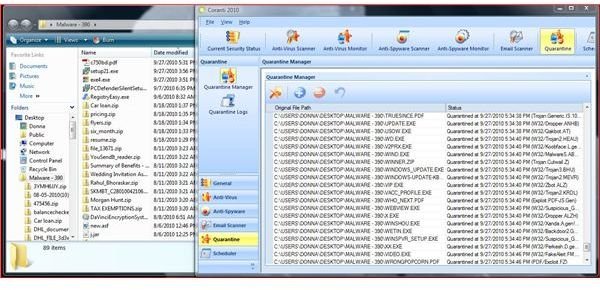
The remaining 89 malware was scanned using its on-demand scanner and the option is also to quarantine detected malware. Coranti’s on-demand scanner found 82 more malware,which means only 7 were left behind:
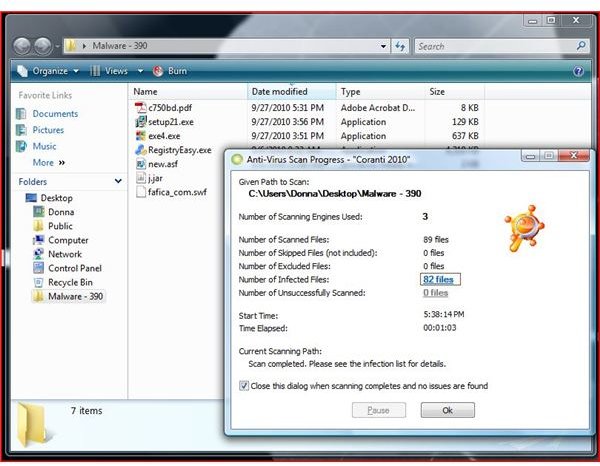
That’s a great detection rate by Coranti since it uses BitDefender, F-Prot, Lavasoft and Norman scanners! Note that there’s an online scan BitDefender review which I found to also be great at detecting malware.
Malware Prevention
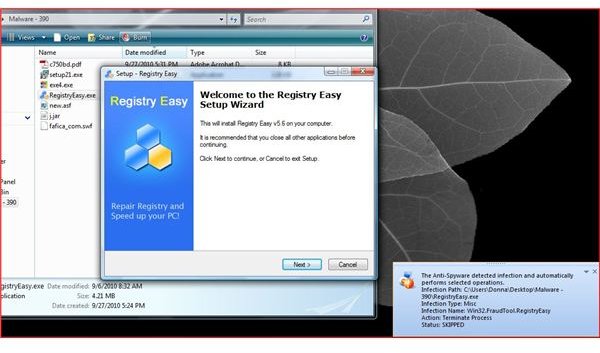
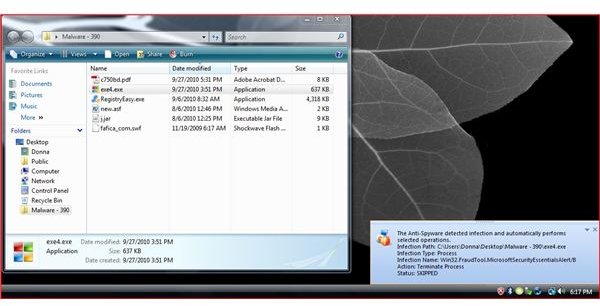
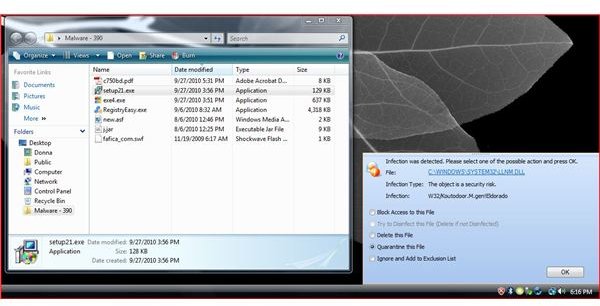
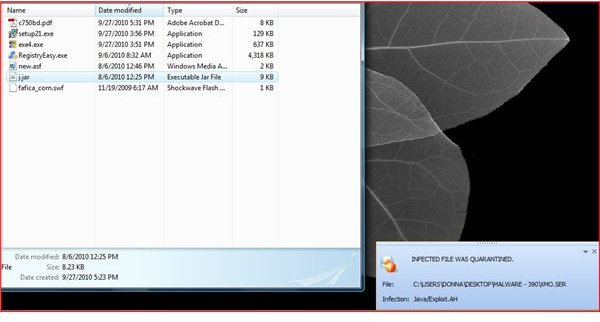
A review is not complete unless we test how Coranti can protect a computer from malware that its real-time and on-demand scanner failed to detect. I decided to execute the 7 remaining malware and you’ll find below the screenshots which show how Coranti prevented malware infection or execution of malware when I opened the RegistryEasy.exe, exe4.exe, setup21.exe and j.jar malware files.
Overall, Coranti Antivirus and Anti-Spyware has prevented infection against 387 out of 390 malware, leaving the PC at risk from 3 malware only. That’s indeed an ultimate protection against viruses and new malware!
Prevented Malware Infection Using Coranti Antivirus & Anti-Spyware
Conclusion
At $50 per single computer with 1 year of protection, Coranti provides the best of the best scanners and protection in one application. The easy to use Coranti antivirus program will make any user with any level of computing knowledge able to receive proper protection without having to deal with many settings. Coranti is highly recommended if you want an ultimate virus protection for Windows.
Coranti Antivirus and Anti-Spyware is available for 30-days trial at https://www.coranti.com
Image credit: Screenshot taken by the author.


