With increase in the number of threats over the internet, it has become essential for a computer user to protect his/her system with a firewall. FortKnox Personal Firewall is the best choice that protects your system from hackers, Trojans and other malicious content. Read more…
With automatic intrusion detection system and SPI technology, FortKnox Personal Firewall prevents your computer system from hackers, viruses, Trojans, malware code, spyware and other internet threats.
Installation (5 out of 5)
FortKnox Personal Firewall application is very easy to install and requires even less than a minute. Unlike other firewall applications, where you have to select advanced options in the beginning of the setup, there is no such issue with FortKnox Personal Firewall installation.
Features (4 out of 5)
- Protects from all types of attacks
- Maintains traffic log
- Integrated SPI technology
- Shows number of connections on the system
- Shows processes overview
- Automatic updates
- Cool Graphical User Interface
- Blocks all types of scripts, cookies, Ads, etc.
- Different skins to choose from
- Premium technical support
User Interface (5 out of 5)
FortKnox Personal Firewall has a very simple and easy to operate user interface. When you first start the application, you will notice a red-black icon in your system tray. Right click on the icon to access various options. Here you can choose to either block all connections or allow all connections. You can also select the Normal option to allow the application to behave in a normal manner where only the suspicious connections are blocked.
Whenever a website is accessed, you will be asked to either press ‘Yes’ to allow the application/access or ‘No’ to block the application/access.
Double click on the icon to launch the application. You will be presented with the Statistics page, where you can view the activity related to your network connection.
To view the connections currently made to your computer, click the Connection option on the left. Here you can find all the connection to your computer and their related information.
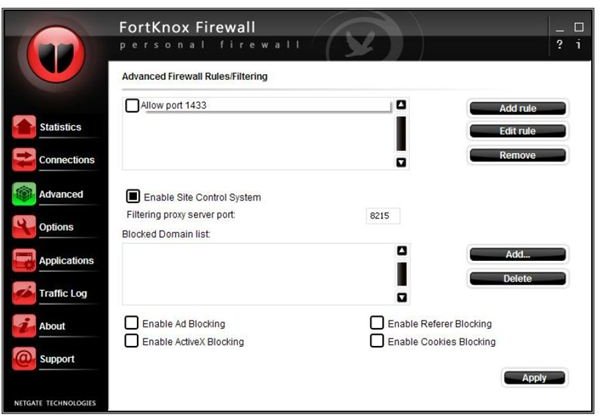
To add or remove domain names, click Add or Delete option. To add or delete a new rule, click Add Rule or Delete Rule respectively.
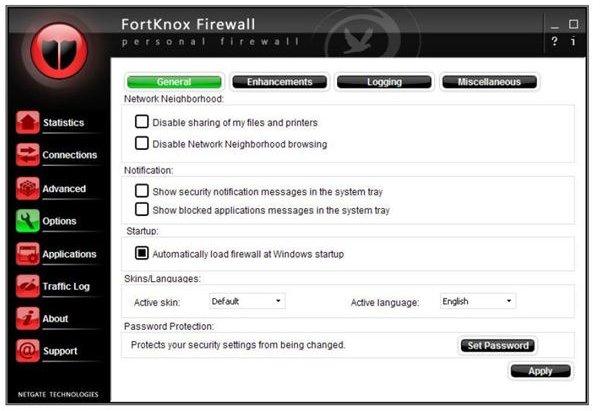
To change the configuration of the application, click the “Options” option. Modify the settings according to your criteria.
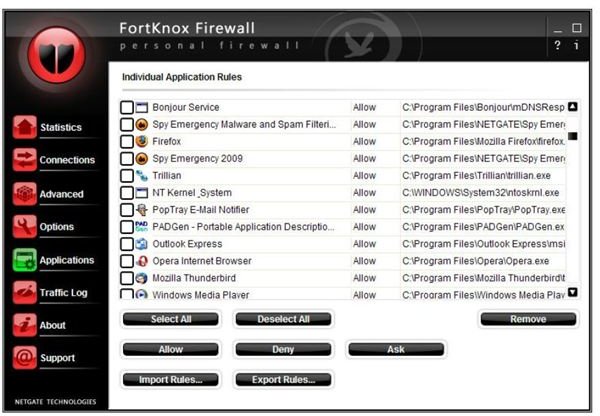
You can also view the individual application rules from the Applications option.
You can also view the traffic log by clicking the Traffic Log option.
Pricing (3 out of 5)
You can use the application for a trial period of 15 days after which you will have to purchase the application in order to use it. The price for the application is 29.95$ per annum.
Handling (4 out of 5)
Handling the application is very easy and requires no extra efforts on user’s part. Every option is available at the click of your mouse.
Weakness (2 out of 5)
The only weakness I found was that the application was very slow on my system. I am using a dual core CPU 1.86 MHz with 4 GB of Ram and the application was running as if I was running it on a P3 system.
Conclusion (4 out of 5)
Considering the features and the weakness of the application, I will rate it 4 out of 5.
Images




Images Credit
FortKnox Personal Firewall Application Screenshots by NETGATE Technologies


