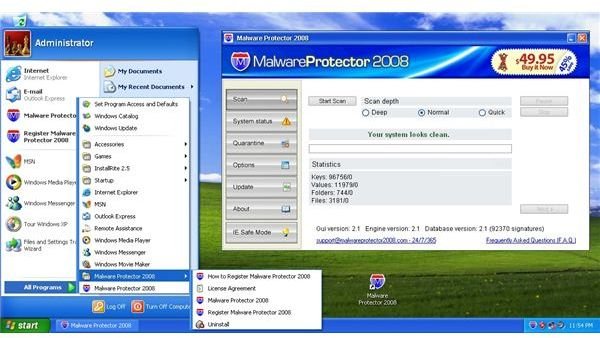
Removing Malware Protector 2008 is not as difficult as it sounds, even though it can’t be uninstalled from the Control Panel’s “Add or Remove Programs.” This article will guide you through removing Malware Protector 2008 easily through manual methods.
Signs of Infection
A desktop icon that looks like an interstate sign with a big M on it is a sign of Malware Protector 2008 infection. The same icon can be seen from the computer’s system tray, Start menu and All Programs menu. The program, which is advertised as an antispyware program, is capable of downloading additional malicious programs that are more dangerous than what is already installed on the infected machine. This nasty piece of rogueware should be removed as soon as possible.
Uninstalling Malware Protector
Uninstalling the program using the Control Panel’s “Add or Remove Programs” section will not work on Malware Protector 2008. This kind of spyware is built to install more spyware programs into the system. The reason that it cannot be uninstalled is because the uninstall.exe file that the Control Panel executes was not made to actually remove the spyware program. You’ll need to do a bit more to actually remove Malware Protector 2008.
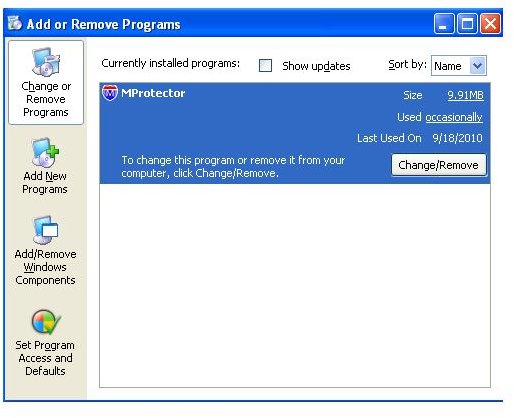
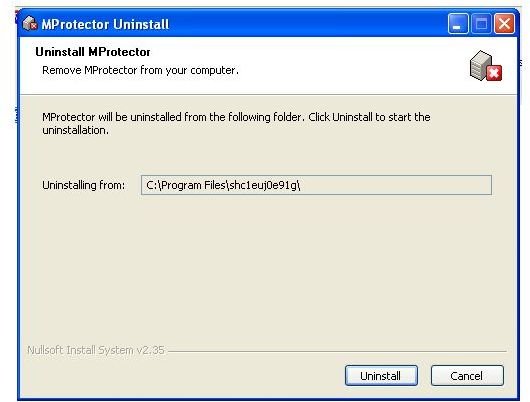
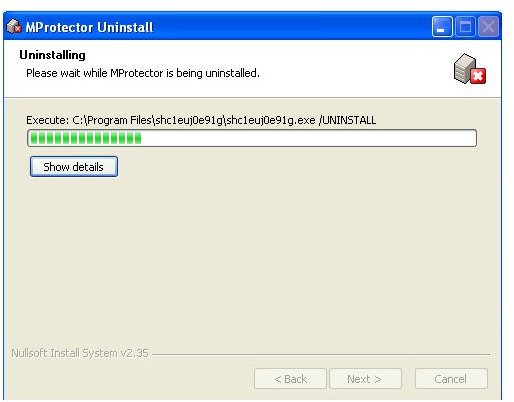
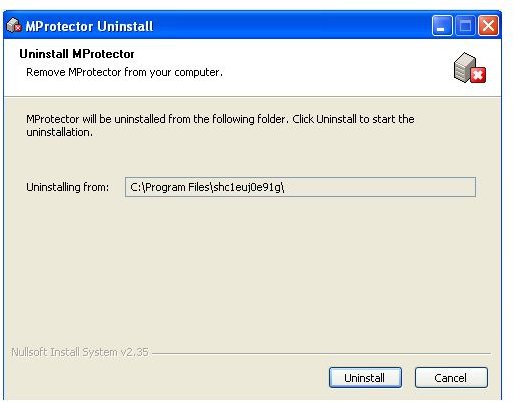
Even after Malware Protector 2008 indicated a successful uninstall, the files and all of the system modifications are still there.
Removing Malware Protector 2008 Manually
The most obvious way to remove Malware Protector 2008 is to delete its files manually. Malware Protector 2008 uses a folder name it generates after installation. This prevents users from following removal instructions online and makes them think that the Malware Protector 2008 that infected their computer is a new version. In order to get to the folder where the executable resides, we need to check the target file from one of its shortcut files.
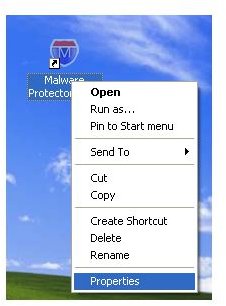
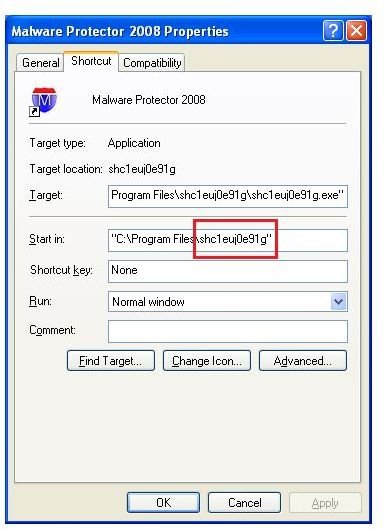
In the above example, the files are located in “C:\Program Files\shc1euj0e91g” (location of Program Files may vary depending on the user’s settings).
For brevity’s sake, we’ll use %GENERATED_NAME% to indicate the folder name generated by Malware Protector 2008 executables. Hence:
%GENERATED_NAME% = shc1euj0e91g
When the user tries to simply delete the folder they will probably receive the error prompt below.
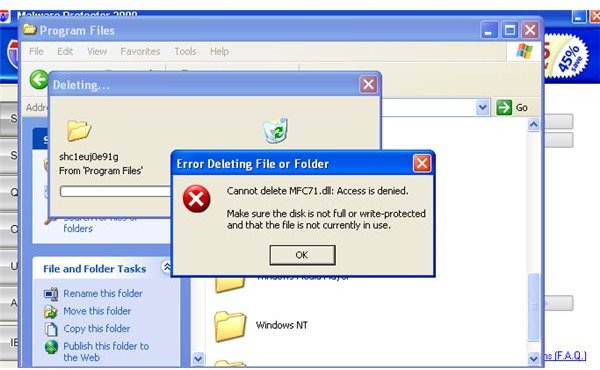
The error was caused by the Malware Protector 2008’s graphical user interface using the MFC71.DLL. The dynamic link library (DLL) is a non-malicious file which stands for Microsoft Foundation Class version 7.1 which is used by many applications relying heavily on Windows objects and controls. In order to bypass the error, we need to terminate the process using it.
Open the Task Manager and search for any running process that has the same name as Malware Protector 2008’s %GENERATED_NAME%. In this instance, it’s shc1euj0e91g.exe that we should terminate. Right-click and choose “End Process Tree”.
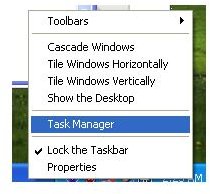
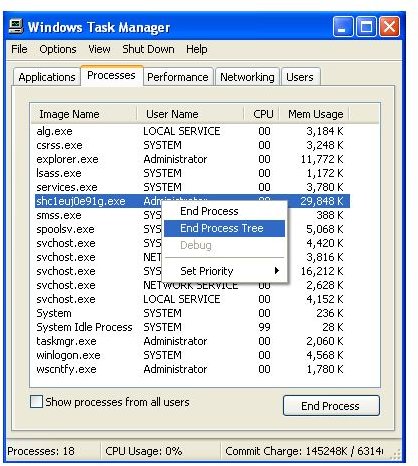
Afterwards, we can remove the executables and library files.
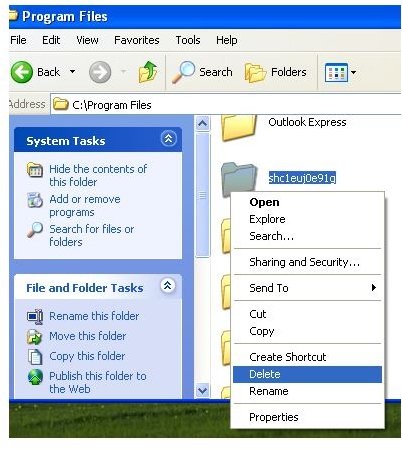
At this stage, Malware Protector 2008 is now disabled in the system. But we need to remove the remnants created by the spyware program.
Since we already know the folder name of the fake antispyware, we can use that to check for references in the registry and specific folder locations.
Removing additional folders
Delete the following folder and file locations:
%CSIDL_COMMON_PROGRAMS%\Malware Protector 2008
- where %CSIDL_COMMON_PROGRAMS% typically points to C:\Documents and Settings\All Users\Start Menu\Programs
- example: C:\Documents and Settings\All Users\Start Menu\Programs\Malware Protector 2008
%CSIDL_PROGRAM_FILES%\%GENERATED_NAME%
- where %CSIDL_PROGRAM_FILES% typically points to C:\Program Files
- example: C:\Program Files\shc1euj0e91g
%CSIDL_APPDATA%\%GENERATED_NAME%
- where %CSIDL_APPDATA% typically ponts to C:\Documents and Settings\Administrator\Application Data
- example: C:\Documents and Settings\Administrator\Application Data\shc1euj0e91g
%CSIDL_DEFAULT_QUICKLAUNCH%\Malware Protector 2008.lnk
- where %CSIDL_APPDATA% typically ponts to C:\Documents and Settings\Administrator\Application Data\Microsoft\Internet Explorer\Quick Launch\
- example: C:\Documents and Settings\Administrator\Application Data\Microsoft\Internet Explorer\Quick Launch\Malware Protector 2008.lnk
More information about the system variables can be found in Microsoft’s website .
Take note that “Administrator” may change depending on the Windows account that was infected.
You may substitute %CSIDL_COMMON_PROGRAMS%\Malware Protector 2008 by deleting Malware Protector 2008 from the “All Programs” menu. Deleting %CSIDL_DEFAULT_QUICKLAUNCH%\Malware Protector 2008.lnk can also be substituted by deleting the icon directly from the Quicklaunch toolbar.
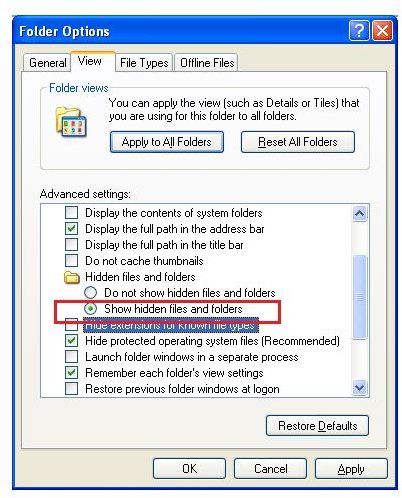
Some folders may be hidden. If that’s the case, then we can just unhide it using the Folder Options setting.
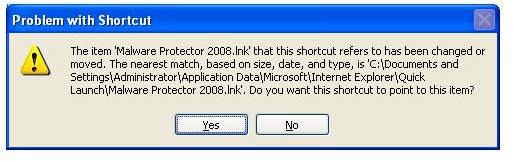
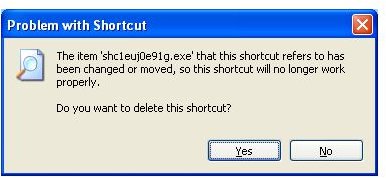
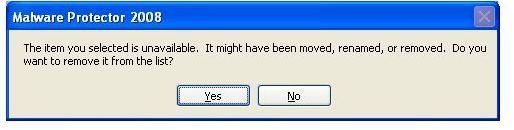
Clicking on the Malware Protector 2008 icons in the Start menu will ask whether you want to delete the shortcut for the non-existent target. Click “Yes” to remove the link files. The images below are usual error prompts which result from removing the icons.
You can directly delete the icon by clicking Delete in the icon’s context menu. This will save you from getting the prompt that you can see below.
Removing Registry Entries
Before doing anything with the registry, you need to back them up first. You can do this by selecting the key (the directory tree with a folder icon) then doing File > Export.
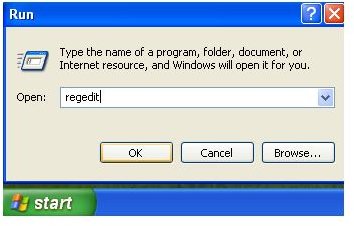
Click Start > Run and then type regedit.

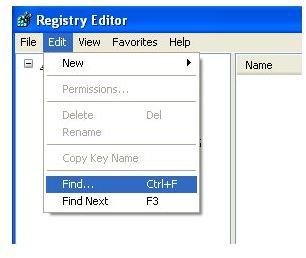
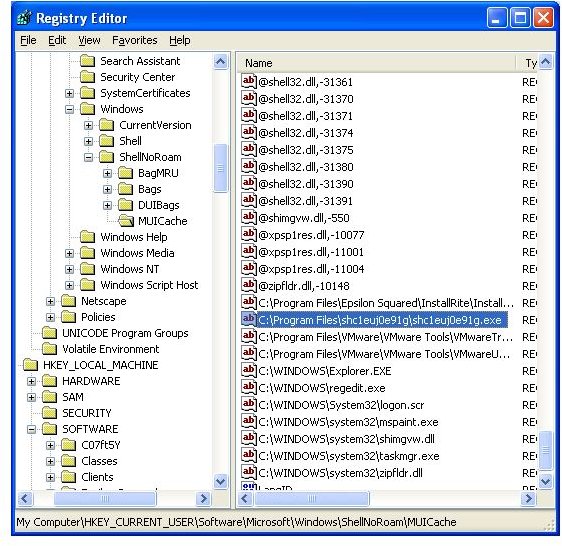
Go to Edit > Find and then type the folder name.
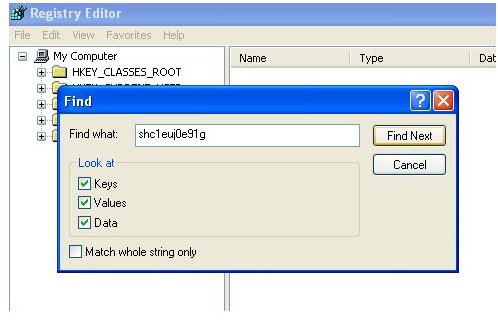
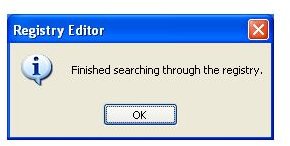
Pressing F3 or the “Find Next” button goes through the registry looking for the %GENERATED_NAME%. For each entry found, you can press Delete to remove the remnants of the malware.
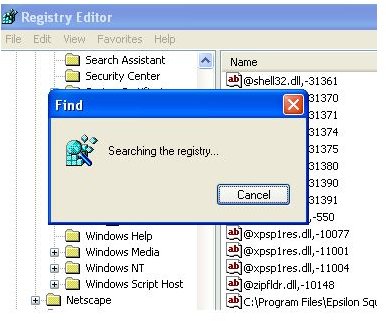
Specific Registry Keys
The previous routine might take too long for some users. For those who know how to work their way around the registry, you may go directly to the following listed keys and delete them.
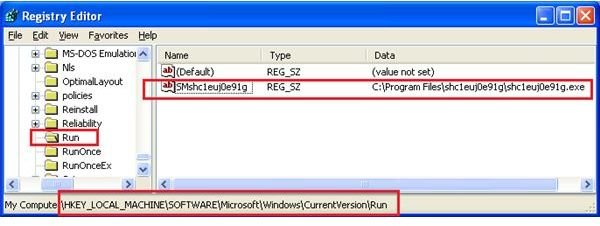
This executes Malware Protector 2008 automatically every time the machine starts.
HKEY_LOCAL_MACHINE\SOFTWARE\Microsoft\Windows\CurrentVersion\Run
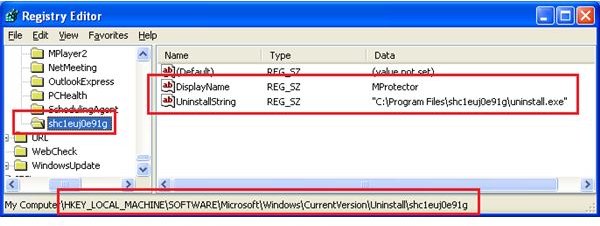
Deleting this will remove the MProtector entry from the Control Panel.
HKEY_LOCAL_MACHINE\SOFTWARE\Microsoft\Windows\CurrentVersion\Uninstall\%GENERATED_NAME%
example:
HKEY_LOCAL_MACHINE\SOFTWARE\Microsoft\Windows\CurrentVersion\Uninstall\shc55dj0erc1
This is where the spyware saves its data which it retrieves every time the machine starts.
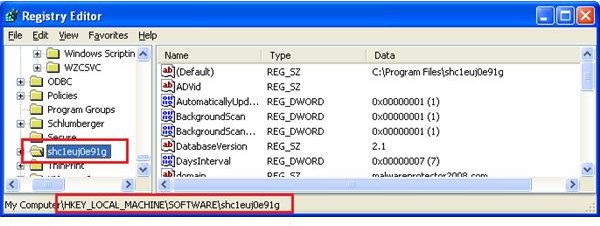
HKEY_LOCAL_MACHINE\SOFTWARE\%GENERATED_NAME%
example:
HKEY_LOCAL_MACHINE\SOFTWARE\shc55dj0erc1
Conclusion
So that’s it. You have removed Malware Protector 2008 completely.
This fraudalent antispyware program, as we have learned, is actually spyware. Removing this spyware is not that complicated after all. As you can see, it didn’t take any complicated third party tools to actually remove the malware.
The knowledge gained here can be applied to other programs that were incompletely uninstalled. We were able to go through the process where we can remove an application from the Control Panel and remove the autostart routine by going through the registry.
Caution should be exercised when doing registry modifications and don’t forget to back it up before doing the system repairs.
Disclaimer
The author shoud not be held liable for any damages made by registry modification when following this article.
Photos courtesy of the author and Fotosearch.com for its royalty free photo (Interstate 90 sign)


