This article will explain what it means to disable a firewall on a Linksys Router and how to go about the methods to accomplish this task.
The Router’s Firewall and What It Does
The firewall on a router is not the same type of firewall that you have on your computer. It is based upon a protocol known as “NAT” or Network Address Translation. Basically it allows multiple devices on the “LAN” side of the router to share one IP Address on the “WAN” side. And it cannot be disabled, at least not in the sense that you can turn your firewall off on a computer.
Methods of bypassing the firewall.
There are basically two methods of bypassing the firewall on the Linksys Router. Both will allow a single computer to have complete access from the Internet. And because both of these methods expose your computer’s ports to the Internet, it’s highly recommended that you have a software-based firewall installed first. The two methods are Port Forwarding and DMZ.
Port Forwarding
Port Forwarding allows you to select just the ports that you need opened, and forward traffic sent through those ports to the right computer. Typically this is used when you run a web server or a game (which only requires a few ports open).
The steps to use Port Forwarding are (including screenshots):
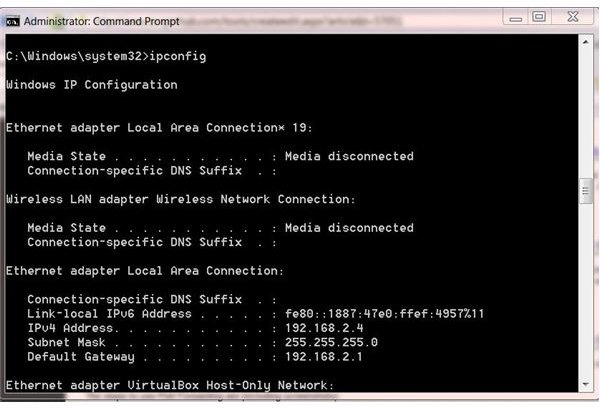
1. If you do not know your router’s IP address, you can find out by opening a Command Prompt on your computer and typing in ipconfig. This will show you your computers’ IP address (most likely 192.168.1.x or 192.168.2.x). Your router will be the IP address that is listed under “Default Gateway” (most likely 192.168.1.1 or 192.168.2.1).
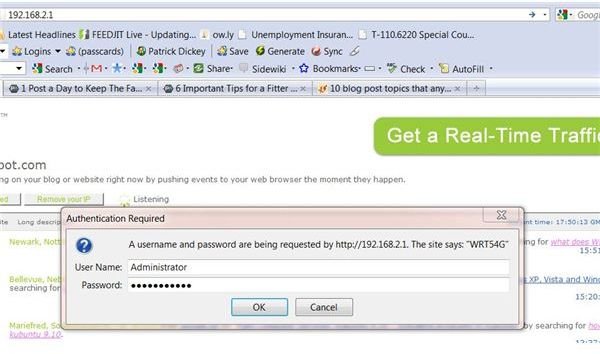
2. Open a web browser and type in the IP address of your router. You will be presented with a Login screen. If you have not changed your Administrator password, then the username will be blank, and the password will be admin. It is highly recommended that you change this password. When you’ve logged in, you will be presented with the Basic Setup screen.
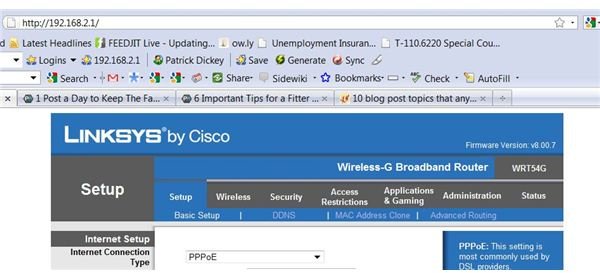
3. Click on the Application and Gaming Tab. This should bring up the Port Forwarding sub-tab.
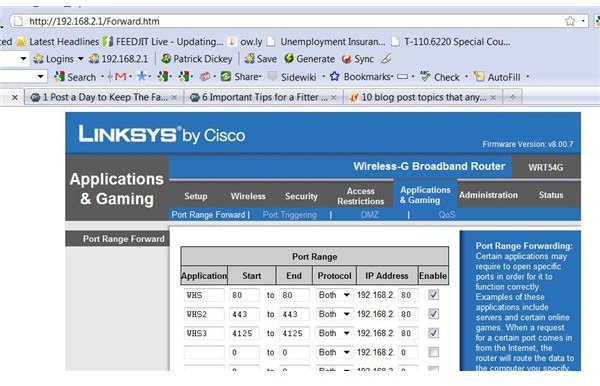
4. Enter a name in the Application field to represent why you are forwarding the port. In the port fields, you can enter the same number in both (for forwarding one port) or the starting and ending numbers (for forwarding a range of ports). In the Protocol Field, you can choose either TCP, UDP, or Both (depending on the requirements of your application). In the IP address, you will enter the IP address of the computer which should receive the traffic. Finally, click the box next to the IP address to enable the forwarding. You will have to click Save Changes at the bottom of the screen.
DMZ Hosting
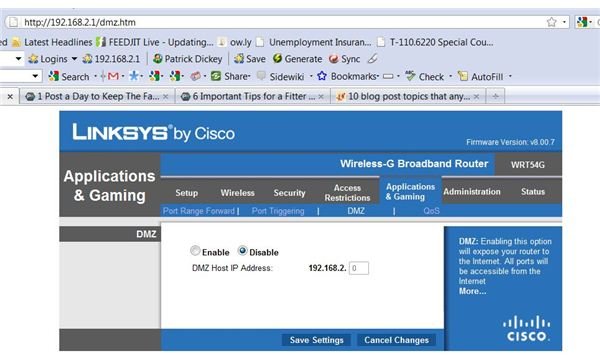
DMZ is allowing a single computer to have all available ports forwarded to it. If you do not have port forwarding configured, this will be all ports. If you do have Port Forwarding configured, it will be all ports not listed there. You must set a static IP address on the computer which will be DMZ’ed. Then click on Applications and Gaming, and then the DMZ sub-tab. Click Enable, and type the IP address in the field. Then click Save Changes.
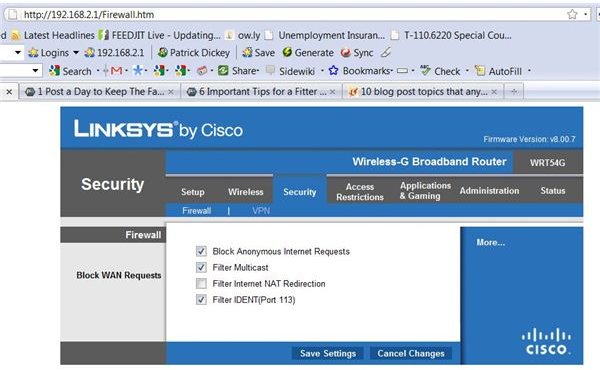
Firewall sub-tab (Security Tab)
There is a limited set of options under the Firewall sub-tab. These are “Block WAN Request” (which is what prevents other people"pinging" your network), Filter Multicast (which blocks occasional traffic sent by your ISP), Filter Internet NAT Redirection (which uses Port Forwarding on your local network as well as from the WAN side), and Filter IDENT (Port 113, which is the main port used by applications like IRC or mIRC– amongst others). Unchecking these is not the same as disabling the firewall.
Final Thoughts
My screenshots were based on a Linksys WRT-54G router using Firefox to access it. The screens should be similar enough for all of the Linksys line of routers, that you will be able to find your way around. More information about your specific router can be found at https://www.linksys.com . The “firewall” in the router provides you with some degree of security. If there are vulnerabilities that affect certain ports on your computer (such as 443 or 139, which are commonly attacked on Windows computers), the router prevents them from getting to your computer. If you do not need the ports open, it’s highly recommended that you don’t touch the firewall. If you do need a port open, then use Port Forwarding to ensure that only the absolute necessary ports are exposed.


