Windows Firewall can be configured to perform outbound filtering as well as inbound filtering. This article explains how.
What is Windows Firewall?
According to Microsoft, “A firewall is software or hardware that checks information coming from the Internet or a network, and then either blocks it or allows it to pass through to your computer, depending on your firewall settings.” In other words, it’s something which stops unwanted incoming connections and which may or may not stop unwanted outgoing connections (both are extremely basic explanations, but will nonetheless suffice for the purposes of this article).
Windows Vista includes a firewall (predictably called Windows Firewall) but it is often criticized because it does not filter outbound traffic. Whether or not outbound filtering really does much to improve security is subject to some debate - see, for example, the section entitled How Much Security Can Outbound Filtering Provide? in this Microsoft Technet article ). But putting such debates aside, the fact is that Windows Firewall does in fact support outbound filtering.
Click into the Windows Firewall settings via the Control Panel, and you’ll be presented with an interface that provides only an extremely limited number of configuration options. There is, however, another interface that is more deeply hidden.
How to enable outbound filtering in Windows Firewall
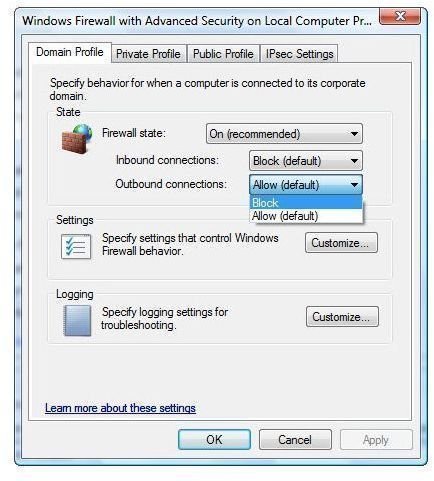
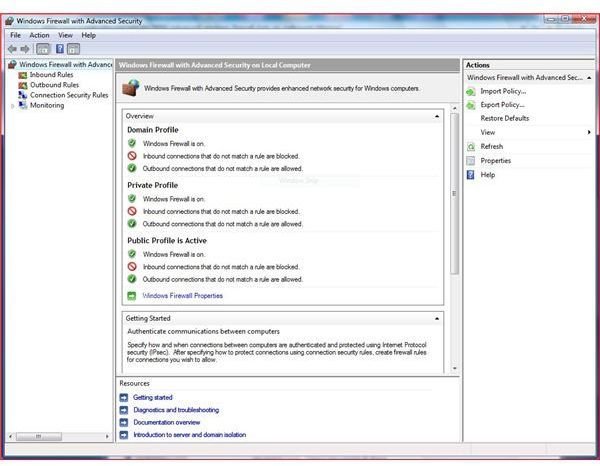
Click Start, type wf.msc into the Search box and hit Enter and you’ll be presented with a screen that you have probably never seen before: Windows Firewall with Advanced Security. Click Action > Properties and you’ll be brought to a screen from which you can enable outbound filtering. Easy, huh?
But wait! You probably don’t want to enable outbound filtering just yet. Although Windows Firewall provides an abundance of options (see Microsoft’s Windows Firewall with Advanced Security Getting Started Guide for more information), the process of configuring it is certainly not for the technically challenged. While most third-party firewalls will alert you each time an outgoing connection attempt is blocked and give you an option to either unblock or to keep on blocking, Windows Firewall does not. Instead, you need to create your own rules from scratch - and that’s a task which will be well beyond the capabilities of many users.
There is, however, a solution. Sphinx Software’s Vista Firewall Control is available in Free and Plus versions and adds functionality, including notifications of outbound connection attempts, that makes it much easier to control Windows Firewall. In fact, with Vista Firewall Control installed, Windows Firewall will behave in much the same way as a third-party firewall such as ZoneAlarm.
Should you wish to enable outbound filtering in Windows Firewall while still keeping things relatively easy, Vista Firewall Control may well be your best option.
Windows Firewall configuration options